Article updated ! You can now download the example as a Visual Studio 2008 solution.
Article updated ! For a more complete solution, please take a look at this post
Introduction
Before going into fun topics, let me give some information about myself. I started to play with WPF about 1 year ago. Since the beginning, I fell in love with this new technology and the more I work with it, the more I like it. Today, I consider I’m still a newbie in the WPF world and this is my first article, so please forgive me if I do some mistakes. Please also forgive my English as this is not my natural language (I’m French).
In this article, I describe a technique that I’ve been using in order to use navigation pages in a WPF application. In the next section, I’m going to give more details about what I mean by “navigation pages”.
Requirements
Many applications are made up several screens. Here when I use the word “screen” I mean a view in the application. For example, you might have a view as a welcome screen and several other views.
In this case, you would like the current screen to display the current view, but you also need a technique to switch from one view to another. If you also want to improve the user experience, you might want to have some kind of animation when the user switches from one view to another.
A possible animation is to use a “slide effect”:
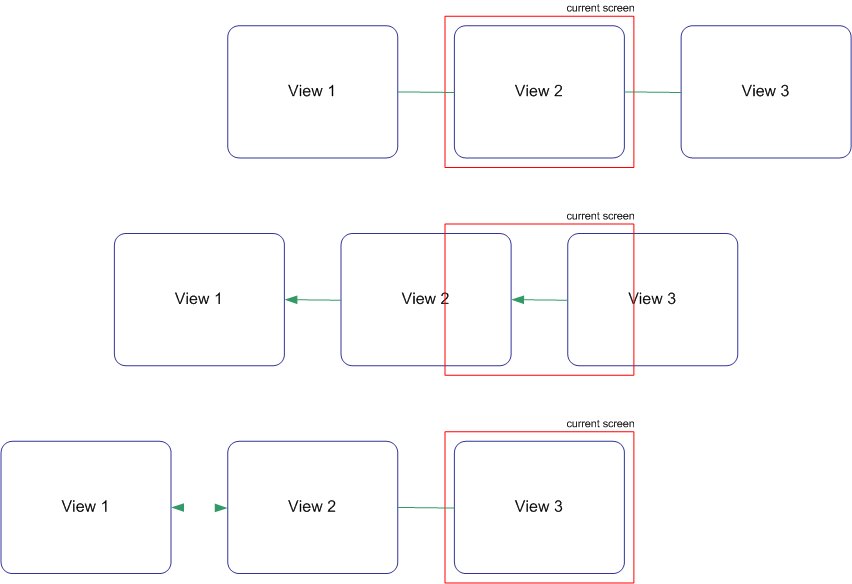
I’m going to describe 2 techniques that could be used to achieve this behaviour. I will also show you why the last one is better than the first one.
A possible implementation
By looking at the previous diagram, we can imagine a first implementation. Why not playing with the Margin property to slide out the view that we want to hide? Let’s try to implement this first solution…
I use a grid with a single cell to overlay the views. Please also note that in this very simple example, I used a TextBlock inside each view. We can of course imagine that we would put a custom UserControl containing the real view (for example the first one with a welcome image, the next one a basic form…).
Here is the main window:
View 3
View 2
View 1
In the code behind, I update the Margin property of the Border elements regarding the one I’ve to display in the UI.
Code behind:
using System.Windows;
using System.Windows.Controls;

namespace FirstTry
{
    ///
    /// Interaction logic for Window1.xaml
    ///
    public partial class Window1 : Window
    {
        private int currentView = 1;

        public Window1()
        {
            InitializeComponent();
        }

        private void slide(Border oldVisual, Border newVisual)
        {
            oldVisual.Margin = new Thickness(300, 0, 0, 0);
            newVisual.Margin = new Thickness(0);
        }

        private void previousButton_Click(object sender, RoutedEventArgs e)
        {
            switch (currentView)
            {
                case 2:
                    slide(view2, view1);
                    currentView--;
                    break;
                case 3:
                    slide(view3, view2);
                    currentView--;
                    break;
            }
        }

        private void nextButton_Click(object sender, RoutedEventArgs e)
        {
            switch (currentView)
            {
                case 1:
                    slide(view1, view2);
                    currentView++;
                    break;
                case 2:
                    slide(view2, view3);
                    currentView++;
                    break;
            }
        }
    }
}
In my opinion, the problems with this first implementation are the following:
- no flexibility at all
- memory consumption : all pages are loaded into memory even those which are not visible
I didn’t add animation to this first example but I let you imagine that we could achieve the “slide effect” by animating the margin property (or using a TranslateTransform).
Using an ItemsControl and an ImageBrush
A problem with the previous implementation is that all views are loaded into memory, even those that never got displayed.
How could we improve that? The solution I present here uses an ItemsControl as view’s host control. I also use a ListBox to display available views through a binding to XML data (in order to improve flexibility).
The XML data:
Here, I basically describe the available views in my application. Using this XML formatting, it becomes very straightforward to add or remove a view. I’m going to use this XMLDataProvider as a source data in order to bind my other controls to it.
The ListBox:
Here the ListBox is used to display the available views of in the application. It just setup is ItemsSource property in order to bind it to the XML data. I also specify an ItemsPanel in order to change the default vertical StackPanel to a horizontal one.
The ItemsControl:
The ItemsControl is used to contain the current view. I setup an ItemTemplate to specify that each item in the control should be rendered using a frame. This frame has its Source property bound to the XML source data. I also add a TranslateTransform in the RenderTransform collection in order to be able to animate this ItemsControl.
The problem with this news solution is that we have only one item (the ItemsControl), that seems to be hard to build a transition only with that… The solution I found uses an ImageBrush.
An ImageBrush allows painting a control with an image. By using an ImageBrush we can paint a Rectangle with the content of the current view. Then, when we change the current view, we can animate both Rectangle and the new current view:
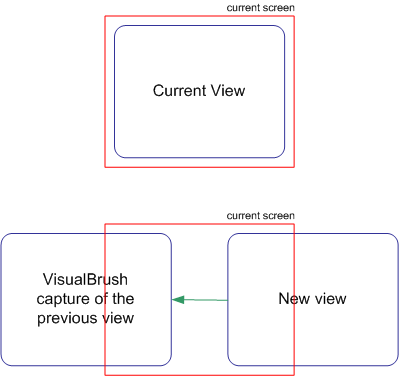
In order to create this ImageBrush, I use a function that converts any FrameworkElement into a bitmap:
public RenderTargetBitmap RenderBitmap(FrameworkElement element)
{
    double topLeft = 0;
    double topRight = 0;
    int width = (int)element.ActualWidth;
    int height = (int)element.ActualHeight;
    double dpiX = 96; // this is the magic number
    double dpiY = 96; // this is the magic number

    PixelFormat pixelFormat = PixelFormats.Default;
    VisualBrush elementBrush = new VisualBrush(element);
    DrawingVisual visual = new DrawingVisual();
    DrawingContext dc = visual.RenderOpen();

    dc.DrawRectangle(elementBrush, null, new Rect(topLeft, topRight, width, height));
    dc.Close();

    RenderTargetBitmap bitmap = new RenderTargetBitmap(width, height, dpiX, dpiY, pixelFormat);

    bitmap.Render(visual);
    return bitmap;
}
By using this procedure, it becomes possible to paint the content of a rectangle with a ‘snapshot’ of the current view (just before it changes). I do this in the SelectionChanged event handler:
private void viewList_SelectionChanged(object sender, SelectionChangedEventArgs e)
{
    XmlElement root = (XmlElement)viewer.DataContext;
    XmlNodeList xnl = root.SelectNodes("Page");

    if (viewer.ActualHeight > 0 && viewer.ActualWidth > 0)
    {
        RenderTargetBitmap rtb = RenderBitmap(viewer);
        rectanglevisual.Fill = new ImageBrush(BitmapFrame.Create(rtb));
    }

    viewer.ItemsSource = xnl;

    if (oldSelectedIndex < viewList.SelectedIndex)
    {
   viewer.BeginStoryboard((Storyboard)this.Resources["slideLeftToRight"]);
    }
    else
    {
   viewer.BeginStoryboard((Storyboard)this.Resources["slideRightToLeft"]);
    }

    oldSelectedIndex = viewList.SelectedIndex;
}
I also start the animations in this EventHandler. One animation is responsible for sliding out the bordervisual and sliding in the new viewer.
In order to make the animation works properly, I need to have both items (the current view and the snapshot of the previous view) in the same control, that’s why I’m using a Grid:
Conclusion
In this article, I showed a technique that can be used to build navigation based application with transition effect. Of course there are a lot of things that could be improved, I didn’t want to write something complete but I wanted to demonstrate the general idea.
This is my very first article about WPF, so please don’t be too rude with me! I hope you like it. Please don’t hesitate to give your feedback to improve this article.
Hi jeremy
This 1st article is very interesting. Thank you for sharing!
Jeremy,
This look great, but could you post the entire code as block or put a link on a downloadable file. As I am new to WPF I am not too sure yet where to paste all the pieces to make a finish compilable exe.
Thanks
Dan,
I updated the article with a link to the Visual Studio 2008 solution. Sorry for the long delay… I’ll try to post before the end of the week another article on this “slide animation” in order to use it as a custom control. Stay tuned !
Jeremy,
You have started with a really important and significant topic in WPF. WPF does not have any MDI-like support, unlike Winforms. Managing “views” can become very challenging, especially if you have several “modeless pages” open within a parent window. Your solutions are very interesting, especially the second one as you point.
On a different note, have you checked out the Dot Net Rocks video where Billy Hollis demonstrates an application he and others wrote in WPF? It talks about several “views” open at the same time, and, the video does show these views sliding in from the left or right, something you have discussed. If you are interested, watch the first 25 minutes of the video – http://www.dnrtv.com/default.aspx?showNum=115 [Billy Hollis on Getting Smart with WPF].
Thanks for sharing your expertise with us! You are on my blog roll. Looking forward to some more goodies 🙂
Cheers,
indyfromoz.
Hi,
both of the zip files from your articels i cant open?
Could you please check.
I just fixed the link, thank you for reporting and sorry for the error.
A great article, thanks for sharing your efforts. I’ve got the framework to handle browsing of an image library and these ideas have been great in pointing me in the right direction for the visual part. Thanks.
Thank you Matt.
I’m preparing a new article about using transitions using MVVM methodology. It should be ready soon, stay tuned 🙂
In the meantime you can also have a look at my other article about transitions (Introducing ContentSlider control) that uses the concepts described here to build a transition control.
Thank you so much for the zip file
Jeremy Hi,
This is exactly what I was looking for, could you post the entire code as block or put a link on a downloadable file. Like Dan, I’m new to WPF I am not too sure yet where to paste all the pieces to make a finish compilable exe.
Thanks
Uzi, please check this article http://www.japf.fr/?p=182 where the entire source code can be downloaded 🙂
Hi, how do you access each of the pages from the mainwindow?
Thanks!
Eugene,
I think you can simply use the ItemsSource property of the ListBox.
Hi,
Thanks for the article, I finally have time to check out WPF.
A strange thing happens when you remove the background color property form the views.
It is like the image being rendered for the transition is kind of re-scaled. put the BG color property back and all works good.
Any explanation? or workaround? thanks
Hi Jeremy,
Thanks for the awesome article, this really helped me understand the basics of slide transitions. I am however very new to programming and WPF and would really appreciate some help. I’m looking to use the base of this article to slid user controls inside a wizard that I’m creating. In your code you bind a control list to the selecteditem of the list view. How would I go about in achieving the same result but with a “Next” and “Back” button instead?
Sorry if this question seems silly, but as I’ve mentioned I’m fairly new to this and am a bit stumped.
Francois,
I think you could use the ICollectionView interface. You can get it using:
var view = CollectionViewSource.GetDefaultView(yourCollection);
Then you can use the MoveCurrentToNext/MoveCurrentToPrevious method to change the currently selected item.
Does it makes sense ?
I love it, but if it’s not resizable it’s worthless to me.
🙁
Neat stuff though.
Hi Jeremy,
Your blog is impressive! I really like very much. But I have one question:
I am trying to replace the View Title with an image icon, how should I it? Sorry i am new in WPF
Thanks in advance!
Jeffrey,
Glad you like the blog 🙂
About your question, I think you should tweak the DataTemplate of the ItemsControl. In the example, it is composed of only a frame. You could try replace that with a Grid containing 2 rows: one for your image, one for the frame.
Good luck with WPF 🙂
Hi Jeremy,
Actually this is what i mean:
I have 3 views:
Then i was trying to put in the image:
…
…
and I tried this too:
…
…
I do this to replace the Title by using an image, but the image still failed to load, am I doing anything wrong?
Jeffrey,
I’m not sure you can post comment in the blog post. I’m contacting you via email 🙂