Windows Phone performance analysis & optimization during TechDays

.Net, Silverlight, Windows Phone No Comments »

In about 2 weeks now, I’ll have the chance to be part of the French TechDays in Paris as a speaker. This year, I’ll own a session called “Windows Phone performance analysis & optimisation” with my colleague Charlotte.

The agenda looks like the following:

  • why performance analysis ?
  • device vs emulator
  • leveraging WP7 threads
  • using the VS profiler for WP7
  • tips and tricks

During the session we will use a “real” app we’re working on for a few months now (I’ll share more details after the session). We have some cool tips that haven’t been shared anywhere before, so if performance is a topic of interest for you, stat tuned !

Click on the following image for a link to the TechDays website:

I’m planning to share the most of the content of this session on my blog soon after the event.

Don’t hesitate to stop by and say hi…

WPF databinding trick (part 2)

.Net, WPF 4 Comments »

Ok, let’s see another strange behavior that you might have already seen with the WPF databinding engine.

INotifyPropertyChanged

When we teach WPF to new developers, at some point we need to introduce the INotifyPropertyChanged interface. Usually, the kind of speech which is given looks like this one:

When you’re doing a binding to a standard CLR property, you must add some kind of notification mechanisms in order to tell the binding when the value changes. In WPF, this is standardized by using the common INotifyPropertyChanged interface. This interface contains a single event which must be raised with the name of the property which has changed. Whenever this event is fired, the databinding engine is able to see the change and update the corresponding binding.

Demo application

Nothing really exciting here, right. Now, you start to do a demo with the following code:

?View Code CSHARP
1
2
3
4
5
6
7
8
9
10
11
12
13
14
15
16
17
18
19
20
public partial class MainWindow : Window
{
    public MainWindow()
    {
        InitializeComponent();
 
        this.DataContext = new DataObject() { Data = "test " };
    }
}
 
public class DataObject
{
    private string data;
 
    public string Data
    {
        get { return this.data; }
        set { this.data = value; }
    }
}

Here the DataObject class I use as DataContext does not implement INotifyPropertyChanged.Then I added some XAML in the MainWindow:

1
2
3
4
5
6
7
8
9
10
<Window x:Class="TestDataContext.MainWindow"
        xmlns="http://schemas.microsoft.com/winfx/2006/xaml/presentation"
        xmlns:x="http://schemas.microsoft.com/winfx/2006/xaml"
        Title="MainWindow" Height="350" Width="525">
    <StackPanel>
        <TextBox Text="{Binding Data}"/>
        <TextBox Text="{Binding Data}"/>
        <TextBox Text="{Binding Data}"/>
    </StackPanel>
</Window>

And the goal is to display 3 TextBoxes all databound to the same property. Now, we run the application, types some text in one of the TextBox and change the focus in order to update the binding. Most of us would expect to have the 2 other Textboxes with the old value: when the focus has been lost the new string value has been pushed into the Data property, but the other Textboxes have no way to detect this change.

Actually if you run this application, you’ll see all the Textboxes being updated That’s strange…

Why does it works ?

Ok, let’s get into the dirty details. Here are what happens during initialization:

  • XAML is parsed
  • for the 3 TextBox
    • the Binding is initialized
    • a BindingExpression is created. The BindingExpression is a IWeakEventListener.
    • its AttachOverride method is called
    • if the UpdateOnLostFocus flag is set (which is the case because the default value of UpdateSourceTrigger is LostFocus), the static LostFocusEventManager type is used and the AddListener is called
      • during the initialization of the binding, the PropertyPathWorker class is added and at some point the ReplaceItem method gets called
      • then the following code gets execute
    ?View Code CSHARP
    1
    2
    3
    4
    5
    6
    7
    8
    9
    
    if(source is INotifyPropertyChanged)
    {
    	PropertyChangedEventManager.AddListener();
    }
    else
    {
    	PropertyDescriptor descriptor = GetDescriptor(source, path);
    	ValueChangedEventManager.AddListener();
    }

    Which means:

    • if the source implements INotifyPropertyChanged, use that to track the changes to the property
    • otherwise, use the ValueChanged event of the cached PropertyDescriptor instance to track the changes

    What happens when one of the TextBox lost focus:

    • the focus changes to another control, the previously focused TextBox gets is LostFocus event raised
    • the LostFocusEventManager gets the notification
    • the notification is transferred to the BindingExpression (which is a IWeakEventListener) by calling the IWeakEventListener.ReceiveWeakEvent method
    • several method calls… ending in the PropertyPathWorker class where the PropertyDescriptor.SetValue methods is called (where the PropertyDescriptor is the one which has been cached during initialization)
    • this method raises the ValueChanged event at the PropertyDescriptor level
    • which is catched by the ValueChangedEventManager
    • and the associated dependency property (Text) is updated
    • and voila !

    So there are no miracle behind the demo application I was talking about, just the fact the binding engine is smart enough to cache the PropertyDescriptor used for setting value to CLR property and using the ValueChanged event to get notifications if the source does not implement INotifyPropertyChanged.

    Happy coding !

    Visual Studio 2010 and HW acceleration on Windows XP…

    .Net, Visual Stutio, WPF 1 Comment »

    Last week during the MVP summit in Seattle we’d the confirmation that the SP1 of Visual Studio was almost ready and today we’ve more details: “Visual Studio 2010 Service Pack 1 will be available March 9th for download for MSDN Subscribers, and will be generally available for download on March 10th, 2011” [from G.Duthie's blog on MSDN].

    “While the Service Pack is mostly focused on improvements in response to feedback on Visual Studio 2010, one new feature I want to highlight is the integration of IIS Express into Visual Studio 2010. IIS Express, which was introduced with the new Microsoft WebMatrix editor, is a lightweight, yet full-featured version of IIS that can run without administrative permissions.”

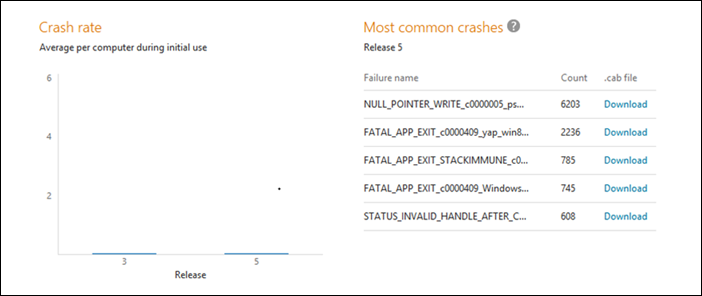
    Another important thing to notice about the SP1, is that it will disable the hardware acceleration of the IDE on Windows XP. Yes, you read correctly, despite WPF’s support for accelerated graphics, this feature will be disabled on XP (for VS only).


    Background

    When the version 3.5 of the .Net framework was released, Microsoft added a new software rendering engine in case the hardware was not able to do the job. This feature could be enabled at the Window level using the following code:

    ?View Code CSHARP
    1
    2
    3
    
    HwndSource hwndSource = PresentationSource.FromVisual(this) as HwndSource;
    HwndTarget hwndTarget = hwndSource.CompositionTarget;
    hwndTarget.RenderMode = RenderMode.SoftwareOnly;

    With WPF4, this is now possible at the Process level using a single line of code:

    ?View Code CHSARP
    1
    
    RenderOptions.ProcessRenderMode = RenderMode.SoftwareOnly

    Another trick you can use in your application is to determine whether your application is currently using hardware acceleration. You can do that by looking at the RenderCapability.Tier enumeration.


    In your applications running on XP…

    Now the immediate question that might come in your mind is: “If VS2010 is disabling HW acceleration on XP, should I do the same on my WPF application which is shipped on XP too ?”

    I guess the answer is “maybe” and it actually depends on various factors:

    • does your user reported crash that seems correlated to video drivers issue ?
    • does your application extensively uses complex graphical effects (for example this is clearly not the case in VS2010) ?
    • what kind of hardware your users are using. Is this recent hardware (which are being downgraded to XP) or is this really old hardware ?

    Maybe a good option is to let the user change this settings (while having a default value). In VS2010, you’ll be able to turn on HW acceleration back by using the settings dialog:


    Anyway, I thought at the beginning it was a very weird decision. But after all; if the majority of the crashes they see in VS on Windows XP is linked to bad drivers, it makes sense.

    MSDN Ultimate Subscription Giveaway

    .Net, Events, Silverlight, Visual Stutio, Windows Phone 6 Comments »
    IMG_0833 As a Microsoft MVP for this year, I got 3 MSDN Ultimate Subscriptions to share with friends and co-workers. I already gave 2 of them to co-workers and I’d like to offer the last one to one of my reader !

    The “official” pricing for the MSDN Ultimate Subscription is $11,899. The subscription is valid one year and is not restricted to US only. The MSDN Ultimate has the following items (among many others – you can see the detailed list here):

    • Windows Azure Platform
    • Visual Studio 2010 Ultimate
    • Visual Studio TFS 2010
    • Expression Studio Ultimate
    • Windows 7, Windows Server 2008 R2 and SQL Server 2008
    • Microsoft Office Professional Plus 2010, Project Professional 2010, Visio Premium 2010

    In order to take your chance to get this subscription:

    • let a comment on this blog post
    • explain what you would like to do with the subscription
    • share you blog address, community website or whatever to show how you’re involved in the .Net community

    Contest is now over. The winner of the MSDN Ultimate License is Mike Strobel. Thank you all for letting a comment, I which I had more subscriptions to giveaway…

    Attributes-based validation in a WPF MVVM application

    .Net, CodeProject, WPF No Comments »

    Today, I’m proud to share with you my very first article available on CodeProject. This article presents a technique which can be used in order to add validation in a WPF MVVM application based on attribute. Basically, it means that you can write validation logic like that (notice the attribute associated to this property):

    ?View Code CSHARP
    1
    2
    3
    4
    5
    6
    7
    8
    9
    10
    11
    12
    13
    
    [Required(ErrorMessage = "Field 'FirstName' is required.")]
    public string FirstName
    {
        get
        {
            return this.firstName;
        }
        set
        {
            this.firstName = value;
            this.OnPropertyChanged("FirstName");
        }
    }

    Of course the article comes with a nice demo application:

    You can read the full article here: Attributes-based validation in a WPF MVVM application


    Where does the default TwoWay binding comes from ?

    .Net, WPF No Comments »

    I got a comment on my post about a very simple MVVM application about the fact that removing the TwoWay mode on a binding did not change the behavior of the application. This is a quick occasion for me to share a quick explanation about this.

    Actually and as you already know if you can write XAML like Text={Binding …} it is only because Text is a Dependency Property. Also, dependency properties are defined in a static way (so that if you have 50 textboxes you don’t have to instantiate 50 times the Text property). The default behavior for the mode of the binding (TwoWay, OneWay, etc.) can be found in the static declaration of the dependency property. For example, in the case of the Text property of the TextBox we have:

    ?View Code CSHARP
    1
    2
    3
    4
    5
    6
    7
    8
    9
    10
    11
    12
    
    TextProperty = DependencyProperty.Register(
    	"Text", 
    	typeof(string), 
    	typeof(TextBox), 
    	new FrameworkPropertyMetadata(
    		string.Empty, 
    		FrameworkPropertyMetadataOptions.Journal 
    		| FrameworkPropertyMetadataOptions.BindsTwoWayByDefault,
    	new PropertyChangedCallback(TextBox.OnTextPropertyChanged), 
    	new CoerceValueCallback(TextBox.CoerceText),
    	true, 
    	UpdateSourceTrigger.LostFocus));

    The interesting part here if of course the BindsTwoWayByDefault option. Note that this is the only default option available (we can’t have a OneWayToSource binding by default).

    [WP7] Windows Phone 7 challenge for french readers !

    .Net, Events, Silverlight, Windows Phone No Comments »

    A couple of months ago, the french programming website www.developpez.com organized an event to discover Windows Azure programming (I wrote a blog post about it here).

    A similar event has just been launched for Windows Phone 7 development at challenge-windowsphone7.developpez.com

    (tr: “Let’s go !” “World cup ?” “No… Windows Phone 7 challenge by developpez.com !”)

    The challenge is made of 6 steps:

    1. Tools : download and install the required tools
    2. Quizz : first basic quizz
    3. Silverlight development
    4. Silverlight and push notifications
    5. XNA
    6. Quizz : advanced quizz

    Each winner will have the following gifts:

    This kind of challenge is really helpful to discover a new technology the funny way ! I hope I’ll get my “I Love Windows Phone” tee-shirt to wear it this summer :-)

    Leveraging expression trees to unit test ViewModel classes

    .Net, Silverlight, Tools, WPF 5 Comments »

    Introduction: In this article, I’m describing a technique which leverage the expression trees of C# 3.0 in order to facilitate the unit testing of ViewModel’s properties. My final goal is to be able to unit test a ViewModel property in 1 line.

    Without any doubt MVVM is now the most used framework to leverage WPF and Silverlight functionalities in the best way ! During the last Mix, 3 sessions were dedicated to this methodology (you can watch the videos online here).

    As you already know one of the key advantage of the MVVM methodology is to improve the testability of the overall application by reducing the amount of code in the code-behind and producing ViewModel classes which are testable. We use to say that ViewModel classes are testable because:

    • they are not coupled to UI concepts (controls, focus, keyboard input…)
    • they can wrap model objects using interfaces (for instance a PersonViewModel wraps a IPerson object)
    • they are not subclassing a UI control (such as Button or Window)

    Today I’d like to share a technique I’m using to facilitate the unit tests of some properties of my ViewModel classes.

    Let’s use a very simple ViewModel class as example:

    ?View Code CSHARP
    1
    2
    3
    4
    5
    6
    7
    8
    9
    10
    11
    12
    13
    14
    15
    16
    17
    18
    19
    20
    21
    22
    23
    24
    25
    26
    27
    28
    29
    30
    31
    32
    33
    
    public class PersonViewModel : ViewModelBase
    {
      private IPerson person;
      private bool isSelected;
     
      public string Name 
      {
         get
         {
            return this.person.Name;
         }
         set
         {
            this.person.Name = value;
            this.OnPropertyChanged("Name");
         }
      }
     
      public bool IsSelected
      {
        get
        {
          return this.isSelected;
        }
        set
        {
          this.isSelected = value;
          this.OnPropertyChanged("IsSelected");
        }
      }
     
      // rest of the code omitted for simplicity
    }

    The Name property, as usually with the MVVM pattern gets its value from the wrapped model object. The easiest way to unit test this property is to use a mocking library. Here is a example using MOQ (my favourite mocking library):

    ?View Code CSHARP
    1
    2
    3
    4
    5
    6
    7
    8
    9
    10
    11
    12
    
    [Test]
    public void TestName()
    {
      var mockPerson = new Mock<IPerson>();
     
      var vm = new PersonViewModel(mockPerson.Object);
     
      vm.Name = "Jeremy";
     
      // verify that the Name property of the IPerson interface has been set
      mockPerson.VerifySet(p => p.Name = "Jeremy");
    }

    The Selected property is different because it doesn’t wrap a model property. It’s an information that is added to the ViewModel layer in order to control a UI-related property (for example the IsSelected property of a ListBoxItem). This technique is heavily used to have ViewModel classes interact with the WPF or Silverlight TreeView or ListBox control (you can check out this excellent article of Josh Smith for more detail).

    In order to unit test this property, we must:
    1/ ensure the PropertyChanged event of the INotifyPropertyChanged is raised properly
    2/ ensure we can write a value and read back the correct value

    Here is a sample code which does this unit test:

    ?View Code CSHARP
    1
    2
    3
    4
    5
    6
    7
    8
    9
    10
    11
    12
    
    [Test]
    public void TestName()
    {
    var vm = new  PersonViewModel();
    bool propertyChanged = false;
     
    vm.PropertyChanged += (s, e) => propertyChanged = e.PropertyName ==  "Name";
    vm.Name = "newName";
     
    Assert.IsTrue(propertyChanged);
    Assert.AreEqual("newName", vm.Name);
    }

    It quickly become cumbersome to copy/paste this unit test for all the ViewModel properties we have. That’s the reason I started thinking about another way to do it…

    Here is the feature I’m proposing:

    ?View Code CSHARP
    1
    2
    3
    4
    5
    6
    
    [Test]
    public void TestName()
    {
    var vm = new PersonViewModel();
    TestHelper.TestProperty(vm, v => v.IsSelected);
    }

    In this sample, I’m telling I want to test the IsSelected property of the PersonViewModel type. The advantages are:
    1/ less code involved : 1 line to test 1 property
    2/ intellisense support in order to prevent typing error and no more “magic” string to give the name of the property
    3/ refactoring the name of the property will refactor this sample code too
    4/ automatic generation of default test values behind the scene

    How does it works ?

    • TestProperty treats the second parameter as an Expression<Func> and not as a Func directly
    • Using expression tree (the “v => v.IsSelected” part),  I’m able to retrieve the name of the property and its type
    • Using reflection, I’m able to get and set the value
    • Depending on the type of the property (string, bool, int, double), I have default values write and read back (with a test to ensure that the PropertyChanged event has been raised properly).

    Here is the code of the TestPropertyMethod:

    ?View Code CSHARP
    1
    2
    3
    4
    5
    6
    7
    8
    9
    10
    11
    12
    13
    14
    15
    16
    17
    18
    19
    20
    21
    22
    23
    24
    25
    26
    27
    28
    29
    
    public static void TestProperty<T, U>(T viewmodel, Expression<Func<T, U>> expression)
        where T : INotifyPropertyChanged
    {
        if(expression.Body is MemberExpression)
        {
            MemberExpression memberExpression = (MemberExpression) expression.Body;
     
            if (expression.Body.Type == typeof(bool))
            {
                TestViewModelProperty(viewmodel, memberExpression.Member.Name, true, false);
            }
            else if (expression.Body.Type == typeof(string))
            {
                TestViewModelProperty(viewmodel, memberExpression.Member.Name, "value1", "value2");
            } 
            else if (expression.Body.Type == typeof(int))
            {
                TestViewModelProperty(viewmodel, memberExpression.Member.Name, 1, 99);
            }
            else if (expression.Body.Type == typeof(double))
            {
                TestViewModelProperty(viewmodel, memberExpression.Member.Name, 1.0, 99.0);
            }
            else
            {
                throw new NotSupportedException("Type is not supported");
            }
       }
    }

    And the TestViewModelProperty:

    ?View Code CSHARP
    1
    2
    3
    4
    5
    6
    7
    8
    9
    10
    11
    12
    13
    14
    15
    16
    
    private static void TestViewModelProperty<T, U>(T viewModel, string propertyName, U value1, U value2)
        where T : INotifyPropertyChanged
    {
        bool propertyChanged;
        viewModel.PropertyChanged += (s, e) => propertyChanged = e.PropertyName == propertyName;
     
        propertyChanged = false;
        viewModel.SetValue(propertyName, value1);
        Assert.IsTrue(propertyChanged);
        Assert.IsTrue(viewModel.GetValue<U>(propertyName).Equals(value1));
     
        propertyChanged = false;
        viewModel.SetValue(propertyName, value2);
        Assert.IsTrue(propertyChanged);
        Assert.IsTrue(viewModel.GetValue<U>(propertyName).Equals(value2));
    }

    I’m using 2 extensions methods in order to get and set value from the ViewModel object using reflection. Here they are:

    ?View Code CSHARP
    1
    2
    3
    4
    5
    6
    7
    8
    9
    10
    11
    
    private static T GetValue<T>(this object obj, string propertyName)
    {
        var propertyInfo = obj.GetType().GetProperty(propertyName);
        return (T)propertyInfo.GetValue(obj, null);
    }
     
    private static void SetValue<T>(this object obj, string propertyName, T value)
    {
        var propertyInfo = obj.GetType().GetProperty(propertyName);
        propertyInfo.SetValue(obj, value, null);
    }

    Please feel free to download the source code of the ViewModelTestHelper class.

    Mix10 starting today !

    .Net, Events, Silverlight, Visual Stutio No Comments »

    Mix10 is starting today and we can expect many cool announcements during the keynote. You can watch the keynote online at live.visitmix.com. I’ll try to give feedback as soon as possible. Because I’m not lucky enough to be in Vegas, I’ll watch the keynote tonight (French time !) at home with some coworkers.

    Last information before the keynote, it looks like we’ll have some announcements about Silverlight running on Symbian devices…

    WPF internals part 2 : how the WPF controls are organized ?

    .Net, Silverlight, WPF 1 Comment »

    A couple of weeks ago, I started a series of articles about WPF internals organization. In the first article I did a tour of the core WPF classes. In this second part, I’m reviewing the organization of the various controls that exist in the framework.

    Because the image of the diagram is pretty big, I decided to use Silverlight DeepZoom and the result is just below this text :-) You can download the full image resolution here. Please use the full screen button in the upper right corner of the viewer for the best browsing experience.

      Here are general remarks that might help you get information from those diagrams.

      The top level Control class:

      • Defines general UI properties such as Background, Foreground, BorderBrush and BorderThickness
      • Defines a set of properties to control font rendering: FontFamily, FontSize, FontStyle…
      • Has a DoubleClick event (other mouse events such as MouseUp/MouseDown comes from the UIElement class)

      Below the Control class, we have (this list is not complete):

      Below the ContentControl class we can find many existing WPF controls:

      General other remarks:

      • It’s funny to see that both Window and UserControl inherits from ContentControl. Before doing the diagram I though that Window came from somewhere else :-)
      • Having those diagrams in mind (or on a screen !) is very useful when you need to create your own custom control
      • We can see the differences between creating a custom control (inherit from Control or derived class) and a UserControl (inherit from UserControl)
      • .Net4 will introduce new controls (not in this diagram) in the WPF framework such: DataGrid, Calendar, TimePicker

      kick it on DotNetKicks.com

      WP Theme & Icons by N.Design Studio
      Entries RSS Comments RSS Log in