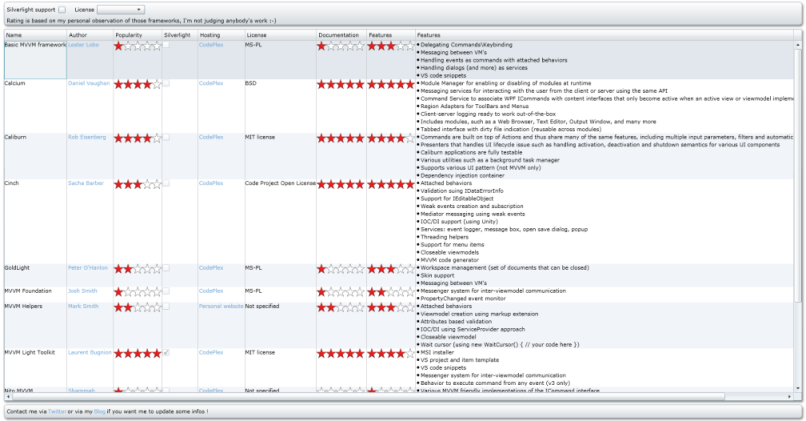
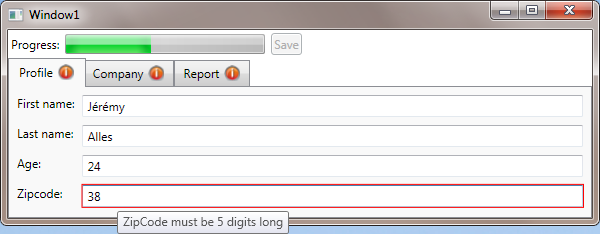
A quick tour of existing MVVM frameworks
.Net, WPF 36 Comments »[Article updated november, 26th: see my latest blog post for a better experience browsing the frameworks]
[Article updated november, 26th: see my latest blog post for a better experience browsing the frameworks]
Note: I wrote this article to clarify relationships between ViewModel and View classes. If you want a complete solution you should take a look at existing MVVM framework like Cinch (by Sacha Barber).
Yesterday, there was an insteresting question about MVVM on StackOverflow: “How to close a View from a ViewModel ?”
Like always with WPF, there are many approaches to solve this problem.
Solution 1: give a reference to the View in the ViewModel
You need to control the View from the ViewModel ? Just gives a reference to the View in the ViewModel constructor.
1 2 3 4 | public Window1() { this.DataContext = new Window1ViewModel(this); } |
Unfortunatelly, this approach has several drawbacks:
Solution 2: the ViewModel raises an event when it wants to close its associated View
If having a reference to the View in the ViewModel is not the right thing, why not using an event. We can add a RequestClose event in the ViewModel class and raise this event when the ViewModel wants to close its associated View.
The View, when it creates the ViewModel subscribe to the RequestClose event. In the event handler, the View is closed.
1 2 3 4 5 6 7 8 | // class is omitted, only constructor is shown public Window1() { var viewmodel = new Window1ViewModel(); viewmodel.RequestClose += (s, e) => this.Close(); this.DataContext = viewmodel; } |
Solution 2, first refinement
Of course I prefer the event based solution, but we can improve it. The first refinement we can do is to make sure the event will be coherent over all our classes. To achieve this I setup an interface:
1 2 3 4 | public interface IRequestCloseViewModel { event EventHandler RequestClose } |
This interface is implemented by my ViewModel classes which wants to support the ability to close their associated Views.
Solution 3, second refinement
Another possible refinement is to automate the subscription of the RequestClose event in the View. To do that, I created an abstract ApplicationWindowBase class that inherits from Window. When the DataContext changes, I check if the IRequestCloseViewModel is supported by the DataContext:
1 2 3 4 5 6 7 8 9 10 11 12 13 14 15 16 17 18 | public class ApplicationWindowBase : Window { public ApplicationWindowBase() { this.DataContextChanged += new DependencyPropertyChangedEventHandler(this.OnDataContextChanged); } private void OnDataContextChanged(object sender, DependencyPropertyChangedEventArgs e) { if (e.NewValue is IRequestCloseViewModel) { // if the new datacontext supports the IRequestCloseViewModel we can use // the event to be notified when the associated viewmodel wants to close // the window ((IRequestCloseViewModel)e.NewValue).RequestClose += (s, e) => this.Close(); } } } |
Like I said in the intro, this a very basic implementation of this concept. Many other approach exists. A good source of information is in the source code of existing MVVM frameworks.
In my last blog post about MVVM, I showed how it is natural to build a common WPF dialog using DataBinding and Templates with the Model-View-ViewModel methodology. Because I’m having a lot of feedback on posts I wrote about how transitions can be done in WPF, I decided to reuse my previous demo application and add transitions when switching from one element to another. Here is the result of the demo application:
I didn’t wanted to implement all the transitions, instead I decided to use the famous FluidKit library and to wrap its transition control into a reusable and “MVVM compliant” control. I thank Pavan Podila for giving me feedback while designing this control.
Basically, based on Pavan suggestions I created an INavigationAware interface and subclass transitions I wanted to reuse from FluidKit. The INavigationAware interface allows me to specify that the transition supports going forward and going backward (regarding the previous and current selection of the user in the menu).
The control itself (that I call a NavigationPresenter) is very simple, I just use 2 ContentPresenter that I switch when the Content property changes using the TransitionPresenter control from the FluidKit library. The NavigationPresenter works with 3 dependency properties:
Here is the XAML for using the NavigationPresenter
1 2 3 4 5 6 7 8 9 | <!-- The ContentProperty is not bound directly to the SelectedItem of the ListBox because the GoForward property must be updated BEFORE the content changes. The CurrentContent property is defined in the ViewModel class and updated everytime the selection of the ListBox changes, after setting up the GoForward value. --> <NavigationTransition:NavigationPresenter Content="{Binding CurrentContent}" Transition="{Binding ElementName=transitionComboBox, Path=SelectedItem.Tag}" GoForward="{Binding DataContext.GoForward, RelativeSource={RelativeSource FindAncestor, AncestorType={x:Type AnimatedContentPresenter:MainDialog}}}"> </NavigationTransition:NavigationPresenter> |
The sample application comes with 3 animations but more can be used from the FluidKit library. It’s also possible to create your own transition (inherit from Transition base class). You can download the sample application here. Hope you’ll like it !
I’m still playing with MVVM at work and I got a new occasion to setup a dialog using the MVVM methodology.
I really love the process of creating User Interface using MVVM, the process is so much natural ! Basically, I needed to create a “setup” dialog in the application I’m currently working on. I wanted to achieve something like this:
Of course, I wanted to create this dialog using the power of WPF. My primary objective when I create a new dialog is to keep the code-behind empty. Using MVVM it took me about 10 minutes to create the basic structure of the dialog withouth writting a single line of code in the xaml.cs files.
Here is the process I followed to create this dialog. This is the “thinking with MVVM” part because I’m explaining the reasoning I had
You can download the source code for this example here.
Setup the main dialog
When I need quick prototypes, I often don’t use Blend and type the XAML directly into Visual Studio editor. That was the very first part I did to write this XAML:
1 2 3 4 5 6 7 8 9 10 11 12 | <Grid> <Grid.ColumnDefinitions> <ColumnDefinition/> <ColumnDefinition Width="3*"/> </Grid.ColumnDefinitions> <ListBox Grid.Column="0" Margin="5"/> <Border Grid.Column="1" Margin="5" BorderBrush="#FF7F9DB9" BorderThickness="1"> <!-- Content goes here --> </Border> </Grid> |
Pretty easy isn’t it. Please note the “Content goes here” comment. I knew I wanted to put the settings dialogs here, but I didn’t know how… I named this file ConfigurationDialog.xaml.
Create sub-configuration dialogs
For this example, I created 2 sub-configuration dialogs just for the demo. I just put a TextBlock into a Grid to demonstrate the principles. Of course, we should add real configuration controls such as CheckBox, TextBox, etc. Those 2 new files are GeneralSettingsView and AdvancedSettingsView and are UserControls.
Create a ViewModel class for each View
I used to use an abstract base class for all my ViewModel classes where I implement the INofityPropertyChanged interface. I also use a trick from Josh Smith to throw an exception if the property name doesn’t exist when the PropertyChanged event is raised.
That gives us 3 new files: ConfigurationDialogViewModel, GeneralSettingsViewModel and AdvancedSettingsViewModel. Because I wanted configuration dialogs to have a common Name property (to identify them in the UI), I created a base class SettingsViewModelBase.
Setup the ViewModel of the main View
I needed the main View to expose the other configuration views available. I used an ObservableCollection for that:
1 2 3 4 5 6 7 8 9 10 11 12 13 14 15 16 17 | public class ConfigurationDialogViewModel : ViewModelBase { private readonly ObservableCollection<SettingsViewModelBase> settings; public ObservableCollection<SettingsViewModelBase> Settings { get { return this.settings; } } public ConfigurationDialogViewModel() { this.settings = new ObservableCollection<SettingsViewModelBase>(); this.settings.Add(new GeneralSettingsViewModel()); this.settings.Add(new AdvancedSettingsViewModel()); } } |
Setup the main View to consume datas from its ViewModel
I did some changes in the XAML to databind the ListBox’s ItemsSource property to the ViewModel. Because I always set the DataContext property of a view to its associated ViewModel, there is no ambiguity:
1 | ItemsSource="{Binding Settings}". |
The ListBox control has no idea how a SettingsViewModelBase object (that is in the associated ObservableCollection) should be displayed. We need a simple DataTemplate to specify this information:
1 2 3 4 5 | <ListBox.ItemTemplate> <DataTemplate> <TextBlock Text="{Binding Name}" Padding="10"/> </DataTemplate> </ListBox.ItemTemplate> |
And finish using my favourite part !
We just setup a ListBox to consume a collection of SettingsViewModelBase class to build a menu, fine. By using a very simple DataTemplate, we said: “I want to render the SettingsViewModelBase object in the ListBox using a TextBlock”.
We can take this reasoning one step further. We have a View associated to each SettingsViewModelBase. ListBox was fine to have a collection of controls. How could we display only one control ?
We can use a ContentControl of course ! Because we want do display the dialog that is currently selected in the menu, we can use a simple DataBinding (here, the ListBox has been named ListBoxMenu):
1 | <ContentControl Content="{Binding ElementName=ListBoxMenu, Path=SelectedItem}"/> |
One more time, we got a rendering problem. The ContentControl doens’t know how to render a SettingsViewModelBase object. Well, it’s not a big deal, just specify it:
1 2 3 4 5 6 7 8 | <Window.Resources> <DataTemplate DataType="{x:Type ViewModel:GeneralSettingsViewModel}"> <View:GeneralSettingsView/> </DataTemplate <DataTemplate DataType="{x:Type ViewModel:AdvancedSettingsViewModel}"> <View:AdvancedSettingsView/> </DataTemplate> </Window.Resources> |
What I’m saying here is that GeneralSettingsViewModel should be rendered using a GeneralSettingsView. That’s exactly what we need ! Because the Views are created using a DataTemplate, we do not need to setup the DataContext, it will be automatically registered to the templated object, the ViewModel.
Conclusion
The example I describe here is very simple. The goal was to show the process of creating a dialog thinking in the “MVVM” way. It was very natural to use the concepts I explain here. The code-behinds are completely empty and ViewModel classes are testable ! Because the View are XAML only, I can give them to a designer that will tweak them to make them have a nice look.
You can download the source code for this example here.
It’s finally online after a long work.I hope my french readers will enjoy it: http://japf.developpez.com/tutoriels/dotnet/mvvm-pour-des-applications-wpf-bien-architecturees-et-testables/
Here is the abstract translated to english:
“Inch by inch, the WPF technology is being adopted by .Net developers as a development platform for next generation user interfaces. This changeover is taking time and complicated because WPF changes principles that are well known until now in the process of designing a user interface. The Model-View-ViewModel methodology helps formalize WPF developement by giving guidance that leads to apps cleary architectured, testable, and by optimizing the workflow between developer and designer.”
The last couple of days, I’ve been busy writing an article about MVVM in French. I don’t know yet if I’ll translate it to English, but I’m sure I can share the demo application, and this is the goal of this post !
I think the best way to understand how things fit together is to explore the source code of the application.
It’s a very small demo because I wanted to demonstrate only a subset of MVVM facilities, so you’ll find:


You can download the source code here. Enjoy
In my “Why should I use MVVM pattern” post, I gave a link to a post explaining the ICollectionView interface.
This interface is very important in the MVVM methodology because it enables the possibility to track the selection of the user in ItemsControl based-controls (ListView, ListBox, ComboBox, TabControl…). The ICollectionView also enables the ViewModel to perfom Sorting, Grouping and Filtering very easily (basically by using the Sort, Group and Filter properties).
In my project at work, I have a “Library” which lets the user choose an item in it, and drop it somewhere else in the application. There is around 200 items in the ListView, and because I wanted to leverage the ICollectionView interface, I used the Filter property to enable search functionality.Unfortunately, the performance was pretty poor and until now I didn’t find out what goes wrong. Each item in the ListView is rendered using a simple DataTemplate made of one Image and several TextBlock. Because the filtering was slow, I found another solution which is much faster. And thanks to the MVVM methodology, I found one quickly !
I added a IsVisible property to the ViewModel objects that are in the ListView.
1 2 3 4 5 6 7 8 9 10 11 12 | /// <summary> /// Gets or sets a value indicating whether this item is visible in the collection /// </summary> public bool IsVisible { get { return this.isVisible; } set { this.isVisible = value; this.OnPropertyChanged("IsVisible"); } } |
This IsVisible property is toggled when the search is performed: I iterate over the ObservableCollection of items, and change the IsVisible property regarding whether the item match the search text or not. In the View, I setup a simple style for my ListViewItem that databound the IsVisible property to the visibility property (using the BooleanToVisiblity converter included in the framework).
1 2 3 4 5 6 7 | <ListView ItemsSource="{Binding Items}"> <ListView.ItemContainerStyle> <Style> <Setter Property="Visibility" Value="{Binding Path=IsVisible, Converter={StaticResource BooleanToVisibility}"/> </Style> </ListView.ItemContainerStyle> </ListView> |
Now the filtering is much faster. I don’t know what could slow down the performance of the filtering using the ICollectionView interface.
If you have any idea, I’d be glad to know. If on the other hand you’re dealing with performance issue too, you might try my solution
Article updated ! I find out that the Command property of the KeyBinding class is not a DependencyProperty… This prevent using the syntax I wanted (binding to an ICommand exposed in the ViewModel). There are several workarounds you can find across the web (using a MarkupExtension, an attached properies…) but because I didn’t have much time, I finally put some glue in my code-behind ;(
I’m still playing with MVVM those days and today, I needed a simple behavior I didn’t know how to do with MVVM. I finally found a simple solution and as I love them, it’s 100% XAML :p
The problem is simple, I have a ListBox where the user can type date in it.
When the User Validate his input, I need to process the text entered and return another value.
The User can validate the input by pressing the Enter key while the TextBox has the focus.
My first attempt was the subscribe to the KeyUp event, and in the code-behind, delegate the work to the associated ViewModel class. I don’t like that solution a lot (events handler in code-behind are sort of ugly…).
I know I could define an ICommand in my ViewModel and do the work directly there (using the excellent RelayCommand class written by Josh Smith). The problem was how to trigger this command when the Enter key is pressed. well, actually it’s pretty simple:
1 2 3 4 5 6 7 8 | <TextBox Text="Hello world" Width="100" Height="40"> <TextBox.InputBindings> <!-- update: we cannot use Binding to the Command property as it's not a DP --> <!-- workarounds exist such a MarkupExtension, AttachedProperty... -> <!-- personally, I did that in the code behind to make it works :( --> <KeyBinding Command="{Binding ProcessInput}" Key="Enter"/> </TextBox.InputBindings> </TextBox> |
As I updated the article (because Command is not a DP), I finally did the same thing in C# in the code-behind…
Recently, while discussing a WPF issue on a forum, I discovered that some people didn’t know anything about the Model-View-ViewModel pattern. I’m not an expert of MVVM as I discovered it a couple of months ago. I started to use it on my first real project at work, which involve a pretty big application using advanced TreeView, Ribbon, on-demand graphic creation, a C++ kernel, datagrid, etc. The MVVM pattern helps me to keep my design as clean as possible. In this post, I’d like to give you some of the aspects of the MVVM pattern, and useful links across the web.
If you find yourself:
What MVVM can offer?
How is that possible?
Here is a part of the introduction of John Gossman:
“In simple examples, the View is data bound directly to the Model. For example, a boolean in the Model can be data bound to a CheckBox, or a string field to a TextBox. In practice however, only a small subset of application UI can be data bound directly to the Model, especially if the Model is a pre-existing class or data schema over which the application developer has no control.
The Model is very likely to have a data types that cannot be mapped directly to controls. Finally we need a place to put view state such as selection or modes.
The ViewModel is responsible for these tasks. In this latter role the ViewModel contains data-transformers that convert Model types into View types, and it contains Commands the View can use to interact with the Model.”

What are good resources to start working with MVVM?
If you never heard about MVVM, or never take the time to look at it, I suggest you to take a look at some of those links. Trust me, the investisment worth it !
I’ve been waiting for a long time for this, and Karl Shifflet finally did it !
Karl is a WPF guru, and he just started a new series of articles on Model-View-ViewModel. Here is his own introduction: “My goal is to provide an introduction, several simple examples and progress to a series of WPF LOB scenarios where M-V-VM is used. Scenarios like, dialog box, simple form, master – detail, complex master detail with several embedded ViewModels, etc.”
I’m sure this series will very soon become the reference to learn MVVM. His first article is about validating the user input in a concise and agile way. Right now, I can’t give more details because I just start to read the article, but I’ll try to give my feedback as soon as possible.
Recent Comments