A couple of days ago, I found a post on a WPF forum with the title “Only problems with WPF…”, and it basically looks like the following:
“When I installed VS.net express 2008, I was happy because I thought that with WPF I’ll be able to build nice UI. Unfortunately, I have the felling this is more like a source of problems… I spent several hours to fill a ListView with some data and the result is dirtier than with WinForms. The designer in VS.net sucks and many controls are missing. It was so simple before…”
I wanted to give my point of view about that kind of reasoning because a couple of months ago, I think I had more or less the same… So, what makes WPF so different ? Or why I cannot just use my WinForms background and start to build wonderfull apps ?
I think that WPF is more than just a new framework or new classes. It is more than that because when you work with WPF, you have to change the way you think and design your apps.
- You have to change the way your work with controls because you can apply new Style and Template to them so that you can completely change the way they look
- You have to change the way you design your apps because of DataBinding and Commands
- You have to… forget almost every things you already know, and be ready to learn again !
If I can give an advice, I would suggest to read a good WPF book. A couple of weeks ago, I finished to read WPF unleashed, by Adam Nathan [1. available at amazon.com], and I really think that having this kind of the book is the right way start working with WPF. A lot of cool website are also full of interesting resources, CodeProject is maybe the one that I like the most.
To conlude, I would like to give a quick example [2. I was inspired by CT06: Applications = Designers + Developpers at Mix08 available here].
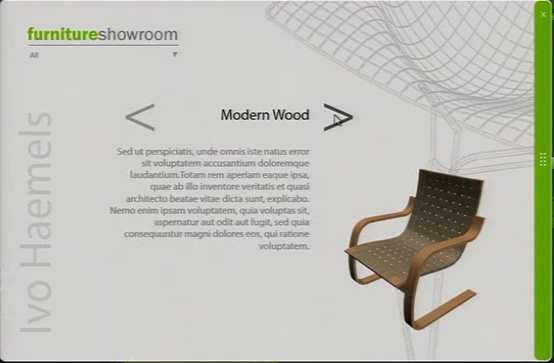
Imagine you’d like to build an application to browse a catalog of products. For each product, you need to see the name of the product, its designer, a description and an image. You also would like to have navigation build around the use of 2 arrows to browse products:
How could you achieve this ? You might think about several ways to do it. The point is that you can do this by only using a ListBox and changing its style ! Isn’t amazing ? Go ahead and check the full video at http://sessions.visitmix.com/.