ReSharper and code generation

Tools 2 Comments »

I don’t know why I’ve found this feature only today, but I wanted to share another great feature of ReSharper. Let say you need to implement a C# structure. You may start with the following code:

?View Code CSHARP
1
2
3
4
5
6
public struct ServerItem
{
    public string Id { get; private set; }
    public DateTime? Added { get; private set; }
    public int ChildCount { get; private set; }
}

Then you start thinking, “I need to setup a constructor…” You can do it manually, but you can also ask ReSharper do to the job for you. All you have to do is press ALT+Enter (this might depend on your configuration obviously…)
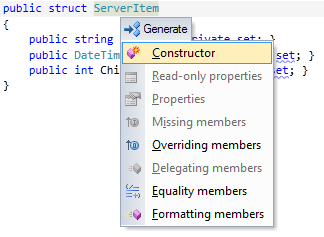
ReSharper will generate the constructor for you:

?View Code CSHARP
1
2
3
4
5
6
7
8
9
10
11
12
13
14
public struct ServerItem
{
    public ServerItem(string id, DateTime? added, int childCount)
        : this()
    {
        this.Id = id;
        this.Added = added;
        this.ChildCount = childCount;
    }
 
    public string Id { get; private set; }
    public DateTime? Added { get; private set; }
    public int ChildCount { get; private set; }
}

Fine. Then you remember that you also need to setup equality members properly… You have to override Equals, GetHashCode… This is not complicated but it can become cumbersome and it often feels like a waste of time. Here is the ReSharper way of doing this:

1. Press ALT+Enter
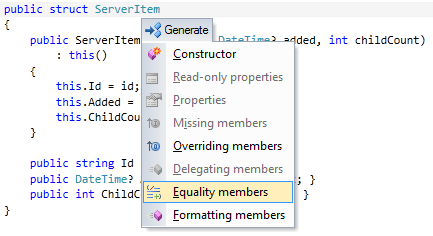
2. Choose “Equality members” and setup the code generation:

And BOOOM ! You’re done:

?View Code CSHARP
1
2
3
4
5
6
7
8
9
10
11
12
13
14
15
16
17
18
19
20
21
22
23
24
25
26
27
28
29
30
31
32
33
34
35
36
37
38
39
40
41
42
43
44
45
46
47
48
49
50
51
52
53
public struct ServerItem
{
    public ServerItem(string id, DateTime? added, int childCount)
        : this()
    {
        this.Id = id;
        this.Added = added;
        this.ChildCount = childCount;
    }
 
    public string Id { get; private set; }
    public DateTime? Added { get; private set; }
    public int ChildCount { get; private set; }
 
    public bool Equals(ServerItem other)
    {
        return Equals(other.Id, this.Id) && other.Added.Equals(this.Added) && other.ChildCount == this.ChildCount;
    }
 
    public override bool Equals(object obj)
    {
        if (ReferenceEquals(null, obj))
        {
            return false;
        }
        if (obj.GetType() != typeof(ServerItem))
        {
            return false;
        }
        return Equals((ServerItem)obj);
    }
 
    public override int GetHashCode()
    {
        unchecked
        {
            int result = (this.Id != null ? this.Id.GetHashCode() : 0);
            result = (result * 397) ^ (this.Added.HasValue ? this.Added.Value.GetHashCode() : 0);
            result = (result * 397) ^ this.ChildCount;
            return result;
        }
    }
 
    public static bool operator ==(ServerItem left, ServerItem right)
    {
        return left.Equals(right);
    }
 
    public static bool operator !=(ServerItem left, ServerItem right)
    {
        return !left.Equals(right);
    }
}

The code-generation features of ReSharper has been there for a long time… But because I just found out the power of them, I wanted to briefly showcased them in this post :-)

If you like typing XAML you will love ReSharper 6.1 !

Silverlight, Tools, Windows 8, Windows Phone, WPF 3 Comments »

Resharper is an amazing tool for any .Net developers. The latest version 6.1 has been released just a couple of weeks ago and I wanted to share with you a brief overview of the new workflow available in the XAML world !

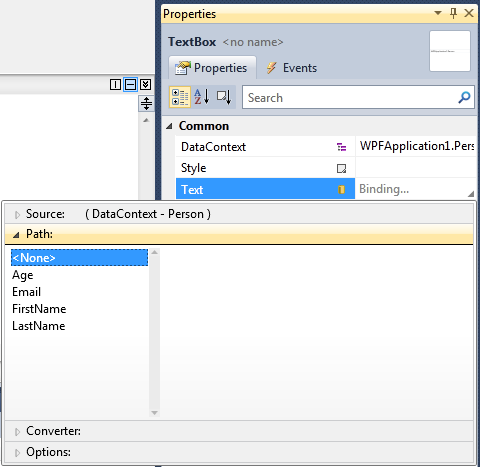
Visual Studio 2010 introduced 2 new design time properties: d:DesignInstance and d:DesignData. Those properties can be used in order to specify a design time DataContext in order to have more help during the creation of a binding.

For example, when you create a binding using the Property dialog of VS2010 you can browse your DataContext to select the right property (image from this blog post from Karl Shifflet):

Resharper 6.1 is now able to use those metadata in order to improve the experience you have while typing XAML (which I personally do a LOT!). Here is how it works:

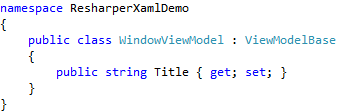
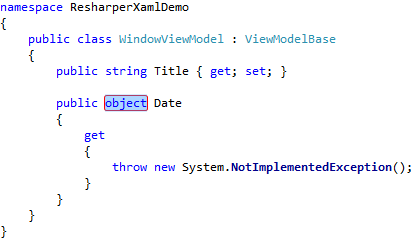
  • you create a new ViewModel with a simple property (this property has just get/set because we don’t need much more in the context of this post…)

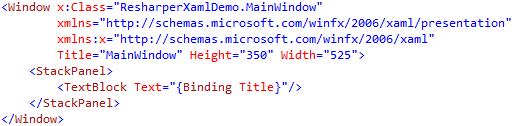
  • you setup a binding in your view

At this point the ReSharper magic comes into play…

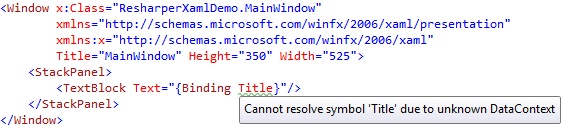
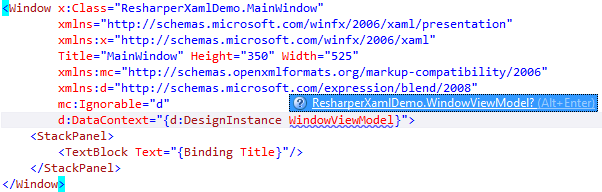
  • ReSharper warns you the DataContext is unknown

  • Offer the ability to fix this

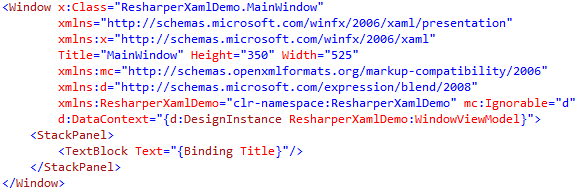
  • Note that like in C#, you can very easily resolve namespace issues

  • Then notice that the warning is gone (the Title property is no longer underlined)

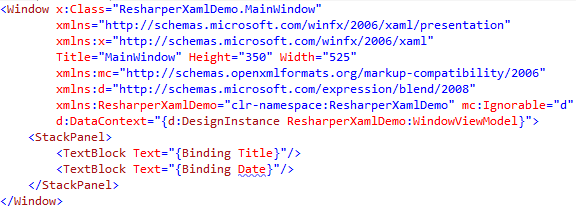
  • You can now add a new binding

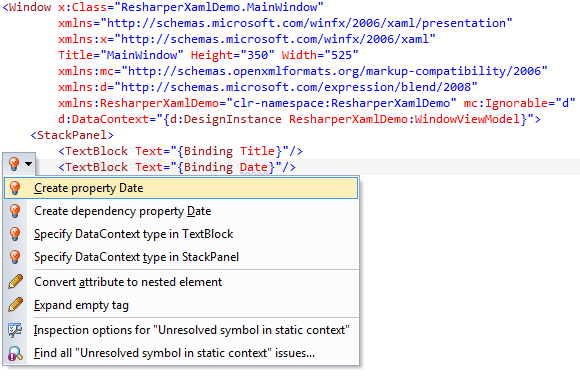
  • You can then ask ReSharper to create the property in your ViewModel

  • Choosing the first option will get you to the ViewModel definition

Now that I’ve upgraded my installation to version 6.1, I think this is a must have !

That’s all for today ! Hope it helps :-)


R# can create resources for you in XAML

Tools No Comments »

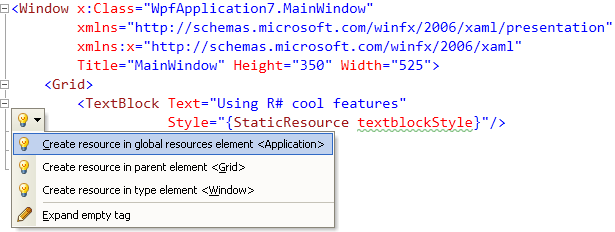
I was aware for some time now that R# offers some support for editing XAML but I didn’t know the following features until recently.When you create a StaticResource in XAML, R# is able to help you by generating some code for you. The famous R# “bubble” shows up offering various options to create the resource:

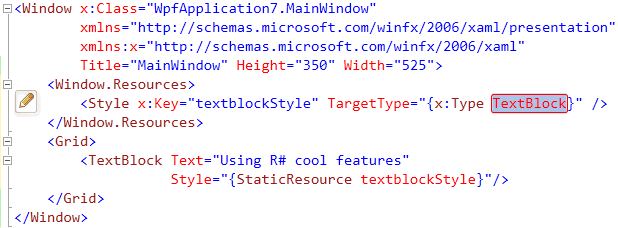
Then the resource is automatically created for you:

Note that it works with converter too:

R# 5.0 has been released a couple of weeks ago. Go ahead and grab your copy !

Review of 2009 blog posts

General No Comments »

In the past year, I’ve posted more than 30 articles on my blog. Here is a summary of those posts (link in bold are those which got the most traffic during the year). Obviously, MVVM was a very hot topic during 2009 :-)

January

February

March

April

May

July

August

September

October

November

Analyzing events usage using a R# plugin

.Net, Tools 4 Comments »

As you might already know, even if the .Net framework has a garbage collector, you can easily create memory leaks in your application.

The most common way to create a leak is to register to an event handler on a object that has a longer lifetime than the object where the handler is defined. The problem can also occurs by using static class such as EventManager (for more information see this blog post). Some .Net developers have been working on a way to go round the problem using Reflection, Weak Reference and other cool stuff. You can check out for example this excellent article on Code Project.

However, if you cannot change the way your declare events (because of internal policies in the company or because you don’t have the source code), you must be very carefull about the way you manage your events.

I’ve been working lately on a Resharper plugin that helps detecting events that are never unsubscribed. Basically, what is does is the following:

resharper_plugin

I’d like to have feedback from you .Net developpers, about whether you find such a plugin useful or not.

  • How do you deal with the event memory leak problem ?
  • Would you like to use my plugin ?
  • Would you like me to release it on a open source platform ?
  • What other kind of possible leaks are you thinking about to enhance the plugin ?

Please write a comment to let my know what you think. Thank you for your feedback !

Browse your codebase like a pro with ReSharper

Tools, Visual Stutio No Comments »

I’ve already blogged about R# a couple of times. There is no doubt: it’s a must have for any serious .Net developper. A few weeks ago I learned and setup new shortcuts to improve my navigation skills in Visual Studio.

Here are the results… If I want:

  • to find a Type I hit Ctrl+T
  • to find a File I hit Ctrl+Shift+T
  • to find a Member (in a file) I hit Ctrl+Alt+T (Note: I setup this one on my own using Tools/Options/Keyboard)

A search box opens and I can start searching instantaneously.

resharpernavigation1

Here are the basic scenarios :

  • I want to open the ViewModelBase class, I hit Ctrl+T and then VMB (R# is able to search using capital letters)
  • I want to go to the OnPropertyChanged, I hit Ctrl+Alt+T and then OPC (same as previous example)
  • Finally, to open the file in the Solution Explorer I hit Shift+Alt+L

It’s simply amazing the time we can save using those simple shorcuts. Of course, you need to be quite familiar with your codebase (if you just arrive on a project it will be harder :p)

Becoming a Resharper Samourai

Tools 1 Comment »

I already blogged about Resharper. Resharper is a must have plugin for any serious .Net developer because it will help you to write better code faster. If you’re not yet convinced by the power of this addin, 2 very nice short screencast (about 10min each) are available to show what you can do with Resharper:

StyleCop + Resharper = StyleCop for Resharper addin

General 1 Comment »

If you’re a .Net developper then you MUST use ReSharper. I you don’t, I suggest you to have a look at this very nice video demonstrating some of the feature of this Visual Studio addin. If you also like having a clean C# code, then you might also use Microsoft StyleCop tool.

I just found this a very cool Resharper plugin that allows Microsoft StyleCop to be run as you type, generating real-time syntax highlighting of violations:

The StyleCop for Resharper plugin is hosted on CodePlex and is free. I think it’s a must have for any .Net developer. Its author really did a good work :-)

kick it on DotNetKicks.com

WP Theme & Icons by N.Design Studio
Entries RSS Comments RSS Log in