Hacking for fun: porting a Silverlight Windows Phone app to WinRT in 9hours

CodeProject, Windows 8, Windows Phone, WinRT 6 Comments »

Today I woke up and took a look outside: the weather was so awful I decided to so something cool, at home. Today, I ported a Silverlight Windows Phone 7 game to WinRT in 9 hours. In this post, I share the “journal” I wrote will porting the app so that you can follow this process with many detail. I hope you will learn interesting stuff. Warning: the post is much longer than usual :-)

Context:

  • The original Windows Phone application is a Silverlight game called Touch’n’Match. This game is available in the marketplace for free. The goal is to select appropriate items from a board creating pairs or sequences. The fastest the player creates pairs, the more points he has.
  • I’m not creating a common code base across the 2 platforms. I’m just “converting” the Silverlight version to WinRT.
  • I’m not targeting a “ready to publish” version of the app today. I just want to be able to play the game on my //BUILD/ slate :-)

Here is a quick video showing the game in action using the WP7 emulator:

Play Video

The video of the game running on the //BUILD/ slate is available at the end of this article :-)

Tooling used:

  • Windows 8 Consumer Preview
  • Visual Studio 2011 Beta + Updates
  • Visual Studio 2010 + SP1
  • Windows Phone SDK 7.1.1 for Windows 8 support
  • Resharper 7 EAP (I’m a big fan of R# and it’s going to be very helpful to map and adjust the namespaces…)

Now, let’s the hackaton begin :D

9:50AM

The source code of Touch’N’Match is stored in SVN using Assembla. I’m performing a clean check out the trunk in my personal folder. I launch VS2010 to build the app and make sure the Windows Phone version works properly:

Everything seems ok. It’s time to launch VS11:

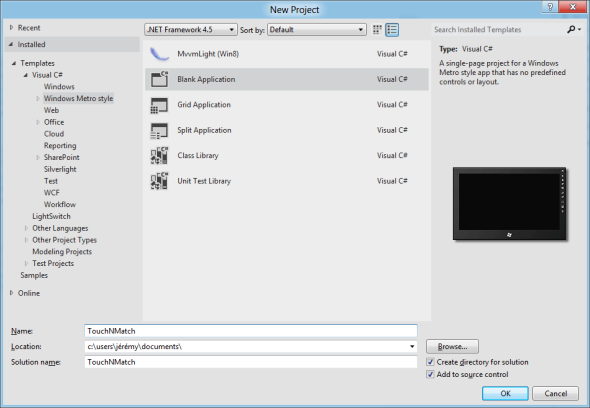
And to create a new project:

9:55AM

I’m going to start porting all the C# which is not linked to XAML. I expect to do that fairly quickly, the only thing I will have to rewrite (at least I think about at this time) is the part which deals with the isolated storage (API in SL for Windows Phone and WinRT are very different even though the principles are very similar).

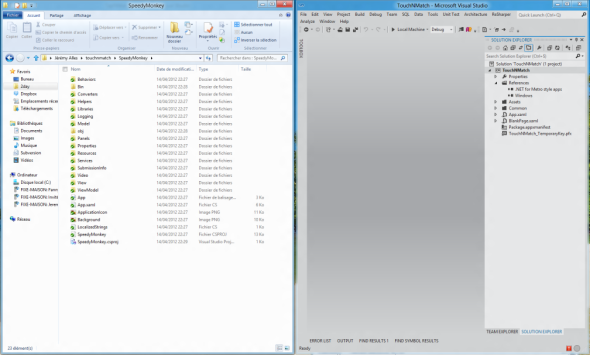
I’m simply using drag’n’drop between the Windows Explorer and VS11 to add the files in the WinRT project.

I start with what I found the simple first, for example I start by porting the converters used in the XAML of the game. Because the interface has changed from:

?View Code CSHARP
1
2
3
4
5
public interface IValueConverter
{
    object Convert(object value, Type targetType, object parameter, CultureInfo culture);
    object ConvertBack(object value, Type targetType, object parameter, CultureInfo culture);
}

To:

?View Code CSHARP
1
2
3
4
5
public interface IValueConverter
{
    object Convert(object value, Type targetType, object parameter, string language);
    object ConvertBack(object value, Type targetType, object parameter, string language);
}

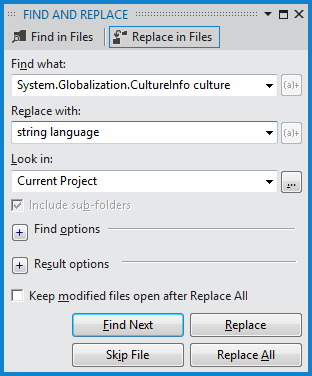
I’m simply doing a “Search and replace” to fix all those errors in one shot:

The Model folder contains just simple C# code, I have nothing special to do (which is nice!)

The Windows Phone version contains a class named ThemeService. This class was responsible for giving colors to use in the app based on the current accent color of the phone. In WinRT we don’t have the concept of accent colors. The app is supposed to ship with its own accent color. So I’m removing this part entirely for the moment.

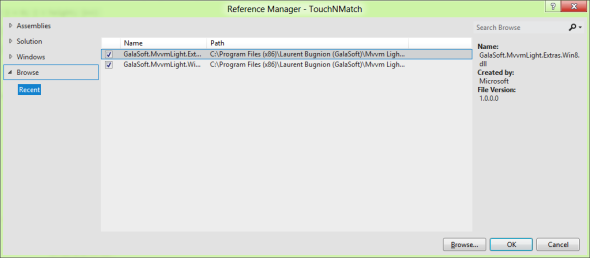
The ViewModel folder is linked to the MVVM Light framework. I already have the Windows 8 version installed on my machine, so I just have to reference the new assemblies:

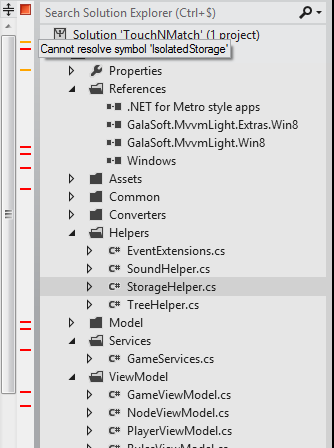
Because I’m Resharper EAP for VS11 I can see very quickly the amount of errors when I open a file, using the indicators sitting next to the vertical scrollbars:

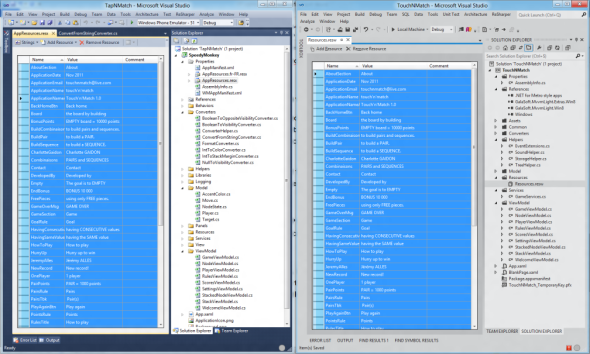
I’m now facing problems with the string resources. In the Silverlight version the app was localized the all the strings contained in .resx files. We were then able to access them using the types auto-generated and a binding in the XAML. This is no longer possible in WinRT. So the first thing I do is to create the new .resw files and put the strings there:

I then create a class to be able to access the string from C# (because the new .resw file does not generate static type automatically):

?View Code CSHARP
1
2
3
4
5
6
7
8
9
10
11
12
13
14
15
16
17
public static class AppResources
{
    private static readonly ResourceLoader resourceLoader;
 
    static AppResources()
    {
        resourceLoader = new ResourceLoader("PrototypeZero/AppResources");
    }
 
    public static string GetResources(string key)
    {
        if (string.IsNullOrEmpty(key))
            throw new ArgumentNullException("key");
 
        return resourceLoader.GetString(key);
    }
}

I don’t know if the handling of .resw is going to change or not with the final version of VS11. If it does not I think it could be a good idea to use T4 templates to automatically generates the static types (that would make the porting much easier). But this is out of the scope of this post :-)

I know have to change all the AppResources.Key to AppResources.GetString(Key)…

I then encountered an error with a call to ToShortDateTimeString() on a DateTime object. I replaced this call with ToString(“d”) which is supposed to do the same thing. It looks like all formatting and parsing of DateTime structure is now handle by the DateTimeFormatter class.

10:35AM

Conversion of the following folders is completed:

  • Converters
  • Model
  • Services
  • ViewModel

I’m now going to deal with the isolated storage… The API used in the Silverlight app was very simple:

?View Code CSHARP
1
2
3
4
5
6
public class IsolatedStorageHelper
{
    T Load<T>(string name) where T : class, new();
    void Save<T>(string name, T instance);
    void Delete(string name);
}

The conversion was not very complicated. All synchronous methods became asynchronous and I use the new API available in WinRT. One noticeable thing is the fact that we don’t have a File.Exists() API, so I ended up writing the following helper method:

?View Code CSHARP
1
2
3
4
5
6
7
8
9
10
11
12
private async static Task<StorageFile> GetFile(string name)
{
    var folder = ApplicationData.Current.LocalFolder;
    try
    {
        return await folder.GetFileAsync(name);
    }
    catch (FileNotFoundException)
    {
        return null;
    }
}

And the final API in the WinRT project:

?View Code CSHARP
1
2
3
4
5
6
public class IsolateStorageHelper
{
    async Task<T> Load<T>(string name) where T : class, new();
    async void Save<T>(string name, T objectToSave);
    async void Delete(string name);
}

Notice that now, all the methods are asynchronous…

10:50AM

All the code ported in the WinRT project now builds with success. Let’s bring more code in the WinRT project…

I found out that the Storyboard.SetTargetProperty API has changed:

Silverlight version: Storyboard.SetTargetProperty(Timeline, PropertyPath)

WinRT version: Storyboard.SetTargetProperty(Timeline, string)

Also, the EasingFunction property of the DoubleAnimation type has changed from IEasingFunction (Silverlight) to EasingFunctionBase (WinRT).

Finally the GeneralTransform.Transform(Point) API has changed to GeneralTransform.TransformPoint(Point)

11:00AM

It looks like it’s now time to bring some XAML ;-)

The home page of the WP7 version was using a pivot control. I don’t need a pivot and I can display everything on the screen at once. So I’m just replacing the PivotControl with a grid of 3 columns.

The issue I faced while moving the first XAML code was due do localization. In the Silverlight version we used a very common localization approach using a binding to a static resource:

1
<Button Content="{Binding Path=LocalizedResources.OnePlayer, Source={StaticResource LocalizedStrings}}"/>

It looks like it’s not that easy to do that in WinRT… I looked up on the Internet and found this post. Because I’m lucky, Tim Heuer a Program Manager on the XAML team replied 3 days ago to explain how localization now works in XAML WinRT apps. Here is how it works (full documentation available here):

  • Assign a x:Uid to the XAML element you want to localize (for example x:Uid=”buttonOnePlayer”)
  • Create a resource in the resw file with a key buttonOnePlayer.Content (because we want to set the Content property of the button)
  • The resource will be automatically take at runtime

I think I like this approach even though it is too early to come with a conclusion. I would like to have more tooling to pick the resources from the resw right from the XAML editor…

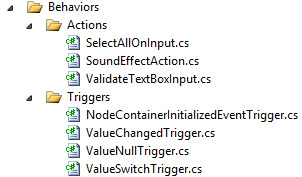
The other thing I must deal with is the fact that the Silverlight version was using multiple behaviors:

This is not available out of the box in WinRT. I found a post describing an approach the port the Silverlight code to WinRT but I didn’t wanted to try it today. So my approach is to find a way to remove each those behaviors…

The Silverlight game was created with the Windows Phone 7.0 SDK, based on Silverlight 3. At this time there was no Command property available on a Button. This is no longer the case and of course neither the case in WinRT. So I can already fix a lot of them.

The other usages of behaviors are trickier and I will see how I fix them later…

A TriggerAction NavigateToPageAction was used to nagivate from page to page right from the XAML. In order to enable navigation from my ViewModel classes, I created a NavigationService class:

?View Code CSHARP
1
2
3
4
5
6
7
8
9
10
11
12
13
14
15
16
17
18
19
20
21
public static class NavigationService
{
    private static Frame rootFrame;
 
    public static void Initialize(Frame frame)
    {
        rootFrame = frame;
    }
 
    public static bool Navigate<T>(object parameter = null)
    {
        var type = typeof(T);
 
        return Navigate(type, parameter);
    }
 
    public static bool Navigate(Type source, object parameter = null)
    {
        return rootFrame.Navigate(source, parameter);
    }
}

Of course this class should be hidden behind an interface to improve testability of ViewModel classes, but again, this is out of the scope of this article…

12:05PM

It’s time to take a look at the most complex page of the app…

The first step was to port the Resources section where converters and storyboard were defined. It was simply a copy-paste from VS2010 to VS11 :-)

Then I copy-paste the content of the page, and started to fix problems:

  • I updated the localization using the techniques I described before
  • I commented (temporarily of course) the use of Triggers and Actions
  • I added a resource dictionary which was missing from the VS11 solution
  • I updated the resource usage, the Silverlight version had reference to phone-specific resources (like PhoneBackgroundBrush…)

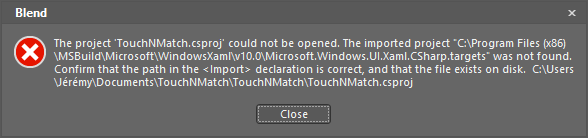
I fired Blend in order to find out the new resources available. Unfortunately for me I started by an error message when I wanted to create a new WinRT project or opened an existing one:

I looked up on the Internet but I cannot find the source of this issue. The most interesting thread is this one on MSDN forums… but it does not fix my issue.

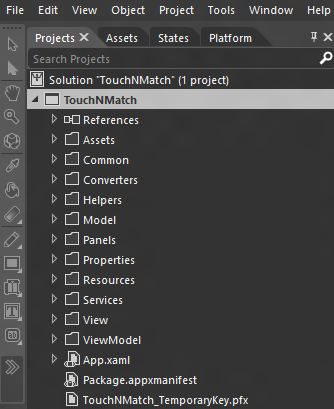
So I ended up creating a new folder in the C:\Program Files (x86)\MSBuild\Microsoft\WindowsXaml by copying the V11.0 folder… It was enough to have Blend working like a charm:

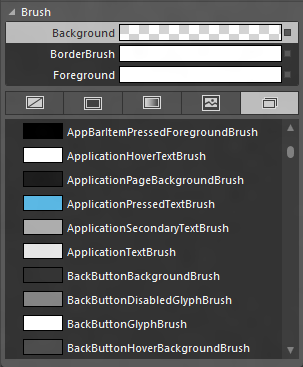
And I can see what resources are available in WinRT:

The next step is to use the Find & Replace dialog to fix all the old references… Here is the mapping I used:

Silverlight for Windows Phone XAML WinRT
PhoneForegroundBrush AppBarItemForegroundBrush
PhoneBackgroundBrush ApplicationPageBackgroundBrush
PhoneContrastBackgroundBrush ApplicationHoverTextBrush
PhoneDisabledBrush ControlDisabledBrush
PhoneHorizontalMargin 12,0
PhoneVerticalMargin 0,12

1:00PM

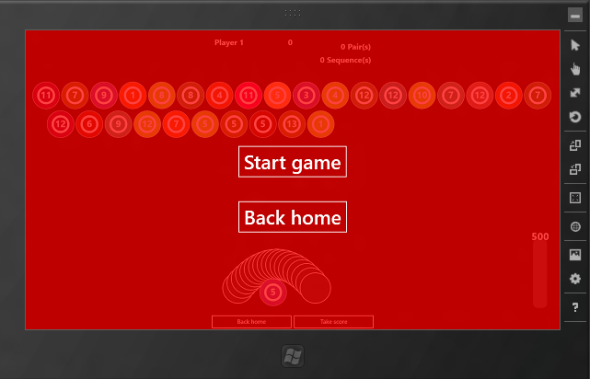
I finally have something which can be launched (sorry for the ugly red background, I was just testing resource picking :p):

It’s time to take a break :-)

2:30PM

I’m back. Even though I was able to launch the app before the break it was not yet functional… I commented a lot of things in the XAML just to make it build. In particular, I know must solve the an issue with sound playback: the WP7 was using an TriggerAction to play a sound. This TriggerAction was used directly in the XAML to play sound when a button was click for example.

3:30PM

I just spent about 1 hour trying to play sound in the app but I cannot get it working! I can play sound if I instantiate a MediaElement in the XAML, but if the MediaElement is instantiated in code, it doesn’t work. Because this issue is driving me crazy, I’m just assuming the version of today will be without sound :D

4:00PM

Another use of the behavior in the WP7 version: switch the current state of a control based on the value of an enum. I’m replacing the behavior with some code:

  • I created a custom control which has the enumeration as a dependency property
  • This dependency property is bound to the enumeration defined in the ViewModel
  • This dependency property has a PropertyChangedHandler callback defined to be notified each time its value change
  • When the value of the enum change, I manually update the current state (VisualStateManager.GoToState)

5:00PM

The idea is described previously is supposed to work… but it doesn’t!

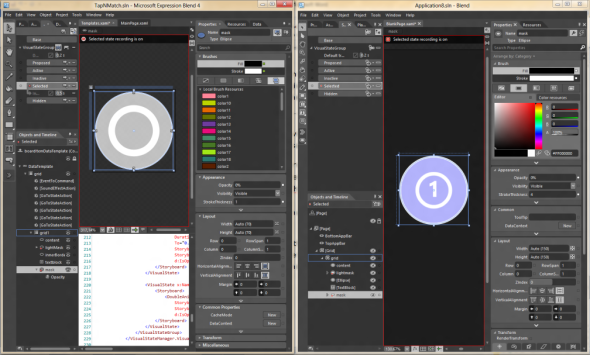
So after spending 30minutes trying to figure out why the animation between the states wasn’t working (+ other strange UI issues) I decided to recreate the template in Blend. It took me about 5minutes using Blend 4 for the original WP7 version and Blend 5 for the new WinRT version side by side:

I now have to fix another issue: the WP7 hardcoded the layout of each item on the board (the number of columns and row was fix). I’m going to update that to be more flexible…

6:30PM

The hardcoded stuff was more complicated than expected but it’s now working… It was mainly due to the fact that we hardcoded the number of columns and rows in the WP7 version. Now because the resolution of the screen can change, I have to compute how many items fit on the board…

Another control was still missing and was used to display the scores. I create a new UserControl in VS11 and copy/paste the XAML from VS2010. I must do the usual work:

  • Update the resource to have the appropriate mapping in the .resw file
  • Adjust namespace
  • Remove behavior and replace with standard Command
  • Remove sound effects

7:15PM

At this point, only one minor issue is still bothering me, and I’m starting to get tired… When the app there was a DoubleAnimation animating the FontSize property of a TextBlock element. This does not work in WinRT… Because I don’t want to waste time finding out, I’m just using instead a ScaleTransform to achieve the same effect :-)

7:35PM

I think it’s all for today. I can now launch the app and play the game it was my original objective !

Here is a video showing me playing the game:

Play Video

Conclusion

First of all, I’m kind of happy I finally had the occasion to jump into the WinRT world. Porting this app was a very interesting experience even though I must admit I was kind of angry sometimes!

Because I’m very familiar with XAML and C# it was easy to get into the WinRT world. Here is a summary of the main changes I made today between the 2 versions:

  • Adjust namespaces
  • Rewrite the isolate storage layer
  • Remove any dependency toward behaviors (TriggerAction / Behavior<T>…)
  • Rewrite a part of the game engine because the WP7 version hardcoded the number of items on the board

I was able to reuse most of the XAML, but I think this is true because the app was a game. I have another app I’m thinking to port in WinRT and I think it will need a major rewrite of its UI to leverage the size of the screen.

I hope your learnt interesting things in this post. Feel free to let a comment if you have any specific question.

WP7 performance tip: translate transforms

Windows Phone 1 Comment »

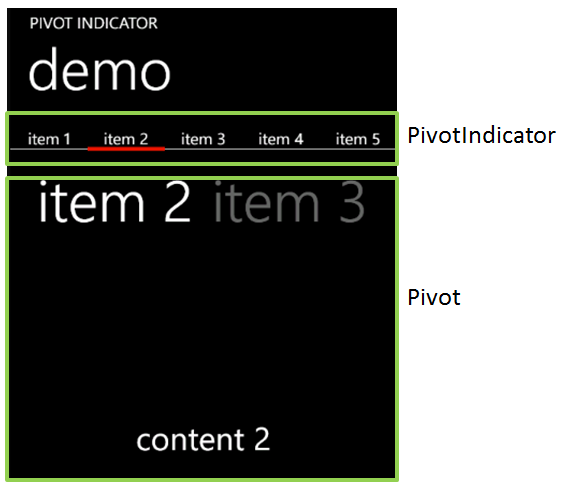
In my previous blog post, I described a control called the PivotIndicator.

The PivotIndicator is made of a small rectangle that is animated on an X axis: its position is updated every time the selected item of the Pivot changes. Here is the code which setup this animation:

?View Code CSHARP
1
2
3
4
5
6
7
8
var border = new Border { /* init properties... */ };
var animation = new DoubleAnimation
{
    Duration = new Duration(TimeSpan.FromSeconds(0.5)),
};
 
Storyboard.SetTarget(this.animation, this.border);
Storyboard.SetTargetProperty(this.animation, new PropertyPath(Canvas.LeftProperty));

The problem I noticed was that this animation wasn’t fluid. In particular, when the PivotItem contains a lot of items…

As you probably already know, the WP7 platform introduces a Compositor thread. This thread does not exist in the “desktop” version of Silverlight. The idea is that this thread can handle simple animations independently from the UI thread (which can be quite busy…) and leverage the GPU.

Now, in my code, I’m using a DoubleAnimation to animate a Canvas.Left property. What is wrong with that ? Actually, the problem is the property I’m animating, not the animation itself. When I setup an animation using Canvas.Left, there is absolutely no way the Compositor thread can handle it. Why ?

Because when the property changes, it triggers a layout update in the Canvas. This process is totally “CPU-bound” and executes on the UI thread. The dependency property changes, it calls InvalidateLayout which update the position of the item (by calling .Arrange() on each of its child). In this case, the GPU & the compositor thread cannot be used.

Now, the trick is to do the exact same animation with a different code:

?View Code CSHARP
1
2
3
4
5
6
7
8
9
10
var border = new Border { /* init properties... */ };
var translateTransform = new TranslateTransform();
border.RenderTransform = translateTransform;
var animation = new DoubleAnimation
{
    Duration = new Duration(TimeSpan.FromSeconds(0.5)),
};
 
Storyboard.SetTarget(this.animation, translateTransform);
Storyboard.SetTargetProperty(this.animation, new PropertyPath(TranslateTransform.XProperty));

Notice that all I change is using an TranslateTransform: the target of the animation is not the border but the translate transform it self. A TranslateTransform is an operation which can be handled by the GPU. Now, his animation is handled by the Compositor Thread and will be fluid even though the UI thread gets very busy !

Hope it helps :-)


Introducing the PivotIndicator control for Windows Phone

Metro, Silverlight, Windows Phone 3 Comments »

Today I would like to share a nice control which is part of my mysterious Windows Phone 7 app which will be released later this month. I call this control the PivotIndicator control. It can be used in order to show the user all the items in a PivotControl on a single screen, as shortcuts. A small rectangle (which use the phone’s accent color as background) is animated when the current pivot item changes. The user can press any item to immediately go to the associated pivot item.

You can grab the source code here.

Here is a short video showing the control in action:

Play Video

Now let’s see the details…

  • How to use it?
  1. Adjust the layout of your page to be able to display the PivotIndicator. Typically this involves adding a row with a ‘*’ height.
  2. Use a binding with an ElementName in order to set the Pivot property of the PivotIndicator control
  3. Define the HeaderTemplate property of the PivotIndicator with a DataTemplate which will be used to render each item in the PivotIndicator
  4. You’re done :-)
Here is what is looks like in the demo:
1
2
3
4
5
6
7
8
9
10
11
12
13
14
15
16
17
18
19
20
21
22
23
24
25
26
27
28
29
30
31
32
33
34
35
36
37
38
39
40
41
42
43
44
45
46
47
48
<Grid x:Name="LayoutRoot" Background="Transparent">
    <Grid.RowDefinitions>
        <RowDefinition Height="Auto"/>
        <RowDefinition Height="Auto"/>
        <RowDefinition Height="*"/>
    </Grid.RowDefinitions>
 
    <StackPanel x:Name="TitlePanel" Grid.Row="0" Margin="12,17,0,28">
        <TextBlock x:Name="ApplicationTitle" Text="PIVOT INDICATOR" Style="{StaticResource PhoneTextNormalStyle}"/>
        <TextBlock x:Name="PageTitle" Text="demo" Margin="9,-7,0,0" Style="{StaticResource PhoneTextTitle1Style}"/>
    </StackPanel>
 
    <!-- here is the PivotIndicator control -->
    <control:PivotIndicator
        Grid.Row="1"
        Pivot="{Binding ElementName=pivot}">
        <control:PivotIndicator.HeaderTemplate>
            <DataTemplate>
                <!-- this the datatemplate used for each item in the PivotIndicator
                        the DataContext is a PivotItemViewModel in our case -->
                <TextBlock 
                    Text="{Binding Title}"
                    HorizontalAlignment="Center"/>
            </DataTemplate>
        </control:PivotIndicator.HeaderTemplate>
    </control:PivotIndicator>
 
    <Grid x:Name="ContentPanel" Grid.Row="2" Margin="12,0,12,0">
        <controls:Pivot x:Name="pivot" ItemsSource="{Binding PivotItems}">
            <controls:Pivot.HeaderTemplate>
                <DataTemplate>
                    <!-- this is the datatemplate used for the header of the pivot item -->
                    <TextBlock Text="{Binding Title}"/>
                </DataTemplate>
            </controls:Pivot.HeaderTemplate>
            <controls:Pivot.ItemTemplate>
                <DataTemplate>
                    <!-- this is the datatemplate of the content of the pivot item -->
                    <TextBlock
                        Text="{Binding Content}"
                        FontSize="40"
                        VerticalAlignment="Center"
                        HorizontalAlignment="Center"/>
                </DataTemplate>
            </controls:Pivot.ItemTemplate>
        </controls:Pivot>
    </Grid>
</Grid>
  • How it works?
Behind the scene, the PivotIndicator control is actually made of 3 parts:
  • SplitPanel: this is a panel (it derives from Panel) which arrange its children on a single line, and where each item has the same width. The width is computed as the total available width divided by the number of items
  • PivotRectange: this is a small control which contains a rectangle. The rectangle uses the phone’s accent color. Its position is animated based on the currently selected index.
  • PivotIndicator: is the control you will use. It is made of an ItemsControl with a SplitPanel as ItemsPanelTemplate and the PivotRectangle
Source code is documented so you might want to dig in it for more details :-)
Note that I didn’t try but I think the PivotIndicator control should works just fine with a Panorama (and few code adjustments…)

If you like typing XAML you will love ReSharper 6.1 !

Silverlight, Tools, Windows 8, Windows Phone, WPF 4 Comments »

Resharper is an amazing tool for any .Net developers. The latest version 6.1 has been released just a couple of weeks ago and I wanted to share with you a brief overview of the new workflow available in the XAML world !

Visual Studio 2010 introduced 2 new design time properties: d:DesignInstance and d:DesignData. Those properties can be used in order to specify a design time DataContext in order to have more help during the creation of a binding.

For example, when you create a binding using the Property dialog of VS2010 you can browse your DataContext to select the right property (image from this blog post from Karl Shifflet):

Resharper 6.1 is now able to use those metadata in order to improve the experience you have while typing XAML (which I personally do a LOT!). Here is how it works:

  • you create a new ViewModel with a simple property (this property has just get/set because we don’t need much more in the context of this post…)

  • you setup a binding in your view

At this point the ReSharper magic comes into play…

  • ReSharper warns you the DataContext is unknown

  • Offer the ability to fix this

  • Note that like in C#, you can very easily resolve namespace issues

  • Then notice that the warning is gone (the Title property is no longer underlined)

  • You can now add a new binding

  • You can then ask ReSharper to create the property in your ViewModel

  • Choosing the first option will get you to the ViewModel definition

Now that I’ve upgraded my installation to version 6.1, I think this is a must have !

That’s all for today ! Hope it helps :-)


BUILD: Starting the BUILD series !

Build, Windows 8 No Comments »

In two weeks, I’ll have the chance to be part of the BUILD conference in Los Angeles. It will be my second trip to the US (my first one was in Seattle in February for the MVP summit) and I’m really looking forward. During the conference I’ll be blogging extensively to share with you the new information.

BUILD is the new conference about the future of Windows. We can expect many information about Windows 8 and its new development platform. At this point we know that HTML5 will be an important aspect of this new platform, but without any doubt XAML will also be part of the game. Note that I’m not saying neither “WPF” or “Silverlight” because what is coming with Windows 8 is still unknown. It looks like XAML will be accessible from both the native  (C++) and managed (.Net) world.

In order to follow the event:

Make sure to check my blog in order to have the latest information about the future of WPF, Silverlight and Windows from a .Net guy perspective !


R# can create resources for you in XAML

Tools No Comments »

I was aware for some time now that R# offers some support for editing XAML but I didn’t know the following features until recently.When you create a StaticResource in XAML, R# is able to help you by generating some code for you. The famous R# “bubble” shows up offering various options to create the resource:

Then the resource is automatically created for you:

Note that it works with converter too:

R# 5.0 has been released a couple of weeks ago. Go ahead and grab your copy !

BezierSegment demo application

WPF 3 Comments »

It has been a long time since my last post, I’m must admit I was both busy and trying to find something cool to blog about. Because I’ll be in holidays tomorrow, I decided to take some time to build a sample application that demonstrates a feature of WPF I’m going to use soon.

In the sample application (source code available here), you will be able to play with the BezierSegment class. I created a simple control that wrap the BezierSegment into something more easy to visualize.The application allows you to drag and drop points and to animate the line.

Here is the result:

bezierdemo

I hope you’ll like it ! The reason I’m going to use this class is in a diagramming control (like Visio) to connect shapes together…

Download the source code.

The future of WPF at Mix09

Events 1 Comment »

mix09

MIX09 is now over and the good news is that we can watch all sessions that have been recorded online !

I didn’t have time yet to watch all sessions I’m interested in, but I already saw “What”s new in WPF 4″ video (available here).

Here are the important points of this session regarding the future of WPF:

  • Lot of new things are coming in WPF4: Text clarity improved, Multi-touch, Windows7 integration, Ribbon control, Focus management improvements, Visual State Manager, Client profile, Themes, Chart controls and a lot of bug fixes
  • WPF4 will come together with .Net4 which brings its own set of cool new stuff: Dynamic Language, MEF, F#, parallel library
  • WPF will be the best choise for RAD under Windows7: Multi-touch, Taskbar integration, Ribbon, Common dialogs, File explorer customization…
  • Multi-touch support: UIElement changes to manage touch related events, touch support is added for some controls (ScrollViewer)
  • New composition API: developers can control graphical elements cached in video memory
  • Controls that are currently available in the WPF toolkit will be integrated into the platform (DataGrid, DatePicker…) – moreover an update of the toolkit has just been released
  • Developers tools are improved: VS2010 and Blend3 helps the usage of WPF (databinding support…)
  • .Net4 will come with a new XAML parser: faster, extensible, public API to manage BAML format
  • .Net4 XAML language has new XAML features: support for generics, better references by name

I hope will see a CTP soon so that we’ll start playing with those new features :-)

XAML guidelines: interviews of WPF masters

WPF 1 Comment »

Getting back to work this morning, I opened my Google Reader to have a look at the RSS feeds I’m reading.

I found a nice video on Channel9: “XAML Guidelines, Part 2”. The first episode, where Jaime Rodriguez interviews 3 people from Identity Mines is also available on Channel9 (unfortunately, the sound is rather poor on this episode…).

This time, Jaime meets up with Unni Ravindranathan from the Expression Blend team. During the shot, they open the Blend source code project inside Blend (sounds nice isn’t it :p). Unni explains the structure of the project, their conventions, how resources are used, etc.

I think Blend is an application we can learn a lot from. If you’re also interested to understand what architecture Blend uses, you can check out this post from Paul Stovell.

Here are some notes I took while watching the video:

  • Blend is shipped with 2 themes: Expression Light & Expression Dark
  • Blend resources are stored in (only !) 3 resources dictionaries
  • Resources are categorized into Colors, Brushes and Styles
  • Blend defines a set of margins and thicknesses that are used in the entire application to ensure a consistency across the different layouts
  • By convention, Name and Key properties are always defined first in the XAML
  • Properties might be spitted over several lines, if this is the case; properties are grouped together by types (style, size, appearance…)
  • Blend 3 will add extensibility and improve XAML code generation:
      - Name will always be the first property
      - Better control over how the XAML is formatted
  • Name everything versus name nothing? Blend names almost everything, it helps UI automation
  • Static resources versus dynamic resources? No big performance impact, Blend mostly uses dynamic resources
  • When design time doesn’t work fine in Blend
      - An exception can occur when Blend is creating the control because the running process is Blend itself and not the application we are creating
      - Add tests to check if code is running in design mode (you can use System.ComponentModel.DesignerProperties.GetIsInDesignMode(DependencyObject) method)
      - Debug Blend process by attaching an instance of Visual Studio to Blend
  • Blend is a big application:
      - 300 000 lines of XAML
      - 500 000 lines of C#

If you want more information about fixing error that we can have in Blend (while the application works properly at run time), you can check out this post of Jaime.

WP Theme & Icons by N.Design Studio
Entries RSS Comments RSS Log in