Welcome 2013 :-)

Events, Silverlight, Tools, Visual Studio, Windows 8, Windows Phone, WinRT No Comments »

This is the perfect time to take a look at what happened in the last few months as well as what’s on the roadmap for next year. So let’s start by taking a look at 2012…

Events

techdays12

  • In November, I gave a presentation about Windows Phone 8 at SFEIR Plays

sfeir plays

Blog posts

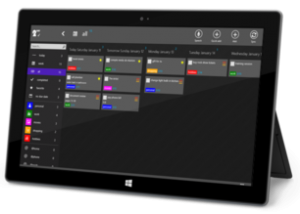
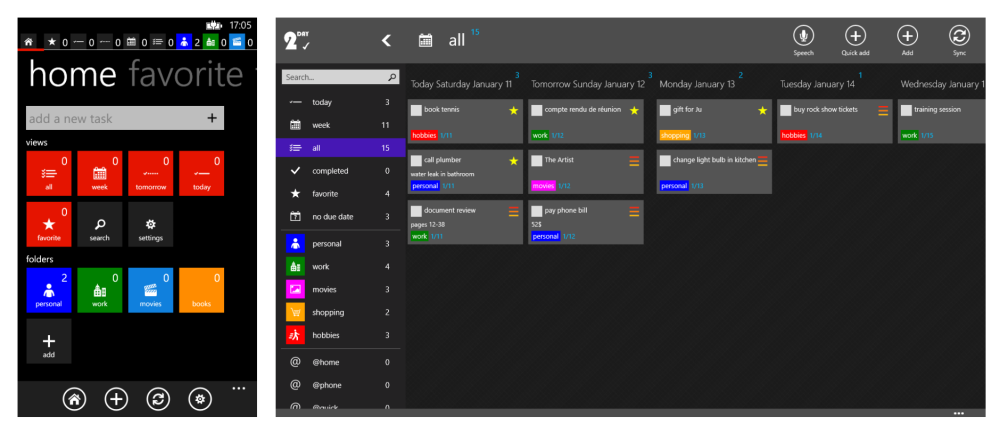
The last year I blogged mostly about Windows Phone stuff. This is not a surprise as I’m busy (on my personal time…) working for my 2Day todo-list application. I’m finalizing a major release that should be submitted to the marketplace soon with a ton of new features and improvement (several blog posts should highlight some topics from a developer point of view).

Here is the full list of article (oldest first):

Next year

2013 should very busy too :-)

  • In mid-February, I will speak again during the TechDays in Paris. The topic is the same as last year: performance optimization for Windows Phone applications. However, with Windows Phone 8 we’ve plenty of new topics to cover !
  • In late-February I will fly to Redmond for the MVP Summit 2013. It will be my sedond time there. As aways, all the content will be under NDA… I will share a room with my friend Jose Fajardo I met at //BUILD/ 2011 !
  • In March, I should setup an event with my company and Microsoft in Grenoble talking about Windows 8 and Windows Phone 8

I’m still deeply invested with 2Day so hopefully you should see more tips and tricks about Windows Phone. As a Windows 8 version is also on its way, that should give me many reasons to write new blog posts.

Happy new year dear readers !


Hacking for fun: porting a Silverlight Windows Phone app to WinRT in 9hours

CodeProject, Windows 8, Windows Phone, WinRT 6 Comments »

Today I woke up and took a look outside: the weather was so awful I decided to so something cool, at home. Today, I ported a Silverlight Windows Phone 7 game to WinRT in 9 hours. In this post, I share the “journal” I wrote will porting the app so that you can follow this process with many detail. I hope you will learn interesting stuff. Warning: the post is much longer than usual :-)

Context:

  • The original Windows Phone application is a Silverlight game called Touch’n’Match. This game is available in the marketplace for free. The goal is to select appropriate items from a board creating pairs or sequences. The fastest the player creates pairs, the more points he has.
  • I’m not creating a common code base across the 2 platforms. I’m just “converting” the Silverlight version to WinRT.
  • I’m not targeting a “ready to publish” version of the app today. I just want to be able to play the game on my //BUILD/ slate :-)

Here is a quick video showing the game in action using the WP7 emulator:

Play Video

The video of the game running on the //BUILD/ slate is available at the end of this article :-)

Tooling used:

  • Windows 8 Consumer Preview
  • Visual Studio 2011 Beta + Updates
  • Visual Studio 2010 + SP1
  • Windows Phone SDK 7.1.1 for Windows 8 support
  • Resharper 7 EAP (I’m a big fan of R# and it’s going to be very helpful to map and adjust the namespaces…)

Now, let’s the hackaton begin :D

9:50AM

The source code of Touch’N’Match is stored in SVN using Assembla. I’m performing a clean check out the trunk in my personal folder. I launch VS2010 to build the app and make sure the Windows Phone version works properly:

Everything seems ok. It’s time to launch VS11:

And to create a new project:

9:55AM

I’m going to start porting all the C# which is not linked to XAML. I expect to do that fairly quickly, the only thing I will have to rewrite (at least I think about at this time) is the part which deals with the isolated storage (API in SL for Windows Phone and WinRT are very different even though the principles are very similar).

I’m simply using drag’n’drop between the Windows Explorer and VS11 to add the files in the WinRT project.

I start with what I found the simple first, for example I start by porting the converters used in the XAML of the game. Because the interface has changed from:

?View Code CSHARP
1
2
3
4
5
public interface IValueConverter
{
    object Convert(object value, Type targetType, object parameter, CultureInfo culture);
    object ConvertBack(object value, Type targetType, object parameter, CultureInfo culture);
}

To:

?View Code CSHARP
1
2
3
4
5
public interface IValueConverter
{
    object Convert(object value, Type targetType, object parameter, string language);
    object ConvertBack(object value, Type targetType, object parameter, string language);
}

I’m simply doing a “Search and replace” to fix all those errors in one shot:

The Model folder contains just simple C# code, I have nothing special to do (which is nice!)

The Windows Phone version contains a class named ThemeService. This class was responsible for giving colors to use in the app based on the current accent color of the phone. In WinRT we don’t have the concept of accent colors. The app is supposed to ship with its own accent color. So I’m removing this part entirely for the moment.

The ViewModel folder is linked to the MVVM Light framework. I already have the Windows 8 version installed on my machine, so I just have to reference the new assemblies:

Because I’m Resharper EAP for VS11 I can see very quickly the amount of errors when I open a file, using the indicators sitting next to the vertical scrollbars:

I’m now facing problems with the string resources. In the Silverlight version the app was localized the all the strings contained in .resx files. We were then able to access them using the types auto-generated and a binding in the XAML. This is no longer possible in WinRT. So the first thing I do is to create the new .resw files and put the strings there:

I then create a class to be able to access the string from C# (because the new .resw file does not generate static type automatically):

?View Code CSHARP
1
2
3
4
5
6
7
8
9
10
11
12
13
14
15
16
17
public static class AppResources
{
    private static readonly ResourceLoader resourceLoader;
 
    static AppResources()
    {
        resourceLoader = new ResourceLoader("PrototypeZero/AppResources");
    }
 
    public static string GetResources(string key)
    {
        if (string.IsNullOrEmpty(key))
            throw new ArgumentNullException("key");
 
        return resourceLoader.GetString(key);
    }
}

I don’t know if the handling of .resw is going to change or not with the final version of VS11. If it does not I think it could be a good idea to use T4 templates to automatically generates the static types (that would make the porting much easier). But this is out of the scope of this post :-)

I know have to change all the AppResources.Key to AppResources.GetString(Key)…

I then encountered an error with a call to ToShortDateTimeString() on a DateTime object. I replaced this call with ToString(“d”) which is supposed to do the same thing. It looks like all formatting and parsing of DateTime structure is now handle by the DateTimeFormatter class.

10:35AM

Conversion of the following folders is completed:

  • Converters
  • Model
  • Services
  • ViewModel

I’m now going to deal with the isolated storage… The API used in the Silverlight app was very simple:

?View Code CSHARP
1
2
3
4
5
6
public class IsolatedStorageHelper
{
    T Load<T>(string name) where T : class, new();
    void Save<T>(string name, T instance);
    void Delete(string name);
}

The conversion was not very complicated. All synchronous methods became asynchronous and I use the new API available in WinRT. One noticeable thing is the fact that we don’t have a File.Exists() API, so I ended up writing the following helper method:

?View Code CSHARP
1
2
3
4
5
6
7
8
9
10
11
12
private async static Task<StorageFile> GetFile(string name)
{
    var folder = ApplicationData.Current.LocalFolder;
    try
    {
        return await folder.GetFileAsync(name);
    }
    catch (FileNotFoundException)
    {
        return null;
    }
}

And the final API in the WinRT project:

?View Code CSHARP
1
2
3
4
5
6
public class IsolateStorageHelper
{
    async Task<T> Load<T>(string name) where T : class, new();
    async void Save<T>(string name, T objectToSave);
    async void Delete(string name);
}

Notice that now, all the methods are asynchronous…

10:50AM

All the code ported in the WinRT project now builds with success. Let’s bring more code in the WinRT project…

I found out that the Storyboard.SetTargetProperty API has changed:

Silverlight version: Storyboard.SetTargetProperty(Timeline, PropertyPath)

WinRT version: Storyboard.SetTargetProperty(Timeline, string)

Also, the EasingFunction property of the DoubleAnimation type has changed from IEasingFunction (Silverlight) to EasingFunctionBase (WinRT).

Finally the GeneralTransform.Transform(Point) API has changed to GeneralTransform.TransformPoint(Point)

11:00AM

It looks like it’s now time to bring some XAML ;-)

The home page of the WP7 version was using a pivot control. I don’t need a pivot and I can display everything on the screen at once. So I’m just replacing the PivotControl with a grid of 3 columns.

The issue I faced while moving the first XAML code was due do localization. In the Silverlight version we used a very common localization approach using a binding to a static resource:

1
<Button Content="{Binding Path=LocalizedResources.OnePlayer, Source={StaticResource LocalizedStrings}}"/>

It looks like it’s not that easy to do that in WinRT… I looked up on the Internet and found this post. Because I’m lucky, Tim Heuer a Program Manager on the XAML team replied 3 days ago to explain how localization now works in XAML WinRT apps. Here is how it works (full documentation available here):

  • Assign a x:Uid to the XAML element you want to localize (for example x:Uid=”buttonOnePlayer”)
  • Create a resource in the resw file with a key buttonOnePlayer.Content (because we want to set the Content property of the button)
  • The resource will be automatically take at runtime

I think I like this approach even though it is too early to come with a conclusion. I would like to have more tooling to pick the resources from the resw right from the XAML editor…

The other thing I must deal with is the fact that the Silverlight version was using multiple behaviors:

This is not available out of the box in WinRT. I found a post describing an approach the port the Silverlight code to WinRT but I didn’t wanted to try it today. So my approach is to find a way to remove each those behaviors…

The Silverlight game was created with the Windows Phone 7.0 SDK, based on Silverlight 3. At this time there was no Command property available on a Button. This is no longer the case and of course neither the case in WinRT. So I can already fix a lot of them.

The other usages of behaviors are trickier and I will see how I fix them later…

A TriggerAction NavigateToPageAction was used to nagivate from page to page right from the XAML. In order to enable navigation from my ViewModel classes, I created a NavigationService class:

?View Code CSHARP
1
2
3
4
5
6
7
8
9
10
11
12
13
14
15
16
17
18
19
20
21
public static class NavigationService
{
    private static Frame rootFrame;
 
    public static void Initialize(Frame frame)
    {
        rootFrame = frame;
    }
 
    public static bool Navigate<T>(object parameter = null)
    {
        var type = typeof(T);
 
        return Navigate(type, parameter);
    }
 
    public static bool Navigate(Type source, object parameter = null)
    {
        return rootFrame.Navigate(source, parameter);
    }
}

Of course this class should be hidden behind an interface to improve testability of ViewModel classes, but again, this is out of the scope of this article…

12:05PM

It’s time to take a look at the most complex page of the app…

The first step was to port the Resources section where converters and storyboard were defined. It was simply a copy-paste from VS2010 to VS11 :-)

Then I copy-paste the content of the page, and started to fix problems:

  • I updated the localization using the techniques I described before
  • I commented (temporarily of course) the use of Triggers and Actions
  • I added a resource dictionary which was missing from the VS11 solution
  • I updated the resource usage, the Silverlight version had reference to phone-specific resources (like PhoneBackgroundBrush…)

I fired Blend in order to find out the new resources available. Unfortunately for me I started by an error message when I wanted to create a new WinRT project or opened an existing one:

I looked up on the Internet but I cannot find the source of this issue. The most interesting thread is this one on MSDN forums… but it does not fix my issue.

So I ended up creating a new folder in the C:\Program Files (x86)\MSBuild\Microsoft\WindowsXaml by copying the V11.0 folder… It was enough to have Blend working like a charm:

And I can see what resources are available in WinRT:

The next step is to use the Find & Replace dialog to fix all the old references… Here is the mapping I used:

Silverlight for Windows Phone XAML WinRT
PhoneForegroundBrush AppBarItemForegroundBrush
PhoneBackgroundBrush ApplicationPageBackgroundBrush
PhoneContrastBackgroundBrush ApplicationHoverTextBrush
PhoneDisabledBrush ControlDisabledBrush
PhoneHorizontalMargin 12,0
PhoneVerticalMargin 0,12

1:00PM

I finally have something which can be launched (sorry for the ugly red background, I was just testing resource picking :p):

It’s time to take a break :-)

2:30PM

I’m back. Even though I was able to launch the app before the break it was not yet functional… I commented a lot of things in the XAML just to make it build. In particular, I know must solve the an issue with sound playback: the WP7 was using an TriggerAction to play a sound. This TriggerAction was used directly in the XAML to play sound when a button was click for example.

3:30PM

I just spent about 1 hour trying to play sound in the app but I cannot get it working! I can play sound if I instantiate a MediaElement in the XAML, but if the MediaElement is instantiated in code, it doesn’t work. Because this issue is driving me crazy, I’m just assuming the version of today will be without sound :D

4:00PM

Another use of the behavior in the WP7 version: switch the current state of a control based on the value of an enum. I’m replacing the behavior with some code:

  • I created a custom control which has the enumeration as a dependency property
  • This dependency property is bound to the enumeration defined in the ViewModel
  • This dependency property has a PropertyChangedHandler callback defined to be notified each time its value change
  • When the value of the enum change, I manually update the current state (VisualStateManager.GoToState)

5:00PM

The idea is described previously is supposed to work… but it doesn’t!

So after spending 30minutes trying to figure out why the animation between the states wasn’t working (+ other strange UI issues) I decided to recreate the template in Blend. It took me about 5minutes using Blend 4 for the original WP7 version and Blend 5 for the new WinRT version side by side:

I now have to fix another issue: the WP7 hardcoded the layout of each item on the board (the number of columns and row was fix). I’m going to update that to be more flexible…

6:30PM

The hardcoded stuff was more complicated than expected but it’s now working… It was mainly due to the fact that we hardcoded the number of columns and rows in the WP7 version. Now because the resolution of the screen can change, I have to compute how many items fit on the board…

Another control was still missing and was used to display the scores. I create a new UserControl in VS11 and copy/paste the XAML from VS2010. I must do the usual work:

  • Update the resource to have the appropriate mapping in the .resw file
  • Adjust namespace
  • Remove behavior and replace with standard Command
  • Remove sound effects

7:15PM

At this point, only one minor issue is still bothering me, and I’m starting to get tired… When the app there was a DoubleAnimation animating the FontSize property of a TextBlock element. This does not work in WinRT… Because I don’t want to waste time finding out, I’m just using instead a ScaleTransform to achieve the same effect :-)

7:35PM

I think it’s all for today. I can now launch the app and play the game it was my original objective !

Here is a video showing me playing the game:

Play Video

Conclusion

First of all, I’m kind of happy I finally had the occasion to jump into the WinRT world. Porting this app was a very interesting experience even though I must admit I was kind of angry sometimes!

Because I’m very familiar with XAML and C# it was easy to get into the WinRT world. Here is a summary of the main changes I made today between the 2 versions:

  • Adjust namespaces
  • Rewrite the isolate storage layer
  • Remove any dependency toward behaviors (TriggerAction / Behavior<T>…)
  • Rewrite a part of the game engine because the WP7 version hardcoded the number of items on the board

I was able to reuse most of the XAML, but I think this is true because the app was a game. I have another app I’m thinking to port in WinRT and I think it will need a major rewrite of its UI to leverage the size of the screen.

I hope your learnt interesting things in this post. Feel free to let a comment if you have any specific question.

A lap around Team Foundation Service online

.Net, Tools, Visual Studio, Windows 8 4 Comments »

Back in September at //BUILD/ I got an invitation code for a new cloud service powered by Windows Azure: Team Foundation Service. A few days after I created an account but I didn’t had the chance until today to really use it. Now that I have some extra-time + an interesting project (involving Windows 8 and Kinect…) it’s the perfect moment to get started. In this post, I share a couple of images (click any of them for full resolution) to show you what TFS online looks like.

Get a TFS online account

TFS online is available in as Preview as requires an invitation code to get in. If you don’t have a code, you can request on the website: https://tfspreview.com/_account/Signup

I have no idea how long it can take to get an invitation code now… Once you have your code, you can create your account and pickup your server URL: https://your-server-name.tfspreview.com.

Log to TFS online

Once you have created an account, it’s time to log in. To do so, simply navigate to the URL your created previously and you will be prompted for your credentials:

You will then land on the home page of your account:

Create a new team project

You can now create a new team project. You must pick-up a name (which cannot be changed when the project is created) as well as the process template you want to use. In the preview, you have the following templates available:

  • Microsoft Visual Studio Scrum 2.0 – Preview 3
  • MSF for Agile Software Development 6.0 – Preview 3
  • MSF for CMMI Software Development 6.0 – Preview 3

I like the dialog when the message when the creation completes :-)

Connect to TFS online from VS11

Now that the configuration stage is completed, it’s time to log in to TFS from Visual Studio 11.  All I had to do is to open the Team Explorer

And then configure the server URL:

Then the Team Explorer dialog is ready:

Check-in some code

Just for the demo, I created a new WinRT XAML application and check the “Add to source control” checkbox during the creation of the project. Visual Studio asked me where to store this new project:

Then using the Team Explorer, I choose the Source Control Explorer in order to check-in the code, and I got this new dialog right in the Team Explorer panel:

Which in my opinion is very nice and better than the previous version.

Code review

We know have the ability to request a code review right from the Team Explorer. This is another very nice feature:

Project home page

Because I chose the agile process template, the project homepage is “agile-oriented”:

Conclusion

This post was a very quick overview of what Team Foundation Service online looks like. I didn’t dig in any specific feature but I wanted to show you how it looks like. The experience from Visual Studio 11 is very straightforward and the new Team Explorer dialog easy and powerful.

Of course the benefits of TFS in Visual Studio 11 are now restricted in Team Foundation Service Online, it was just easy for me to do so.

MVVM framework explorer updated !

.Net, Silverlight, Windows 8, Windows Phone, WPF 4 Comments »

After several requests, I finally took the time to update my MVVM Explorer Silverlight App !

Here is the changelog:

  • update all download stats (based ONLY on CodePlex stats)
  • refresh popularities
  • remove StructuredMVVM (not available on CodePlex)
  • add WinRT support (however, no toolkit seems to support if official yet)
Top 5 (most downloaded & supporting WPF, Silverlight and Windows Phone):
  1. MVVM Light (95k downloads)
  2. Caliburn Micro (27k downloads)
  3. nRoute (22k downloads)
  4. Simple MVVM toolkit (10k downloads)
  5. Catel (8k downloads)

As always, feedbacks are welcome !

Windows Phone vNext & Windows 8 next week

.Net, Events, Silverlight, Visual Studio, Windows 8, Windows Phone, WPF 2 Comments »

Update 26th 7:37PM: Nokia keynote live tomorrow morning at 8:30 CET. Live webcast here: http://www.nokia.com/global/about-nokia/webcast-mwc/webcast/

The coming week should be pretty interesting for any folks interested in Microsoft technologies. The Mobile World Congress will take place in Barcelona from Monday to Friday.

Windows Phone

On the mobile space, we can expect first official information about Windows Phone Tango. Tango is expected to be a version of the OS dedicated to low-end devices. From the various leaks that occurred in the last weeks we already have some ideas of what Tango might look likes:

  • ability to import and export contacts directly from the SIM card
  • ability to send multiple images in a single MMS
  • more languages supported (120, whereas Mango supports “only” 35)
  • ability to run on devices with only 256MB or RAM
None of those information have been confirmed yet but it’s only a matter of hours now :-)
Of course in the Windows Phone world, the next big step will be Apollo. Apollo is expected to be the next major version of the Windows Phone platform. At this point, we don’t know if Microsoft is going to talk about Apollo during MWC.
After a leak about Apollo, Paul Thurrot wrote an article describing various aspects of this new version. Here are some expected features:
  • support for multi-core processors, new screen resolutions & NFC support
  • shared components with Windows 8 (this brings a lot of question: are we talking about WinRT for example ?)
  • app-to-app communication (similar to what is available in Windows 8 )
  • IE10
  • SkyDrive & Skype integration
Again, none of those information have been confirmed yet. We will see if MWC brings more answers.

Windows 8

On wednesday 29th Microsoft will hold a special event in Barcelona for the release of Windows 8 Consumer Preview.

The Consumer Preview will be available for download to anybody and should be feature complete. I’m expecting a lot from this release as the Developer Preview was quite incomplete regarding XAML development (for example Blend was only able to target HTML WinRT projects).

Visual Studio 11

With the release of Windows 8 Consumer Preview, Microsoft confirmed this week that we are also going to have access to Visual Studio 11.

Visual Studio 11 will include most of the extensions currently available in the Productivity Power Tools for Visual Studio 2010. The XAML designer will be shared with Blend (hopefully that we will to better performance & less design-time issues). There are tons of other changes, improvements and new features…

For more details, you can check out those posts: Introducing the new developer experience part 1 & part 2.

Of course I’ll try to play with all those new toys as soon as possible. So you should expect more blog post this week !


If you like typing XAML you will love ReSharper 6.1 !

Silverlight, Tools, Windows 8, Windows Phone, WPF 4 Comments »

Resharper is an amazing tool for any .Net developers. The latest version 6.1 has been released just a couple of weeks ago and I wanted to share with you a brief overview of the new workflow available in the XAML world !

Visual Studio 2010 introduced 2 new design time properties: d:DesignInstance and d:DesignData. Those properties can be used in order to specify a design time DataContext in order to have more help during the creation of a binding.

For example, when you create a binding using the Property dialog of VS2010 you can browse your DataContext to select the right property (image from this blog post from Karl Shifflet):

Resharper 6.1 is now able to use those metadata in order to improve the experience you have while typing XAML (which I personally do a LOT!). Here is how it works:

  • you create a new ViewModel with a simple property (this property has just get/set because we don’t need much more in the context of this post…)

  • you setup a binding in your view

At this point the ReSharper magic comes into play…

  • ReSharper warns you the DataContext is unknown

  • Offer the ability to fix this

  • Note that like in C#, you can very easily resolve namespace issues

  • Then notice that the warning is gone (the Title property is no longer underlined)

  • You can now add a new binding

  • You can then ask ReSharper to create the property in your ViewModel

  • Choosing the first option will get you to the ViewModel definition

Now that I’ve upgraded my installation to version 6.1, I think this is a must have !

That’s all for today ! Hope it helps :-)


Meet me during the Microsoft Days in Lyon next Wednesday !

Build, Events, Silverlight, Windows 8, Windows Phone, WPF No Comments »

Next Wednesday (November 9th), I’ll be at the Microsoft Days 11 as a member of the Ask The Expert team. I’ll be playing with the Samsung Slate I got at //BUILD/, discussing WPF, Silverlight, Windows Phone 7 and Windows 8.

Don’t hesitate to stop by and say hi if you’re coming to this event !

Running Windows 8 from a virtual environment

Windows 8 No Comments »

In the last few days I had many questions about the “good” way to run Windows 8 developer preview from a Virtual Environment. It turns out the Windows engineering team wrote a blog post last friday about that.

The popular options are the following:

Functional:

  • Hyper-V in Windows 8 Developer Preview
  • Hyper-V in Windows Server 2008 R2
  • VMware Workstation 8.0 for Windows
  • VirtualBox 4.1.2 for Windows

Non-functional:

  • Microsoft Virtual PC (all versions)
  • Microsoft Virtual Server (all versions)
  • Windows 7 XP Mode
  • VMWare Workstation 7.x or older

If you’re running Windows 8 developer preview in a virtual environment you probably should also take a look at the Windows 8: Tips and Tricks for mouse/keyboard users article on WinRumors.

Finally if like me you a bit disoriented by the lack of the classic Windows menu in the desktop mode, you should now that if you press the Windows key and start typing using your keyboard it will actually start filtering applications and show you those which match your search.

Enjoy your Windows 8 time !

BUILD: WinRT, Silverlight, WPF, XAML

Metro, Silverlight, Windows 8, WPF 4 Comments »

This blog post is part of my BUILD series.

I’m having a very busy week here in Anaheim ! I’m meeting many new people and had the chance to enjoy the conference from the inside. I’m also playing with this new Windows 8 slate Microsoft gave us ! I’m not going to do a blog post trying to summarize everything because there is just so much to say.I’m going to try to share my point of view on what I’ve seen here.

Our new platform

The original picture shown during the keynote to introduce the new platform was this one:

There has been a lot of confusion about that because of having XAML with C# in the Metro Style Apps without any reference to the CLR… Doug Steven did a pretty great job (blog post is here) by discussing with key people from the engineering team of Microsoft and creates this new more accurate picture:

Here is a quick summary:

  • there is only one CLR
  • .Net framework 4.5 is used in both Metro apps and Classic apps
  • it’s the same MSIL for Metro apps and Classic apps
  • in the Metro platform, we have a subset of the .Net framework (for example no OpenFileDialog…)

New opportunities

Before //BUILD we had already many choices to choose our development environment. we now have even more:

  • WPF and managed code for classic desktop apps
  • Silverlight in a web environment
  • Silverlight out of browser
  • WinRT + XAML for Metro apps
  • WinRT + HTML for Metro apps

I personally think that Silverlight in a web browser has not a great future. Microsoft just announced for example that the immersive version of IE will not run any plugins (so no Silverlight in the Metro UI) and we ‘ll know Microsoft is pushing HTML5 very strongly.

For classic desktop apps we have 2 options: WPF and Silverlight. Each of them has advantages and the choice we’ll have to do will depend on our constraints (deployment, business needs, connectivity…). I think there is room for the 2 platforms there.

For the Metro UI, you can choose between XAML and HTML. Microsoft told us they will keep a good feature parity between the 2 options. If you choose XAML and managed code you’ll be able to leverage a subset of the .Net framework.

I think another important aspect is that Metro will be available on Windows 8 only. Even though this new version of the OS might have a fast deployment rate (thanks to the slates), in many companies I don’t think it will be that fast.This, plus the fact that some LOB apps will not benefit the Metro UI leaves a lot of work to do in the desktop applications world (where we have both WPF and SL)… For WPF, we now have a new version coming in .Net 4.5. You can check out the new stuff here in the documentation.

In my next blog post I’m going to try to go deeper in the new WinRT/XAML world and see how it looks like for us, WPF and Silverlight developers.


BUILD: getting ready !

Build, Windows 8 No Comments »

This blog post is part of my BUILD series.

The BUILD conference is now only a few days away and we’re all looking forward next week for the keynote! Remember that even though you’re not coming to Anaheim, you’ll be able to follow the keynote live from the www.buildwindows.com website.

In this post, I’ll like to share a couple of interesting links on Windows 8 and the development story coming with it.

Introducing Windows 8

On June 1st, Microsoft did the very first demonstration of the next generation of Windows, internally code-named “Windows 8” (press paper here – YouTube video is available here). The only information related to the development platform was all about HMTL5 (“Web-connected and Web-powered apps built using HTML5 and JavaScript that have access to the full power of the PC”). At this point, Microsoft also demonstrated Windows 8 running on an ARM platform.

Revealing Windows 8 features

Late August, Steven Sinofsky, the president of the Windows division started a new blog on MSDN named Building Windows 8. This blog is similar to the one created for Windows 7. The goal is to start a dialog between the Windows team and the rest of the world.

What have been shared so far:

  • the copy/paste experience has been improved (details here)
  • ability to use ISO and VHD directly from Windows (details here)
  • USB 3.0 support (details here)
  • Hyper-V will be part of the client version of Windows 8 (details here)
  • ribbon in Windows Explorer (details here)
  • the Metro UI (as shown in the previous image) will be available side by side the standard desktop Windows. The classic desktop Window is “just another app”.

The last point is particularly important because it show Microsoft is taking a different approach to go to the tablet world. Rather than having a particular OS (limited to tablet related tasks) they choose to offer a completely new UI (based on Metro) AND the full power of the classic desktop OS.

HTML5 and a new UI platform

Without any doubt HTML5 will play a big role in Windows 8. We can expect a new set of tools (maybe an evolution of Expression Blend ?) and libraries to leverage HTML5. Joe Marini (Principal Program Manager at Microsoft for the Web platform on Windows Phone) wrote this on Twitter: “Imagine being able to use standard HTML5/CSS/JS while using platform-specific integration with familiar progressive enhancement techniques.”

Even though we know HTML5 will be a new option for software developer in Windows 8, it will not be the only option. On June 20th, Microsoft splits up its XAML team and they created 3 teams:

  • one team working on XAML for Windows
  • one team working on XAML for Windows Phone and XBox
  • one team working on XAML tools

From this change, we can learn at least 3 things

  • XAML will play a big role in Windows 8
  • XAML will soon be available on XBox
  • XAML will probably be available to native developers (Windows team is mainly using native code)

This is probably enough for stopping the “WPF, Silverlight and XAML technologies are dead” discussion. Moreover, a couple of months ago, we started to see various (unofficial) references to a new UI platform codenamed Jupiter.

We’re not sure what Jupiter is, but Mary-Jo Foley described it as: “a new user interface (UI) library for Windows, built alongside Windows 8. It will be a thin XAML/UI layer on top of Windows application programming interfaces and frameworks for subsystems like graphics, text and input. The idea is Jupiter will bring support for smoother and more fluid animation, rich typography, and new media capabilities to Windows 8 devices”.

Because there is now a XAML team in the Windows division, and because of the strong commitment to native and C++ development lately, we can expect to see the power of XAML available to native code in the Windows 8 world.

Another interesting reading about what the potential development story I Windows is available in Windows 8 for software developers, the Longhorn dream reborn?

If you want to have more details about what we know so far about Windows 8 features, you can check out this post on Winrumors.

Getting ready for the trip (and the last rumors)!

The conference is now 5 days away. I’ll fly from Lyon (France) to London and then from London to Los Angeles on Sunday. On Monday, I’ll be part of the UX workshop organized by Billy Hollis. On Tuesday morning, I’ll be ready to the keynote!

I’ll be live Tweeting during the conference, so don’t forget to follow me @jalpf.

The last rumor suggests that every BUILD attendee might get a Samsun slate running a pre-version of Windows 8… We’ll see next Tuesday!


WP Theme & Icons by N.Design Studio
Entries RSS Comments RSS Log in