MVVM framework explorer updated !

.Net, Silverlight, Windows 8, Windows Phone, WPF 4 Comments »

After several requests, I finally took the time to update my MVVM Explorer Silverlight App !

Here is the changelog:

  • update all download stats (based ONLY on CodePlex stats)
  • refresh popularities
  • remove StructuredMVVM (not available on CodePlex)
  • add WinRT support (however, no toolkit seems to support if official yet)
Top 5 (most downloaded & supporting WPF, Silverlight and Windows Phone):
  1. MVVM Light (95k downloads)
  2. Caliburn Micro (27k downloads)
  3. nRoute (22k downloads)
  4. Simple MVVM toolkit (10k downloads)
  5. Catel (8k downloads)

As always, feedbacks are welcome !

Windows Phone vNext & Windows 8 next week

.Net, Events, Silverlight, Visual Studio, Windows 8, Windows Phone, WPF 2 Comments »

Update 26th 7:37PM: Nokia keynote live tomorrow morning at 8:30 CET. Live webcast here: http://www.nokia.com/global/about-nokia/webcast-mwc/webcast/

The coming week should be pretty interesting for any folks interested in Microsoft technologies. The Mobile World Congress will take place in Barcelona from Monday to Friday.

Windows Phone

On the mobile space, we can expect first official information about Windows Phone Tango. Tango is expected to be a version of the OS dedicated to low-end devices. From the various leaks that occurred in the last weeks we already have some ideas of what Tango might look likes:

  • ability to import and export contacts directly from the SIM card
  • ability to send multiple images in a single MMS
  • more languages supported (120, whereas Mango supports “only” 35)
  • ability to run on devices with only 256MB or RAM
None of those information have been confirmed yet but it’s only a matter of hours now :-)
Of course in the Windows Phone world, the next big step will be Apollo. Apollo is expected to be the next major version of the Windows Phone platform. At this point, we don’t know if Microsoft is going to talk about Apollo during MWC.
After a leak about Apollo, Paul Thurrot wrote an article describing various aspects of this new version. Here are some expected features:
  • support for multi-core processors, new screen resolutions & NFC support
  • shared components with Windows 8 (this brings a lot of question: are we talking about WinRT for example ?)
  • app-to-app communication (similar to what is available in Windows 8 )
  • IE10
  • SkyDrive & Skype integration
Again, none of those information have been confirmed yet. We will see if MWC brings more answers.

Windows 8

On wednesday 29th Microsoft will hold a special event in Barcelona for the release of Windows 8 Consumer Preview.

The Consumer Preview will be available for download to anybody and should be feature complete. I’m expecting a lot from this release as the Developer Preview was quite incomplete regarding XAML development (for example Blend was only able to target HTML WinRT projects).

Visual Studio 11

With the release of Windows 8 Consumer Preview, Microsoft confirmed this week that we are also going to have access to Visual Studio 11.
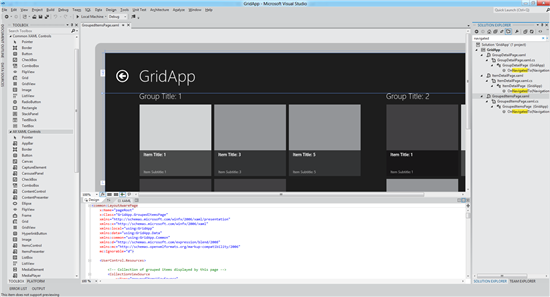
Visual Studio 11 will include most of the extensions currently available in the Productivity Power Tools for Visual Studio 2010. The XAML designer will be shared with Blend (hopefully that we will to better performance & less design-time issues). There are tons of other changes, improvements and new features…

For more details, you can check out those posts: Introducing the new developer experience part 1 & part 2.

Of course I’ll try to play with all those new toys as soon as possible. So you should expect more blog post this week !

 

If you like typing XAML you will love ReSharper 6.1 !

Silverlight, Tools, Windows 8, Windows Phone, WPF 4 Comments »

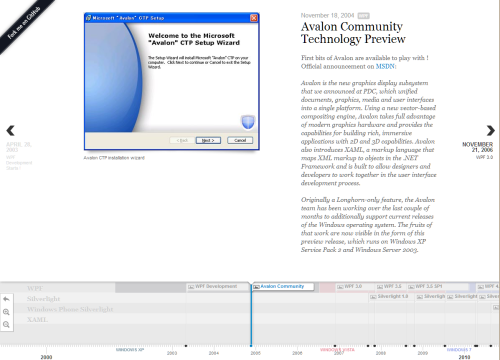
Resharper is an amazing tool for any .Net developers. The latest version 6.1 has been released just a couple of weeks ago and I wanted to share with you a brief overview of the new workflow available in the XAML world !

Visual Studio 2010 introduced 2 new design time properties: d:DesignInstance and d:DesignData. Those properties can be used in order to specify a design time DataContext in order to have more help during the creation of a binding.

For example, when you create a binding using the Property dialog of VS2010 you can browse your DataContext to select the right property (image from this blog post from Karl Shifflet):

Resharper 6.1 is now able to use those metadata in order to improve the experience you have while typing XAML (which I personally do a LOT!). Here is how it works:

  • you create a new ViewModel with a simple property (this property has just get/set because we don’t need much more in the context of this post…)

  • you setup a binding in your view

At this point the ReSharper magic comes into play…

  • ReSharper warns you the DataContext is unknown

  • Offer the ability to fix this

  • Note that like in C#, you can very easily resolve namespace issues

  • Then notice that the warning is gone (the Title property is no longer underlined)

  • You can now add a new binding

  • You can then ask ReSharper to create the property in your ViewModel

  • Choosing the first option will get you to the ViewModel definition

Now that I’ve upgraded my installation to version 6.1, I think this is a must have !

That’s all for today ! Hope it helps :-)


Meet me during the Microsoft Days in Lyon next Wednesday !

Build, Events, Silverlight, Windows 8, Windows Phone, WPF No Comments »

Next Wednesday (November 9th), I’ll be at the Microsoft Days 11 as a member of the Ask The Expert team. I’ll be playing with the Samsung Slate I got at //BUILD/, discussing WPF, Silverlight, Windows Phone 7 and Windows 8.

Don’t hesitate to stop by and say hi if you’re coming to this event !

BUILD: WinRT, Silverlight, WPF, XAML

Metro, Silverlight, Windows 8, WPF 4 Comments »

This blog post is part of my BUILD series.

I’m having a very busy week here in Anaheim ! I’m meeting many new people and had the chance to enjoy the conference from the inside. I’m also playing with this new Windows 8 slate Microsoft gave us ! I’m not going to do a blog post trying to summarize everything because there is just so much to say.I’m going to try to share my point of view on what I’ve seen here.

Our new platform

The original picture shown during the keynote to introduce the new platform was this one:

There has been a lot of confusion about that because of having XAML with C# in the Metro Style Apps without any reference to the CLR… Doug Steven did a pretty great job (blog post is here) by discussing with key people from the engineering team of Microsoft and creates this new more accurate picture:

Here is a quick summary:

  • there is only one CLR
  • .Net framework 4.5 is used in both Metro apps and Classic apps
  • it’s the same MSIL for Metro apps and Classic apps
  • in the Metro platform, we have a subset of the .Net framework (for example no OpenFileDialog…)

New opportunities

Before //BUILD we had already many choices to choose our development environment. we now have even more:

  • WPF and managed code for classic desktop apps
  • Silverlight in a web environment
  • Silverlight out of browser
  • WinRT + XAML for Metro apps
  • WinRT + HTML for Metro apps

I personally think that Silverlight in a web browser has not a great future. Microsoft just announced for example that the immersive version of IE will not run any plugins (so no Silverlight in the Metro UI) and we ‘ll know Microsoft is pushing HTML5 very strongly.

For classic desktop apps we have 2 options: WPF and Silverlight. Each of them has advantages and the choice we’ll have to do will depend on our constraints (deployment, business needs, connectivity…). I think there is room for the 2 platforms there.

For the Metro UI, you can choose between XAML and HTML. Microsoft told us they will keep a good feature parity between the 2 options. If you choose XAML and managed code you’ll be able to leverage a subset of the .Net framework.

I think another important aspect is that Metro will be available on Windows 8 only. Even though this new version of the OS might have a fast deployment rate (thanks to the slates), in many companies I don’t think it will be that fast.This, plus the fact that some LOB apps will not benefit the Metro UI leaves a lot of work to do in the desktop applications world (where we have both WPF and SL)… For WPF, we now have a new version coming in .Net 4.5. You can check out the new stuff here in the documentation.

In my next blog post I’m going to try to go deeper in the new WinRT/XAML world and see how it looks like for us, WPF and Silverlight developers.


MVVM Framework explorer updated

Silverlight, Windows Phone, WPF 1 Comment »

I just updated my MVVM frameworks explorer Silverlight application. You can find the updated application here.

Here is the top 5 of MVVM frameworks supporting WPF, Silverlight and Windows Phone 7:

  1. MVVM Light (61k downloads)
  2. nRoute (19k downloads)
  3. Caliburn Micro (18k downloads)
  4. Simple MVVM toolkit (5k downloads)
  5. Catel (5k downloads)

When enough ViewModel is enough

Silverlight, Windows Phone, WPF 9 Comments »

In the last few years, we’ve seen the WPF and Silverlight community embracing the MVVM methodology. As one of the early adopters of MVVM (one of my first post about the subject was late 2008), I’ve seen the pattern evolving both in the web community and with developers I’ve met in my daily life.

Today, I’d like to share with you a simple concept I try to stick to when I’m doing WPF, Silverlight or Windows Phone 7 development. It can be summarized as “Enough ViewModel is enough”.

The simple idea behind this slogan is that there ARE stuff which are view-related and SHOULD NOT be embedded in the ViewModel layer. I’ve seen too many developers going the “100% viewmodel way” which means for them absolutely no code-behind without any dispensation.

For example, I came across this code. It’s the ViewModel layer associated to a simple view where the user fills various input and has immediate feedback about the progress (like “75% of the fields are completed”). If by the way you’re interested in implementing this behavior you can check out this article I wrote on CodeProject)

The following code is simplified to the sake of the article:

?View Code CSHARP
1
2
3
4
5
6
7
8
9
10
11
12
13
14
15
16
17
18
19
20
21
22
23
24
25
26
27
28
29
30
31
32
33
34
35
36
37
38
39
40
41
42
43
44
45
46
47
48
49
50
51
52
53
54
55
56
57
public class ViewModel
{
    // data field acts as the model object behind the VM layer
    private Data data;
 
    // missing code...
    // public properties used by the view using databinding
 
    public ViewModel()
    {
        // very simplified for this article...
        this.data = new Data();
        this.data.SelectedValuesChanged += new EventHandler(data_SelectedValuesChanged);
    }
 
    public void UpdateProgress()
    {
        // some code...
    }
 
    void data_SelectedValuesChanged(object sender, EventArgs e)
    {
        this.UpdateProgress();
        this.Initialize();
    }
 
    public void Initialize()
    {
        var item = this.data.GetItem("id1");
        if (item != null)
        {
            item.PropertyChanged += new PropertyChangedEventHandler(item_PropertyChanged);
            item.SelectedValuesChanged += new EventHandler(item_SelectedValuesChanged);
            foreach (var value in item.Values)
                value.PropertyChanged += new PropertyChangedEventHandler(item_PropertyChanged);
        }
 
        item = this.data.GetItem("id2");
        if (item != null)
        {
            item.PropertyChanged += new PropertyChangedEventHandler(item_PropertyChanged);
            item.SelectedValuesChanged += new EventHandler(item_SelectedValuesChanged);
            foreach (var value in item.Values)
                value.PropertyChanged += new PropertyChangedEventHandler(item_PropertyChanged);
        }
    }
 
    void item_PropertyChanged(object sender, System.ComponentModel.PropertyChangedEventArgs e)
    {
        this.UpdateProgress();
    }
 
    void item_SelectedValuesChanged(object sender, EventArgs e)
    {
        this.UpdateProgress();
    }
}

The idea is simple, as soon as the user changes a value in the View, we must compute the current progress. Because the ViewModel have several levels, we end-up having to register to every single PropertyChanged event which leads to cumbersome code. By the way, this code can also creates memory leaks since we register a lot of event handlers without removing them, but that’s another discussion…

Here is my way to solve this problem:

?View Code CSHARP
1
2
3
4
5
6
7
8
9
10
11
12
13
14
15
16
17
18
19
20
21
public partial class View : UserControl
{
    private readonly ViewModel viewmodel;
 
    public View()
    {
        InitializeComponent();
 
        this.viewmodel = new ViewModel();
 
        this.AddHandler(
            FocusManager.LostFocusEvent,
            new RoutedEventHandler(this.OnLostFocus),
            true);
    }
 
    private void OnLostFocus(object sender, RoutedEventArgs e)
    {
        this.viewmodel.UpdateProgress();
    }      
}

What is wrong with this way ? The View has code-behind ? That’s not a big deal: the code is more readable, maintainable. It makes also more sense: when a view-related operation occurs (in this case, focus has changed), update the progress.

The simple message I’d like to spread is the fact that there is nothing wrong with the fact to have sometime, a little bit of code-behind in your view if that facilitates your architecture. There is no need to create a complicated infrastructure with behaviors, commands or bindings just to keep the view empty if that does not make sense.

Another great example in a real application is available in the Advanced MVVM book by Josh Smith.


WPF databinding trick (part 2)

.Net, WPF 4 Comments »

Ok, let’s see another strange behavior that you might have already seen with the WPF databinding engine.

INotifyPropertyChanged

When we teach WPF to new developers, at some point we need to introduce the INotifyPropertyChanged interface. Usually, the kind of speech which is given looks like this one:

When you’re doing a binding to a standard CLR property, you must add some kind of notification mechanisms in order to tell the binding when the value changes. In WPF, this is standardized by using the common INotifyPropertyChanged interface. This interface contains a single event which must be raised with the name of the property which has changed. Whenever this event is fired, the databinding engine is able to see the change and update the corresponding binding.

Demo application

Nothing really exciting here, right. Now, you start to do a demo with the following code:

?View Code CSHARP
1
2
3
4
5
6
7
8
9
10
11
12
13
14
15
16
17
18
19
20
public partial class MainWindow : Window
{
    public MainWindow()
    {
        InitializeComponent();
 
        this.DataContext = new DataObject() { Data = "test " };
    }
}
 
public class DataObject
{
    private string data;
 
    public string Data
    {
        get { return this.data; }
        set { this.data = value; }
    }
}

Here the DataObject class I use as DataContext does not implement INotifyPropertyChanged.Then I added some XAML in the MainWindow:

1
2
3
4
5
6
7
8
9
10
<Window x:Class="TestDataContext.MainWindow"
        xmlns="http://schemas.microsoft.com/winfx/2006/xaml/presentation"
        xmlns:x="http://schemas.microsoft.com/winfx/2006/xaml"
        Title="MainWindow" Height="350" Width="525">
    <StackPanel>
        <TextBox Text="{Binding Data}"/>
        <TextBox Text="{Binding Data}"/>
        <TextBox Text="{Binding Data}"/>
    </StackPanel>
</Window>

And the goal is to display 3 TextBoxes all databound to the same property. Now, we run the application, types some text in one of the TextBox and change the focus in order to update the binding. Most of us would expect to have the 2 other Textboxes with the old value: when the focus has been lost the new string value has been pushed into the Data property, but the other Textboxes have no way to detect this change.

Actually if you run this application, you’ll see all the Textboxes being updated That’s strange…

Why does it works ?

Ok, let’s get into the dirty details. Here are what happens during initialization:

  • XAML is parsed
  • for the 3 TextBox
    • the Binding is initialized
    • a BindingExpression is created. The BindingExpression is a IWeakEventListener.
    • its AttachOverride method is called
    • if the UpdateOnLostFocus flag is set (which is the case because the default value of UpdateSourceTrigger is LostFocus), the static LostFocusEventManager type is used and the AddListener is called
      • during the initialization of the binding, the PropertyPathWorker class is added and at some point the ReplaceItem method gets called
      • then the following code gets execute
    ?View Code CSHARP
    1
    2
    3
    4
    5
    6
    7
    8
    9
    
    if(source is INotifyPropertyChanged)
    {
    	PropertyChangedEventManager.AddListener();
    }
    else
    {
    	PropertyDescriptor descriptor = GetDescriptor(source, path);
    	ValueChangedEventManager.AddListener();
    }

    Which means:

    • if the source implements INotifyPropertyChanged, use that to track the changes to the property
    • otherwise, use the ValueChanged event of the cached PropertyDescriptor instance to track the changes

    What happens when one of the TextBox lost focus:

    • the focus changes to another control, the previously focused TextBox gets is LostFocus event raised
    • the LostFocusEventManager gets the notification
    • the notification is transferred to the BindingExpression (which is a IWeakEventListener) by calling the IWeakEventListener.ReceiveWeakEvent method
    • several method calls… ending in the PropertyPathWorker class where the PropertyDescriptor.SetValue methods is called (where the PropertyDescriptor is the one which has been cached during initialization)
    • this method raises the ValueChanged event at the PropertyDescriptor level
    • which is catched by the ValueChangedEventManager
    • and the associated dependency property (Text) is updated
    • and voila !

    So there are no miracle behind the demo application I was talking about, just the fact the binding engine is smart enough to cache the PropertyDescriptor used for setting value to CLR property and using the ValueChanged event to get notifications if the source does not implement INotifyPropertyChanged.

    Happy coding !

    WPF databinding trick (part 1)

    WPF 2 Comments »

    The last week, one of my colleague was doing a WPF training session and she ended up having a very strange behavior with the WPF databinding engine. I’ll describe a not well-known behavior of the WPF databinding engine and I’ll try to explain how its works under the scene.

    Binding the Text property of a TextBlock to a collection of objects

    This is something you’re not supposed to do, but you’ll see it actually works in an unexpected way. In the code-behind of our Window, we have the following C# code:

    ?View Code CSHARP
    1
    2
    3
    4
    5
    6
    7
    8
    9
    10
    11
    12
    13
    14
    15
    16
    17
    18
    19
    20
    21
    22
    
    public partial class MainWindow : Window
    {
        public MainWindow()
        {
            InitializeComponent();
     
            Person person1 = new Person { Age = 45 };
            Person person2 = new Person { Age = 63 };
            Person person3 = new Person { Age = 71 };
     
            this.DataContext = new List<Person> { person1, person2, person3 };
        }
    }
     
    public class Person
    {
        public int Age
        {
            get;
            set;
        }
    }

    The associated XAML looks like the following:

    1
    2
    3
    4
    5
    6
    7
    8
    9
    
    <Window x:Class="WpfApplicationDataContext.MainWindow"
            xmlns="http://schemas.microsoft.com/winfx/2006/xaml/presentation"
            xmlns:x="http://schemas.microsoft.com/winfx/2006/xaml" 
            Title="MainWindow" Height="350" Width="525">
     
        <StackPanel>
            <TextBlock Margin="10" Text="{Binding Age}"/>
        </StackPanel>
    </Window>

    Here we’re doing something not usual: we’re binding the Text property of the TextBlock (which is of type string) to a collection of objects.

    What do you think the Window will display ?

    The first time I saw this code, I thought the Window will remain empty. The DataContext is set to a List and we’re trying to find an “Age” property on this collection: THAT CANNOT WORK.

    Actually, it does…

    What’s happening behind the scene ?

    Let’s take a deep breath a take a look at what’s happening behind the scene to make this works.

    1. A CollectionView is created

    The first thing I was thinking while talking about the problem with my colleague was the use of a collection view. As you probably now, every time you create a binding to a collection property, the engine creates a collection view for you. This view will serve as an intermediate layer between your source and the target to manage selection, filtering and grouping. A good introduction to collection views is available here.

    What is important to know is that collection views are shared along same objects instance. It means that when you use the CollectionViewSource.GetDefaultView() method, you’re either creating a default view for the collection (if no one has requested one before) or getting the default view (if it has been created by calling the same method before you).

    To make sure I was right about my hypothesis, I added the following code in the C#:

    ?View Code CHSARP
    1
    2
    3
    
    var collectionView = CollectionViewSource.GetDefaultView(this.DataContext);
    collectionView.MoveCurrentToNext();
    this.MouseDoubleClick += (s, e) => collectionView.MoveCurrentToNext();

    And the Window is now displaying the second item of the list:

    So we’re definitively dealing with a collection view. The next question was, where the value comes from, I specified “Age” as binding path…

    2. The CurrentItem property of ICollectionView

    If you take a look at the documentation about ICollectionView, you’ll find this property:

    So it looks like the Text property of my TextBlock is databound to this CurrentItem property while I explicitly set to the Age property…

    3. The magic of the PropertyPathWorker class

    Using Reflector, I looked for potential types using the ICollectionView.CurrentItem property. I found an interesting class: PropertyPathWorker.In the source code of the .Net framework, this type is defines as “the workhorse for CLR binding“.

    In particular, take a look at this method:

    ?View Code CSHARP
    1
    2
    3
    4
    5
    6
    7
    8
    9
    10
    11
    12
    13
    14
    15
    16
    17
    
    private void ReplaceItem(int k, object newO, object parent)
    {
        // some code...
     
        view = CollectionViewSource.GetDefaultCollectionView(parent, TreeContext);
     
        // some more code...
     
        newO = view.CurrentItem;
        if (newO != null)
        {
            GetInfo(k, newO, ref svs);
            svs.collectionView = view;
        } 
     
        // and bam ! we're now using view.CurrentItem as source for our binding
    }

    So we’ve a special case when we’re creating a binding with a collection view: the CurrentItem property is automatically used and merge with the specificied path. In our case, it’s like creating a binding to CurrentItem.Age.

    3. And voila !

    Finally we’ve a lot going on within the engine to make this works. Of course the original binding was not something we would do in normal application but it was kind of cool doing the investigations to find out why it was working ! Hope you learn something cool about the databinding engine :-)

    Next week I’ll try to write a similar article about another strange behavior you might have already seen…


    Visual Studio 2010 and HW acceleration on Windows XP…

    .Net, Visual Studio, WPF 1 Comment »

    Last week during the MVP summit in Seattle we’d the confirmation that the SP1 of Visual Studio was almost ready and today we’ve more details: “Visual Studio 2010 Service Pack 1 will be available March 9th for download for MSDN Subscribers, and will be generally available for download on March 10th, 2011” [from G.Duthie's blog on MSDN].

    “While the Service Pack is mostly focused on improvements in response to feedback on Visual Studio 2010, one new feature I want to highlight is the integration of IIS Express into Visual Studio 2010. IIS Express, which was introduced with the new Microsoft WebMatrix editor, is a lightweight, yet full-featured version of IIS that can run without administrative permissions.”

    Another important thing to notice about the SP1, is that it will disable the hardware acceleration of the IDE on Windows XP. Yes, you read correctly, despite WPF’s support for accelerated graphics, this feature will be disabled on XP (for VS only).


    Background

    When the version 3.5 of the .Net framework was released, Microsoft added a new software rendering engine in case the hardware was not able to do the job. This feature could be enabled at the Window level using the following code:

    ?View Code CSHARP
    1
    2
    3
    
    HwndSource hwndSource = PresentationSource.FromVisual(this) as HwndSource;
    HwndTarget hwndTarget = hwndSource.CompositionTarget;
    hwndTarget.RenderMode = RenderMode.SoftwareOnly;

    With WPF4, this is now possible at the Process level using a single line of code:

    ?View Code CHSARP
    1
    
    RenderOptions.ProcessRenderMode = RenderMode.SoftwareOnly

    Another trick you can use in your application is to determine whether your application is currently using hardware acceleration. You can do that by looking at the RenderCapability.Tier enumeration.


    In your applications running on XP…

    Now the immediate question that might come in your mind is: “If VS2010 is disabling HW acceleration on XP, should I do the same on my WPF application which is shipped on XP too ?”

    I guess the answer is “maybe” and it actually depends on various factors:

    • does your user reported crash that seems correlated to video drivers issue ?
    • does your application extensively uses complex graphical effects (for example this is clearly not the case in VS2010) ?
    • what kind of hardware your users are using. Is this recent hardware (which are being downgraded to XP) or is this really old hardware ?

    Maybe a good option is to let the user change this settings (while having a default value). In VS2010, you’ll be able to turn on HW acceleration back by using the settings dialog:


    Anyway, I thought at the beginning it was a very weird decision. But after all; if the majority of the crashes they see in VS on Windows XP is linked to bad drivers, it makes sense.

    WP Theme & Icons by N.Design Studio
    Entries RSS Comments RSS Log in