
MVVM framework explorer updated !

.Net, Silverlight, Windows 8, Windows Phone, WPF 4 Comments »

After several requests, I finally took the time to update my MVVM Explorer Silverlight App !

Here is the changelog:

  • update all download stats (based ONLY on CodePlex stats)
  • refresh popularities
  • remove StructuredMVVM (not available on CodePlex)
  • add WinRT support (however, no toolkit seems to support if official yet)
Top 5 (most downloaded & supporting WPF, Silverlight and Windows Phone):
  1. MVVM Light (95k downloads)
  2. Caliburn Micro (27k downloads)
  3. nRoute (22k downloads)
  4. Simple MVVM toolkit (10k downloads)
  5. Catel (8k downloads)

As always, feedbacks are welcome !

BUILD: WinRT, Silverlight, WPF, XAML

Metro, Silverlight, Windows 8, WPF 4 Comments »

This blog post is part of my BUILD series.

I’m having a very busy week here in Anaheim ! I’m meeting many new people and had the chance to enjoy the conference from the inside. I’m also playing with this new Windows 8 slate Microsoft gave us ! I’m not going to do a blog post trying to summarize everything because there is just so much to say.I’m going to try to share my point of view on what I’ve seen here.

Our new platform

The original picture shown during the keynote to introduce the new platform was this one:
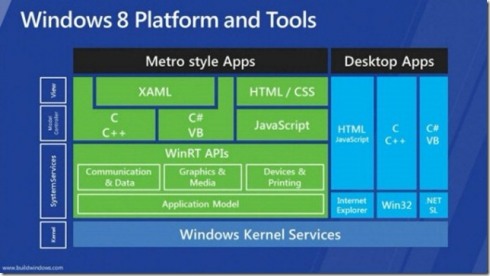
There has been a lot of confusion about that because of having XAML with C# in the Metro Style Apps without any reference to the CLR… Doug Steven did a pretty great job (blog post is here) by discussing with key people from the engineering team of Microsoft and creates this new more accurate picture:
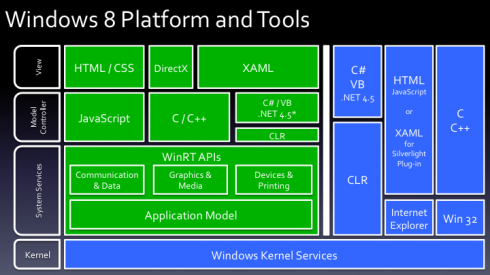
Here is a quick summary:

  • there is only one CLR
  • .Net framework 4.5 is used in both Metro apps and Classic apps
  • it’s the same MSIL for Metro apps and Classic apps
  • in the Metro platform, we have a subset of the .Net framework (for example no OpenFileDialog…)

New opportunities

Before //BUILD we had already many choices to choose our development environment. we now have even more:

  • WPF and managed code for classic desktop apps
  • Silverlight in a web environment
  • Silverlight out of browser
  • WinRT + XAML for Metro apps
  • WinRT + HTML for Metro apps

I personally think that Silverlight in a web browser has not a great future. Microsoft just announced for example that the immersive version of IE will not run any plugins (so no Silverlight in the Metro UI) and we ‘ll know Microsoft is pushing HTML5 very strongly.

For classic desktop apps we have 2 options: WPF and Silverlight. Each of them has advantages and the choice we’ll have to do will depend on our constraints (deployment, business needs, connectivity…). I think there is room for the 2 platforms there.

For the Metro UI, you can choose between XAML and HTML. Microsoft told us they will keep a good feature parity between the 2 options. If you choose XAML and managed code you’ll be able to leverage a subset of the .Net framework.

I think another important aspect is that Metro will be available on Windows 8 only. Even though this new version of the OS might have a fast deployment rate (thanks to the slates), in many companies I don’t think it will be that fast.This, plus the fact that some LOB apps will not benefit the Metro UI leaves a lot of work to do in the desktop applications world (where we have both WPF and SL)… For WPF, we now have a new version coming in .Net 4.5. You can check out the new stuff here in the documentation.

In my next blog post I’m going to try to go deeper in the new WinRT/XAML world and see how it looks like for us, WPF and Silverlight developers.

 

MVVM Framework explorer updated

Silverlight, Windows Phone, WPF 1 Comment »

I just updated my MVVM frameworks explorer Silverlight application. You can find the updated application here.

Here is the top 5 of MVVM frameworks supporting WPF, Silverlight and Windows Phone 7:

  1. MVVM Light (61k downloads)
  2. nRoute (19k downloads)
  3. Caliburn Micro (18k downloads)
  4. Simple MVVM toolkit (5k downloads)
  5. Catel (5k downloads)

When enough ViewModel is enough

Silverlight, Windows Phone, WPF 9 Comments »

In the last few years, we’ve seen the WPF and Silverlight community embracing the MVVM methodology. As one of the early adopters of MVVM (one of my first post about the subject was late 2008), I’ve seen the pattern evolving both in the web community and with developers I’ve met in my daily life.

Today, I’d like to share with you a simple concept I try to stick to when I’m doing WPF, Silverlight or Windows Phone 7 development. It can be summarized as “Enough ViewModel is enough”.

The simple idea behind this slogan is that there ARE stuff which are view-related and SHOULD NOT be embedded in the ViewModel layer. I’ve seen too many developers going the “100% viewmodel way” which means for them absolutely no code-behind without any dispensation.

For example, I came across this code. It’s the ViewModel layer associated to a simple view where the user fills various input and has immediate feedback about the progress (like “75% of the fields are completed”). If by the way you’re interested in implementing this behavior you can check out this article I wrote on CodeProject)

The following code is simplified to the sake of the article:

?View Code CSHARP
1
2
3
4
5
6
7
8
9
10
11
12
13
14
15
16
17
18
19
20
21
22
23
24
25
26
27
28
29
30
31
32
33
34
35
36
37
38
39
40
41
42
43
44
45
46
47
48
49
50
51
52
53
54
55
56
57
public class ViewModel
{
    // data field acts as the model object behind the VM layer
    private Data data;
 
    // missing code...
    // public properties used by the view using databinding
 
    public ViewModel()
    {
        // very simplified for this article...
        this.data = new Data();
        this.data.SelectedValuesChanged += new EventHandler(data_SelectedValuesChanged);
    }
 
    public void UpdateProgress()
    {
        // some code...
    }
 
    void data_SelectedValuesChanged(object sender, EventArgs e)
    {
        this.UpdateProgress();
        this.Initialize();
    }
 
    public void Initialize()
    {
        var item = this.data.GetItem("id1");
        if (item != null)
        {
            item.PropertyChanged += new PropertyChangedEventHandler(item_PropertyChanged);
            item.SelectedValuesChanged += new EventHandler(item_SelectedValuesChanged);
            foreach (var value in item.Values)
                value.PropertyChanged += new PropertyChangedEventHandler(item_PropertyChanged);
        }
 
        item = this.data.GetItem("id2");
        if (item != null)
        {
            item.PropertyChanged += new PropertyChangedEventHandler(item_PropertyChanged);
            item.SelectedValuesChanged += new EventHandler(item_SelectedValuesChanged);
            foreach (var value in item.Values)
                value.PropertyChanged += new PropertyChangedEventHandler(item_PropertyChanged);
        }
    }
 
    void item_PropertyChanged(object sender, System.ComponentModel.PropertyChangedEventArgs e)
    {
        this.UpdateProgress();
    }
 
    void item_SelectedValuesChanged(object sender, EventArgs e)
    {
        this.UpdateProgress();
    }
}

The idea is simple, as soon as the user changes a value in the View, we must compute the current progress. Because the ViewModel have several levels, we end-up having to register to every single PropertyChanged event which leads to cumbersome code. By the way, this code can also creates memory leaks since we register a lot of event handlers without removing them, but that’s another discussion…

Here is my way to solve this problem:

?View Code CSHARP
1
2
3
4
5
6
7
8
9
10
11
12
13
14
15
16
17
18
19
20
21
public partial class View : UserControl
{
    private readonly ViewModel viewmodel;
 
    public View()
    {
        InitializeComponent();
 
        this.viewmodel = new ViewModel();
 
        this.AddHandler(
            FocusManager.LostFocusEvent,
            new RoutedEventHandler(this.OnLostFocus),
            true);
    }
 
    private void OnLostFocus(object sender, RoutedEventArgs e)
    {
        this.viewmodel.UpdateProgress();
    }      
}

What is wrong with this way ? The View has code-behind ? That’s not a big deal: the code is more readable, maintainable. It makes also more sense: when a view-related operation occurs (in this case, focus has changed), update the progress.

The simple message I’d like to spread is the fact that there is nothing wrong with the fact to have sometime, a little bit of code-behind in your view if that facilitates your architecture. There is no need to create a complicated infrastructure with behaviors, commands or bindings just to keep the view empty if that does not make sense.

Another great example in a real application is available in the Advanced MVVM book by Josh Smith.


WPF databinding trick (part 2)

.Net, WPF 4 Comments »

Ok, let’s see another strange behavior that you might have already seen with the WPF databinding engine.

INotifyPropertyChanged

When we teach WPF to new developers, at some point we need to introduce the INotifyPropertyChanged interface. Usually, the kind of speech which is given looks like this one:

When you’re doing a binding to a standard CLR property, you must add some kind of notification mechanisms in order to tell the binding when the value changes. In WPF, this is standardized by using the common INotifyPropertyChanged interface. This interface contains a single event which must be raised with the name of the property which has changed. Whenever this event is fired, the databinding engine is able to see the change and update the corresponding binding.

Demo application

Nothing really exciting here, right. Now, you start to do a demo with the following code:

?View Code CSHARP
1
2
3
4
5
6
7
8
9
10
11
12
13
14
15
16
17
18
19
20
public partial class MainWindow : Window
{
    public MainWindow()
    {
        InitializeComponent();
 
        this.DataContext = new DataObject() { Data = "test " };
    }
}
 
public class DataObject
{
    private string data;
 
    public string Data
    {
        get { return this.data; }
        set { this.data = value; }
    }
}

Here the DataObject class I use as DataContext does not implement INotifyPropertyChanged.Then I added some XAML in the MainWindow:

1
2
3
4
5
6
7
8
9
10
<Window x:Class="TestDataContext.MainWindow"
        xmlns="http://schemas.microsoft.com/winfx/2006/xaml/presentation"
        xmlns:x="http://schemas.microsoft.com/winfx/2006/xaml"
        Title="MainWindow" Height="350" Width="525">
    <StackPanel>
        <TextBox Text="{Binding Data}"/>
        <TextBox Text="{Binding Data}"/>
        <TextBox Text="{Binding Data}"/>
    </StackPanel>
</Window>

And the goal is to display 3 TextBoxes all databound to the same property. Now, we run the application, types some text in one of the TextBox and change the focus in order to update the binding. Most of us would expect to have the 2 other Textboxes with the old value: when the focus has been lost the new string value has been pushed into the Data property, but the other Textboxes have no way to detect this change.

Actually if you run this application, you’ll see all the Textboxes being updated That’s strange…

Why does it works ?

Ok, let’s get into the dirty details. Here are what happens during initialization:

  • XAML is parsed
  • for the 3 TextBox
    • the Binding is initialized
    • a BindingExpression is created. The BindingExpression is a IWeakEventListener.
    • its AttachOverride method is called
    • if the UpdateOnLostFocus flag is set (which is the case because the default value of UpdateSourceTrigger is LostFocus), the static LostFocusEventManager type is used and the AddListener is called
      • during the initialization of the binding, the PropertyPathWorker class is added and at some point the ReplaceItem method gets called
      • then the following code gets execute
    ?View Code CSHARP
    1
    2
    3
    4
    5
    6
    7
    8
    9
    
    if(source is INotifyPropertyChanged)
    {
    	PropertyChangedEventManager.AddListener();
    }
    else
    {
    	PropertyDescriptor descriptor = GetDescriptor(source, path);
    	ValueChangedEventManager.AddListener();
    }

    Which means:

    • if the source implements INotifyPropertyChanged, use that to track the changes to the property
    • otherwise, use the ValueChanged event of the cached PropertyDescriptor instance to track the changes

    What happens when one of the TextBox lost focus:

    • the focus changes to another control, the previously focused TextBox gets is LostFocus event raised
    • the LostFocusEventManager gets the notification
    • the notification is transferred to the BindingExpression (which is a IWeakEventListener) by calling the IWeakEventListener.ReceiveWeakEvent method
    • several method calls… ending in the PropertyPathWorker class where the PropertyDescriptor.SetValue methods is called (where the PropertyDescriptor is the one which has been cached during initialization)
    • this method raises the ValueChanged event at the PropertyDescriptor level
    • which is catched by the ValueChangedEventManager
    • and the associated dependency property (Text) is updated
    • and voila !

    So there are no miracle behind the demo application I was talking about, just the fact the binding engine is smart enough to cache the PropertyDescriptor used for setting value to CLR property and using the ValueChanged event to get notifications if the source does not implement INotifyPropertyChanged.

    Happy coding !

    WPF databinding trick (part 1)

    WPF 2 Comments »

    The last week, one of my colleague was doing a WPF training session and she ended up having a very strange behavior with the WPF databinding engine. I’ll describe a not well-known behavior of the WPF databinding engine and I’ll try to explain how its works under the scene.

    Binding the Text property of a TextBlock to a collection of objects

    This is something you’re not supposed to do, but you’ll see it actually works in an unexpected way. In the code-behind of our Window, we have the following C# code:

    ?View Code CSHARP
    1
    2
    3
    4
    5
    6
    7
    8
    9
    10
    11
    12
    13
    14
    15
    16
    17
    18
    19
    20
    21
    22
    
    public partial class MainWindow : Window
    {
        public MainWindow()
        {
            InitializeComponent();
     
            Person person1 = new Person { Age = 45 };
            Person person2 = new Person { Age = 63 };
            Person person3 = new Person { Age = 71 };
     
            this.DataContext = new List<Person> { person1, person2, person3 };
        }
    }
     
    public class Person
    {
        public int Age
        {
            get;
            set;
        }
    }

    The associated XAML looks like the following:

    1
    2
    3
    4
    5
    6
    7
    8
    9
    
    <Window x:Class="WpfApplicationDataContext.MainWindow"
            xmlns="http://schemas.microsoft.com/winfx/2006/xaml/presentation"
            xmlns:x="http://schemas.microsoft.com/winfx/2006/xaml" 
            Title="MainWindow" Height="350" Width="525">
     
        <StackPanel>
            <TextBlock Margin="10" Text="{Binding Age}"/>
        </StackPanel>
    </Window>

    Here we’re doing something not usual: we’re binding the Text property of the TextBlock (which is of type string) to a collection of objects.

    What do you think the Window will display ?

    The first time I saw this code, I thought the Window will remain empty. The DataContext is set to a List and we’re trying to find an “Age” property on this collection: THAT CANNOT WORK.

    Actually, it does…

    What’s happening behind the scene ?

    Let’s take a deep breath a take a look at what’s happening behind the scene to make this works.

    1. A CollectionView is created

    The first thing I was thinking while talking about the problem with my colleague was the use of a collection view. As you probably now, every time you create a binding to a collection property, the engine creates a collection view for you. This view will serve as an intermediate layer between your source and the target to manage selection, filtering and grouping. A good introduction to collection views is available here.

    What is important to know is that collection views are shared along same objects instance. It means that when you use the CollectionViewSource.GetDefaultView() method, you’re either creating a default view for the collection (if no one has requested one before) or getting the default view (if it has been created by calling the same method before you).

    To make sure I was right about my hypothesis, I added the following code in the C#:

    ?View Code CHSARP
    1
    2
    3
    
    var collectionView = CollectionViewSource.GetDefaultView(this.DataContext);
    collectionView.MoveCurrentToNext();
    this.MouseDoubleClick += (s, e) => collectionView.MoveCurrentToNext();

    And the Window is now displaying the second item of the list:

    So we’re definitively dealing with a collection view. The next question was, where the value comes from, I specified “Age” as binding path…

    2. The CurrentItem property of ICollectionView

    If you take a look at the documentation about ICollectionView, you’ll find this property:

    So it looks like the Text property of my TextBlock is databound to this CurrentItem property while I explicitly set to the Age property…

    3. The magic of the PropertyPathWorker class

    Using Reflector, I looked for potential types using the ICollectionView.CurrentItem property. I found an interesting class: PropertyPathWorker.In the source code of the .Net framework, this type is defines as “the workhorse for CLR binding“.

    In particular, take a look at this method:

    ?View Code CSHARP
    1
    2
    3
    4
    5
    6
    7
    8
    9
    10
    11
    12
    13
    14
    15
    16
    17
    
    private void ReplaceItem(int k, object newO, object parent)
    {
        // some code...
     
        view = CollectionViewSource.GetDefaultCollectionView(parent, TreeContext);
     
        // some more code...
     
        newO = view.CurrentItem;
        if (newO != null)
        {
            GetInfo(k, newO, ref svs);
            svs.collectionView = view;
        } 
     
        // and bam ! we're now using view.CurrentItem as source for our binding
    }

    So we’ve a special case when we’re creating a binding with a collection view: the CurrentItem property is automatically used and merge with the specificied path. In our case, it’s like creating a binding to CurrentItem.Age.

    3. And voila !

    Finally we’ve a lot going on within the engine to make this works. Of course the original binding was not something we would do in normal application but it was kind of cool doing the investigations to find out why it was working ! Hope you learn something cool about the databinding engine :-)

    Next week I’ll try to write a similar article about another strange behavior you might have already seen…


    Set up the main window of your WPF project

    WPF 1 Comment »

    Intro: In this post, I’m exploring various techniques we can use in order to have a custom Window in a WPF project.

    Today you start a new application. You open Visual Studio, “File”, “New”, “Project”, “WPF Application” and you start typing code… At some point, you might want to tune the main window of your application in order to have a custom header. The most common reason to do so is when you want to render some UI elements outside the standard client area of a window:

    For example in order to have something similar to Office 2010 (with icons inside the Window’s header):

    Also, you want to make sure you application works also great on Windows XP. This is probably not your personal choice but some guy from the marketing told you: it MUST runs on XP :-)

    Let see what are the various options you can choose

    Option1: use the WindowStyle = None option on the “standard” WPF Window

    • How to do?

    In the XAML (or in the C# code), simply set the value of the WindowStyle property of your Window to None:

    1
    2
    3
    4
    5
    6
    7
    
    <Window x:Class="WpfApplication1.MainWindow"
            xmlns="http://schemas.microsoft.com/winfx/2006/xaml/presentation"
            xmlns:x="http://schemas.microsoft.com/winfx/2006/xaml"
            Title="MainWindow" 
            Height="300" Width="250"  
            WindowStyle="None" 
            WindowStartupLocation="CenterScreen">
    • How does it look on Window XP ?

    • How does it look on Windows 7 ?

    • Advantages

    - Same solution for Windows XP and Windows 7.

    - The client area now occupies the whole Window. We are then able to render elements at the top of the Window in order to re-create the standard window header.

    - Very simple to use (minimal changes in your code).

    • Drawbacks

    - A lot of work is needed to create the actual header: show the title of the Window, its context menu and the standard window buttons (Minimize, Restore, Close)

    - Several problems appears when the Window gets maximized:

    The Window occupies the whole screen and hide Windows’s taskbar. You need some interop code to change the MaxHeight/MaxWidth of the Window. You can see this post for more details: Maximizing window (with WindowStyle=None) considering Taskbar

    Even though you fix the previous problem, the border of the window is still visible when it gets maximized:

    Option2: use Option1 + ResizeMode =NoResize in order to remove the remaining border

    You can easily fix the previous problem by registering an event handler on the StateChanged event of the Window. In the event handler, you can set ResizeMode to NoResize (when the Window is maximized) so that the remaining border disappear.

    • How to do?

    In the constructor of the Window, you can add the following code:

    ?View Code CSHARP
    1
    2
    3
    4
    5
    6
    7
    
    this.StateChanged += (s, e) =>
    {
        if (this.WindowState == WindowState.Maximized)
            this.ResizeMode = ResizeMode.NoResize;
        else
            this.ResizeMode = ResizeMode.CanResize;
    };
    • How does it look on Window XP ?

    • How does it look on Windows 7 ?

    • Advantages

    - Same solution for Windows XP and Windows 7.

    - You fixed the previous issue easily.

    • Drawbacks

    - No special drawbacks.

    Option3: use Option2 + AllowTransparency = True

    By using Option1 or Option2, you can have a much bigger client area than with a traditional Window. However, you still miss the glass effect or Aero. You might try to get this effect by adding transparency to your Window. The way to do so in WPF, is simply to set the value of the AllowTransparency property to true. Note that enabling transparency on the Window imply setting WindowStyle to None.

    • How to do?

    You can use the following XAML code:

    1
    2
    3
    4
    5
    6
    7
    
    <Window x:Class="WpfApplication_Option3.MainWindow"
            xmlns="http://schemas.microsoft.com/winfx/2006/xaml/presentation"
            xmlns:x="http://schemas.microsoft.com/winfx/2006/xaml"
            Title="MainWindow" Height="350" Width="525" 
            WindowStyle="None" 
            AllowsTransparency="True" 
            Background="Transparent">
    • How does it look on Window XP ?

    • How does it look on Windows 7 ?

    • Advantages

    - Minimal changes in your existing code

    • Drawbacks

    - On Windows 7, you’ll have to do some serious work in order to have the DWM Blur effect (you might need to combine some shaders effects…)

    - On Windows 7, you lost the drop shadow of your Window

    - You might get into performance issues by turning on this option.

    For more details, you can check out this MSDN blog post “Transparent Windows in WPF“:

    “The performance of WPF’s transparent windows is a topic of much concern.  WPF is designed to render via DirectX.  We do offer a software rendering fallback, but that is intended to provide a full-featured fallback, not for high performance.  The layered window APIs, on the other hand, take a GDI HDC parameter.  This causes different issues for XP and Vista.

    Experience suggests that a full-screen constantly updating layered window on good XP machine can consume as little as 3% CPU in overhead.

    Experience suggests that a full-screen constantly updating layered window on good Vista machine can consume as much as 30% CPU in overhead.”

    Option4: use interop achieve the same effect as Option2 but without having to set AllowTransparency to true

    As we just saw, using adding transparency to a WPF window by using the AllowTransparency property does not look the good way to go. In this last section, we’re going to see another way using Windows native APIs.

    The APIs we’re interested in are in the DwmApi.dll library. Here is the associated MSDN documentation:

    DwmExtendFrameIntoClientArea s the DWM function that extends the frame into the client area. It takes two parameters; a window handle and a MARGINS structure. MARGINS is used to tell the DWM how much extra the frame should be extended into the client area.

    To use the DwmExtendFrameIntoClientArea function, a window handle must be obtained. In WPF, the window handle can be obtained from the Handle property of an HwndSource. In the following example, the frame is extended into the client area on the Loaded event of the window.

    Using this API, you can achieve this kind of effect without having to use the AllowTransparency (on Vista or 7 only of course):

    On Windows XP, you don’t have DWM and then you’ll not be able to have the glass effect. However, you can still extend the client area of your Window using some other Windows native API.

    The easiest way to do all this work is to use the WPF Shell Integration Library, available on CodePlex:

    The custom chrome feature allows applications control over the outer frame of the window so that WPF content can be drawn over the title bar. This allows applications to integrate with Aero glass to emulate the Office 2007/2010 look and feel, or to completely replace the frame with its own content without having to manage all the system behaviors that get lost when using WindowStyle.None.

    This project also contains Windows 7 taskbar features (those features are now directly integrated in the .Net framework 4.0).

    • How to do ?

    You have to setup 2 distinct styles for Windows 7 and Windows XP. You can tweak them but here is the general organization of those styles:

    On Windows XP:

    1
    2
    3
    4
    5
    6
    7
    8
    9
    10
    11
    12
    13
    14
    15
    16
    17
    18
    19
    20
    21
    22
    23
    24
    25
    26
    27
    28
    29
    30
    31
    32
    33
    34
    35
    36
    37
    38
    39
    40
    41
    42
    43
    44
    45
    46
    
    <Style x:Key="GradientStyle" TargetType="{x:Type local:SelectableChromeWindow}">
        <Setter Property="shell:WindowChrome.WindowChrome">
        <Setter.Value>
            <shell:WindowChrome
            ResizeBorderThickness="6"
            CaptionHeight="40"
            CornerRadius="6,0,6,20"
            GlassFrameThickness="0"/>
        </Setter.Value>
        </Setter>
        <Setter Property="Template">
        <Setter.Value>
            <ControlTemplate TargetType="{x:Type local:SelectableChromeWindow}">
            <Grid>
                <Border BorderThickness="6" BorderBrush="#3b5998">
                <Border.Background>
                    <LinearGradientBrush StartPoint="0,0" EndPoint="0,50" MappingMode="Absolute">
                    <GradientStop Offset="0" Color="#8b9dc3"/>
                    <GradientStop Offset="1" Color="#3b5998"/>
                    </LinearGradientBrush>
                </Border.Background>
                <ContentPresenter Margin="6,26,6,6" Content="{TemplateBinding Content}"/>
                </Border>
                <Button shell:WindowChrome.IsHitTestVisibleInChrome="True"
                    VerticalAlignment="Top" 
                    HorizontalAlignment="Left" 
                    Margin="{Binding RelativeSource={RelativeSource TemplatedParent}, Path=(shell:WindowChrome.WindowChrome).ResizeBorderThickness}" 
                    Padding="10">
                <Image Source="{Binding RelativeSource={RelativeSource TemplatedParent}, Path=Icon}" Width="32" Height="32"/>
                </Button>
     
                <Button shell:WindowChrome.IsHitTestVisibleInChrome="True"
                    VerticalAlignment="Top" 
                    HorizontalAlignment="Right"
                    Margin="{Binding Source={x:Static shell:SystemParameters2.Current}, Path=WindowCaptionButtonsLocation, Converter={StaticResource CaptionButtonMarginConverter}}"
                    Width="{Binding Source={x:Static shell:SystemParameters2.Current}, Path=WindowCaptionButtonsLocation.Width}"
                    Height="{Binding Source={x:Static shell:SystemParameters2.Current}, Path=WindowCaptionButtonsLocation.Height}"
                    Command="{x:Static shell:SystemCommands.CloseWindowCommand}"
                    CommandParameter="{Binding ElementName=ThisWindow}">
                <Bold shell:WindowChrome.IsHitTestVisibleInChrome="False">XXX</Bold>
                </Button>
            </Grid>
            </ControlTemplate>
        </Setter.Value>
        </Setter>
    </Style>

    As you can see, on Windows XP, you have to create the minimize/restore/close buttons yourself.

    On Windows 7:

    1
    2
    3
    4
    5
    6
    7
    8
    9
    10
    11
    12
    13
    14
    15
    16
    17
    18
    19
    20
    21
    22
    23
    24
    
    <Style x:Key="GlassStyle" TargetType="{x:Type local:SelectableChromeWindow}">
        <Setter Property="shell:WindowChrome.WindowChrome">
        <Setter.Value>
            <shell:WindowChrome GlassFrameThickness="-1" />
        </Setter.Value>
        </Setter>
        <Setter Property="Template">
        <Setter.Value>
            <ControlTemplate TargetType="{x:Type local:SelectableChromeWindow}">
            <Grid>
                <ContentPresenter
                    Margin="{Binding Source={x:Static shell:SystemParameters2.Current}, Path=WindowNonClientFrameThickness}" Content="{TemplateBinding Content}"/>
                <Button shell:WindowChrome.IsHitTestVisibleInChrome="True"
                    VerticalAlignment="Top" 
                    HorizontalAlignment="Left" 
                    Margin="{Binding RelativeSource={RelativeSource TemplatedParent}, Path=(shell:WindowChrome.WindowChrome).ResizeBorderThickness}" 
                    Padding="8">
                <Image Source="{Binding RelativeSource={RelativeSource TemplatedParent}, Path=Icon}" Width="32" Height="32"/>
                </Button>
            </Grid>
            </ControlTemplate>
        </Setter.Value>
        </Setter>
    </Style>
    • How does it look on Window XP ?

    • How does it look on Windows 7 ?

    • Advantages

    - No performance issue since AllowTransparency is not used

    - On Windows 7 the header looks like standard OS windows

    • Drawbacks

    - You have 2 distinct solutions for Windows XP and Windows 7. On Windows XP, you have to add the Window’s buttons manually (reduce, maximize, close)

    - You must rely on a new assembly Microsoft.Windows.Shell. However, if you don’t want to, you can import the source code in your project: the features are dispatched in two .cs files and released by Microsoft under the MS-PL License.

    Conclusion

    In any WPF application, the Windows frame itself matters. If you want to render graphical elements outside the client area, you must be careful. You basically have 2 options:

    - stick to managed code only and use the AllowTransparency property. However, you must be aware of potential performance issues. Also, you’ll need to do a lot of work on your own.

    - use Window native APIs. You’ll have to distinguish Windows OS which have DWM (Vista and 7) and XP. You’ll have optimal performance. The easiest way to do is to use the Shell Integration library project.

    Interesting Links

    A WPF behavior to improve grouping in your ListBox

    WPF No Comments »

    A couple of weeks ago I started prototyping with a friend a behavior in order to improve the grouping in the ListBox control. Today, I’m finally taking time to write a post about this adventure :-)

    My overall goal was to have the group headers always visible and smoothly moving while the content of the control was scrolled. Here is a video showing the demo application running:

    Get the Flash Player to see this content.

    Download the code (VS2010 required)

    Of course I wanted to have the cleanest implementation possible, and as I think you already know, this where the WPF behavior comes to the rescue ! Let’s see how this is possible.

    Note:

    • You must be aware that enabling group in your ListBox will disable UI virtualization. This might not be a problem if the databound collections is small (<100/200) but if the collection is very large, you might get into performance problem. However this limitation might be fixed in the next release of WPF (see my post about it here).
    • This solution is not 100% compatible with keyboard selection and should be improved to work properly.

    Anatomy of a ListBox when grouping is enabled

    In order to create this behavior, I had to carefully look the Visual Tree of a ListBox when grouping is enabled. I used Snoop to do so, and I was able to get the following picture:

    As you can see, for each group, we have a GroupItem control. However, we cannot direcly apply a transform to this element because it both contains the header (in a ContentPresenter) and the items in the group (in an ItemsPresenter).

    Introducing the OverlayGroupingBehavior

    The behavior actually walks in the visual tree to find out the interesting part. In our case, we want to attach a TranslateTransform to the headers of each GroupItem. Then, using simple mathematics, we can figure out the needed Y-translation to move the header at the top position of the ListBox.

    Here are some details about the behavior:

    • the class inherits Behavior<ListBox>
    • we override the OnAttached method, and in this method we register an event handler for the LayoutUpdated of the associated ListBox
    • in the LayoutUpdated handler, we update the transforms
    ?View Code CSHARP
    1
    2
    3
    4
    5
    6
    7
    8
    9
    10
    11
    12
    13
    14
    15
    16
    17
    18
    19
    20
    21
    22
    23
    24
    25
    26
    27
    28
    29
    30
    31
    32
    33
    34
    35
    36
    37
    38
    39
    40
    41
    42
    43
    44
    45
    46
    47
    48
    49
    50
    51
    52
    53
    54
    55
    56
    57
    58
    59
    60
    61
    62
    63
    64
    65
    66
    67
    68
    69
    70
    71
    72
    73
    74
    75
    76
    77
    78
    79
    80
    81
    82
    83
    84
    85
    86
    87
    88
    
    using System;
    using System.Linq;
    using System.Windows;
    using System.Windows.Controls;
    using System.Windows.Interactivity;
    using System.Windows.Media;
    using DemoAnimatedGroup.Helpers;
     
    namespace DemoAnimatedGroup.Behaviors
    {
        public class OverlayGroupingBehavior : Behavior<ListBox>
        {
            protected override void OnAttached()
            {
                this.AssociatedObject.LayoutUpdated += new EventHandler(this.OnLayoutUpdated);
            }
     
            private void OnLayoutUpdated(object sender, EventArgs e)
            {
                ListBoxItem topListBoxItem1;
                GroupItem topGroupItem1, topGroupItem2;
                ContentPresenter topPresenter1, topPresenter2 = null;
                double topOffset1, topOffset2 = -1;
     
                // find the first ListBoxItem which is at the top of the control
                topListBoxItem1 = this.GetItemAtMinimumYOffset<ListBoxItem>();
                if (topListBoxItem1 == null)
                    return;
     
                // get all group items order by their distance to the top
                var groupItems = TreeHelper.FindVisualChildren<GroupItem>(this.AssociatedObject)
                                           .OrderBy(this.GetYOffset)
                                           .ToList();
     
                // from the GroupItem, find the ContentPresenter on which we can apply the transform
                topGroupItem1 = TreeHelper.FindVisualAncestor<GroupItem>(topListBoxItem1);
                topPresenter1 = TreeHelper.FindVisualChild<ContentPresenter>(topGroupItem1);
                topOffset1 = this.GetYOffset(topPresenter1);
     
                // try to find the next GroupItem and its presenter
                var index = groupItems.IndexOf(topGroupItem1);
                if (index + 1 < groupItems.Count)
                {
                    topGroupItem2 = groupItems.ElementAt(index + 1);
                    topPresenter2 = TreeHelper.FindVisualChild<ContentPresenter>(topGroupItem2);
                    topOffset2 = this.GetYOffset(topPresenter2);            
                }
     
                // update transforms
                if (topOffset2 < 0 || topOffset2 > topPresenter1.ActualHeight)
                    this.SetGroupItemOffset(topPresenter1, topOffset1); 
     
                if(topPresenter2 != null)
                    topPresenter2.RenderTransform = null;
            }
     
            private T GetItemAtMinimumYOffset<T>() where T : UIElement
            {
                var minOffset = double.MaxValue;
                T topItem = null;
                foreach (var item in TreeHelper.FindVisualChildren<T>(this.AssociatedObject))
                {
                    var offset = this.GetYOffset(item);
                    if (Math.Abs(offset) <= Math.Abs(minOffset))
                    {
                        minOffset = offset;
                        topItem = item;
                    }
                }
     
                return topItem;
            }
     
            private void SetGroupItemOffset(ContentPresenter groupHeader, double offset)
            {
                if (groupHeader.RenderTransform as TranslateTransform == null)
                    groupHeader.RenderTransform = new TranslateTransform();
     
                ((TranslateTransform)groupHeader.RenderTransform).Y -= offset;
            }
     
            private double GetYOffset(UIElement uiElement)
            {
                var transform = (MatrixTransform) uiElement.TransformToVisual(this.AssociatedObject);
                return transform.Matrix.OffsetY;
            }
        }
    }

    Using the behavior

    It’s more than easy to enable this functionality in any existing app. In the XAML, all you have to do is to attach the behavior to the targeted ListBox:

    1
    2
    3
    4
    5
    6
    7
    8
    9
    10
    11
    12
    13
    14
    15
    
    <ListBox ItemsSource="{Binding Cities}">
        <i:Interaction.Behaviors>
            <Behaviors:OverlayGroupingBehavior/>
        </i:Interaction.Behaviors>
        <ListBox.ItemTemplate>
            <DataTemplate>
                <!-- data template... -->
            </DataTemplate>
        </ListBox.ItemTemplate>
        <ListBox.GroupStyle>
            <GroupStyle>
            <!-- group style -->
            </GroupStyle>
        </ListBox.GroupStyle>
    </ListBox>

    If you’re not already grouping items in your ListBox, here is how to do it:

    ?View Code CSHARP
    1
    2
    
    var cv = CollectionViewSource.GetDefaultView(viewmodel.Cities);
    cv.GroupDescriptions.Add(new PropertyGroupDescription("Country"));

    Useful resources

    Download the code (VS2010 required)

    [PDC10] WPF vNext

    Events, WPF 1 Comment »

    Day 1 of PDC 2010 is now over and I had the chance to watch the “WPF vNext” session by Rob Relyea. You can follow this link if you want to watch the video on-demand.

    History

    Rob starts with an history of Microsoft products from Windows 95 and IE 1.0…

    The Blend team was created to build tools that would meet developers and designers needs. They worked closely with the Avalon team (codename for WPF) to make sure the platform was adequate and toolable.

    Then the Cider team started their work in order to have a good integration in Visual Studio.

    At this point, .Net 3.0 hasn’t shipped yet (it was in 2006), but Microsoft already has the vision of having XAML-based technology in the browser (with what would become Silverlight) and on the phone.

    Silverlight & WPF

    Silverlight

    • focuses on premium media experiences and business applications
    • suitable for most other types of application

    WPF

    • complex ISV (Independent Software Vendors) applications
    • key scenarios includes DX and Hwnd interop

    Convergence

    • bringing key features of WPF into Silverlight
    • WPF will support Silverlight hosting in the next version

    ISV needs

    • great Windows applications
    • modern UI
    • seamless integration
    • rich content

    Microsoft adoption of WPF

    • Visual Studio 2010
    • Expression Studio
    • Web Matrix
    • Powershell ISE
    • more to announce from Microsoft, but not during this PDC…

    WPF vNext

    • integration of the Ribbon in WPF
    • improved collections handling in background thread (simplify the problem related to the UI thread)
    • improved UI virtualizing and grouping (right now virtualization is disabled as soon as you group data in an ItemsControl)
    • seamless integration: new SilverlightHost control (so we’ll be able to have DeepZoom in WPF !)
    • hwnd-based will no longer have airspace problem (for example, a Winforms control is always rendered on top of all other WPF controls).

    As a conclusion, it’s good to see Microsoft finally giving some information about the future of WPF. The most important part I guess is to understand that Microsoft is still doing improvements on WPF and positioning WPF as the key technology for building apps with modern UI on Windows. We might have more and more applications switching to Silverlight but I’m sure they are still a lot of need for a technology like WPF which can use the whole power of the Windows OS (wheter it’s interop with native code, DirectX or other technologies).

    For more information, you can also check-out a blog post from Pete Brown entitled “The Present and Future of WPF“.

    WPF internals part 3 : how Z-Index works ?

    WPF 2 Comments »

    Almost 1 year ago, I started a series of blog posts entitled “WPF Internals”. I though I’d have more time to write entries on this subject but I wrote only 2 subjects:

    Today, I’m ready to share with you part 3: how the Z-Index functionality works ? As for the other article of this series of blog post, the information I’m sharing here is based on my personal understanding of how stuff works. It might be wrong on some points !

    The Z-Index is a property which can be set in order to control the order of appearance of your control:

    In WPF it’s the Panel type which defines an attached property called Zindex:

    ?View Code CSHARP
    1
    2
    3
    4
    5
    
    public static readonly DependencyProperty ZIndexProperty = DependencyProperty.RegisterAttached(
    	"ZIndex", 
    	typeof(int), 
    	typeof(Panel), 
    	new FrameworkPropertyMetadata(0, new PropertyChangedCallback(Panel.OnZIndexPropertyChanged)));

    which register a PropertyChangedCallback to be notified whenever its value changes. This method finally calls another method:

    ?View Code CSHARP
    1
    2
    3
    4
    5
    6
    7
    8
    
    internal void InvalidateZState()
    {
        if (!this.IsZStateDirty && (this._uiElementCollection != null))
        {
            base.InvalidateZOrder();
        }
        this.IsZStateDirty = true;
    }

    As you can see, the value of the IsZStateDirty property is set to true. We’ll soon see when this value is used. The InvalidateZOrder() is actually found in the Visual class. Here is a brief reminder of the core WPF types:

    So, in the Visual type we have the InvalidateZOrder() method:

    ?View Code CSHARP
    1
    2
    3
    4
    5
    6
    7
    8
    9
    
    [FriendAccessAllowed]
    internal void InvalidateZOrder()
    {
        if (this.VisualChildrenCount != 0)
        {
            this.SetFlags(true, VisualFlags.NodeRequiresNewRealization);
            /* … */
        }
    }

    Which, as you can see, update the value of an enumeration (VisualFlags). Then the chain of method call stops here. The next interesting steps is when the GetVisualChild method (from the FrameworkElement type) gets called in the Panel type:

    ?View Code CSHARP
    1
    2
    3
    4
    
    if (this.IsZStateDirty)
    {
        this.RecomputeZState();
    }

    The RecomputeZState is a private method of the Panel class. The goal of this method is to update an array of int which is used as a lookup-table in order to convert the visual elements from their logical positions to their visual positions. At the end of this method, which is by the way highly-optimized with stuff like this

    ?View Code CSHARP
    1
    2
    3
    4
    5
    6
    7
    8
    9
    
    int z = _elements[i] != null
    ? (int)z = _elements[i].GetValue(ZIndexProperty)
    : zIndexDefaultValue;
     
    stableKeyValues.Add(((Int64)z << 32) + i);
    lutRequired |= z < prevZ;
    prevZ = z;
     
    isDiverse |= (z != consonant);

    the IZStateDirty value is set to false, and the zLut (z-order look up table, an int[]) is up-to-date. The the GetVisualChild method simply use the lookup table to convert logical position to visual position

    ?View Code CSHARP
    1
    2
    
    int num = (this._zLut != null) ? this._zLut[index] : index;
    return this._uiElementCollection[num];

    Summary:

    • The Z-Index functionality of WPF is implemented using an attached property
    • This attached property is defined in the Panel type
    • When the value of the attached property changes, a flag is set at the Visual level and at the Panel level
    • When the GetVisualChild methods gets called on the Panel, the dirty status of the Z-Index is check
    • If necessary, a lookup-table is computed to convert logical position (in the Children collection) from visual position
    • Changing the ZIndex property of a child object does not change its position within the collection. The ordering within the collection remains the same
    WP Theme & Icons by N.Design Studio
    Entries RSS Comments RSS Log in