All posts by Jeremy

photoSuru: a WPF application with spectacular user experience

Yesterday, Microsoft released a new WPF application: photoSuru. photoSuru has been designed to give the a spectacular user experience and demonstrate the power of the WPF platform. You’ll discover in this application a lot of cool things:

  • pixel shaders
  • skinning/theme support
  • dynamic templates
  • clickonce deployment
  • and a lot more !

The good news about that is that the SOURCE CODE IS AVAILABLE. Yes, you read right ! The entire source code is available for free, and moreover, a SDK is available to leverage the functionalities of photoSuru in your own application.

Interestings links:

Here are some snapshots of photoSuru, enjoy 🙂

The welcome screen.

welcome

The main screen of the application. Note how each image is used two times to give a nice preview of the album.

home

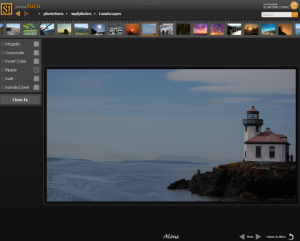
The image browser. You can browse the images using the top control which looks like a film strip (and which is a ListBox by the way :p)

browse2

Note the use of pixel shaders when selecting an image in the ListBox

browse1

The use of pixel shaders over an image (water effect)

fx

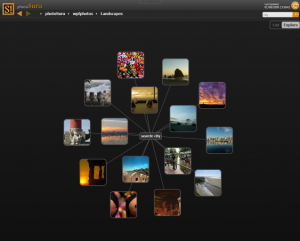
The search functionality is wonderful ! Basically, you type a keyword and you get a set of images. By clicking an images, you’ll discover the keywords that are attached to this image. You can this way navigates easily from images to images…

search1

I hope I’ll have some free time to investigate the source code. I’m sure there are a lot of things to learn in this new application.

XAML guidelines: interviews of WPF masters

Getting back to work this morning, I opened my Google Reader to have a look at the RSS feeds I’m reading.

I found a nice video on Channel9: “XAML Guidelines, Part 2”. The first episode, where Jaime Rodriguez interviews 3 people from Identity Mines is also available on Channel9 (unfortunately, the sound is rather poor on this episode…).

This time, Jaime meets up with Unni Ravindranathan from the Expression Blend team. During the shot, they open the Blend source code project inside Blend (sounds nice isn’t it :p). Unni explains the structure of the project, their conventions, how resources are used, etc.

I think Blend is an application we can learn a lot from. If you’re also interested to understand what architecture Blend uses, you can check out this post from Paul Stovell.

Here are some notes I took while watching the video:

  • Blend is shipped with 2 themes: Expression Light & Expression Dark
  • Blend resources are stored in (only !) 3 resources dictionaries
  • Resources are categorized into Colors, Brushes and Styles
  • Blend defines a set of margins and thicknesses that are used in the entire application to ensure a consistency across the different layouts
  • By convention, Name and Key properties are always defined first in the XAML
  • Properties might be spitted over several lines, if this is the case; properties are grouped together by types (style, size, appearance…)
  • Blend 3 will add extensibility and improve XAML code generation:
      – Name will always be the first property
      – Better control over how the XAML is formatted
  • Name everything versus name nothing? Blend names almost everything, it helps UI automation
  • Static resources versus dynamic resources? No big performance impact, Blend mostly uses dynamic resources
  • When design time doesn’t work fine in Blend
      – An exception can occur when Blend is creating the control because the running process is Blend itself and not the application we are creating
      – Add tests to check if code is running in design mode (you can use System.ComponentModel.DesignerProperties.GetIsInDesignMode(DependencyObject) method)
      – Debug Blend process by attaching an instance of Visual Studio to Blend
  • Blend is a big application:
      – 300 000 lines of XAML
      – 500 000 lines of C#

If you want more information about fixing error that we can have in Blend (while the application works properly at run time), you can check out this post of Jaime.

Why should I use Model-View-ViewModel pattern

Recently, while discussing a WPF issue on a forum, I discovered that some people didn’t know anything about the Model-View-ViewModel pattern. I’m not an expert of MVVM as I discovered it a couple of months ago. I started to use it on my first real project at work, which involve a pretty big application using advanced TreeView, Ribbon, on-demand graphic creation, a C++ kernel, datagrid, etc. The MVVM pattern helps me to keep my design as clean as possible. In this post, I’d like to give you some of the aspects of the MVVM pattern, and useful links across the web.

If you find yourself:

  • having huge .xaml.cs code behind file
  • using event handler (such as Click…) everywhere
  • tweaking TreeViewItem (using ItemContainerGenerator for example) to manipulate a TreeView
  • having tons of IValueConverter
  • … then MVVM might come to the rescue :p

What MVVM can offer?

  • a clean and well defined separation between the Model and the View
  • the possibility to easily leverage the power of WPF: databinding, commands, validation, and more
  • a code that is testable
  • an organization that facilitate the workflow between designers and developers
  • minimalist code-behind file (which leads to testable code)
  • facilitate the deployment of an application in multiple environment (WPF / Silverlight)

How is that possible?

Here is a part of the introduction of John Gossman:

“In simple examples, the View is data bound directly to the Model. For example, a boolean in the Model can be data bound to a CheckBox, or a string field to a TextBox. In practice however, only a small subset of application UI can be data bound directly to the Model, especially if the Model is a pre-existing class or data schema over which the application developer has no control.
The Model is very likely to have a data types that cannot be mapped directly to controls.  Finally we need a place to put view state such as selection or modes.
The ViewModel is responsible for these tasks.  In this latter role the ViewModel contains data-transformers that convert Model types into View types, and it contains Commands the View can use to interact with the Model.”
viewmodel

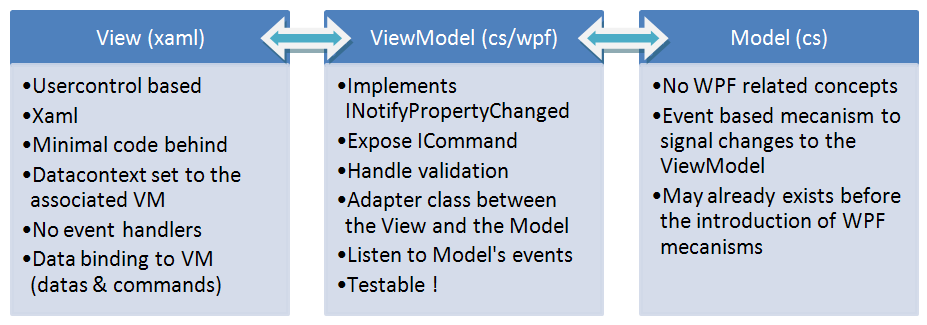
  • The View has the associated ViewModel set as its DataContext so that the View can easily data bind to ViewModel properties
  • The ViewModel reflects its changes to the Model by calling appropriate methods on the Model
  • The ViewModel exposes ICommand that the View data bind to, in order to execute actions
  • The Model signals its changes to the ViewModel by raising events

What are good resources to start working with MVVM?

  • Karl Shifflett started a series about MVVM, you can find his work here.
  • Karl and Josh Smith wrote a very nice application that uses MVVM pattern. Moreover the application contains also information about internalization support. Check out the CodeProject article here.
  • Karl wrote an article about a very important concept: user input validation. This is the first article of his new MVVM series.
  • WPF architect, John Gossman wrote a series of blog post about MVVM on his blog. An introduction to MVVM is available and a good point to start.
  • Josh Smith wrote an excellent tool, Crack.Net which is built using MVVM. Crack.Net is hosted on CodePlex, and studying the source code is a very good manner to understand how stuff fits together in the MVVM world.
  • Josh Smith wrote an article about applying MVVM concepts to the WPF treeview. If you must work with a complex treeview, then you MUST read this article.
  • Marlon Grech wrote an article about ICollectionView. ICollectionView is a useful interface that can be used in ViewModel classes to keep track user selection

If you never heard about MVVM, or never take the time to look at it, I suggest you to take a look at some of those links. Trust me, the investisment worth it !