Post updated Jan. 2nd 2014 to fix a bug when items have a background.
A couple of weeks ago I started prototyping with a friend a behavior in order to improve the grouping in the ListBox control. Today, I’m finally taking time to write a post about this adventure 🙂
My overall goal was to have the group headers always visible and smoothly moving while the content of the control was scrolled. Here is a video showing the demo application running:
[flashvideo file=http://www.japf.fr/wp-content/uploads/2010/11/OverlayGroupingBehavior.mp4 /]
Download the code (VS2010 required)
Of course I wanted to have the cleanest implementation possible, and as I think you already know, this where the WPF behavior comes to the rescue ! Let’s see how this is possible.
Note:
- You must be aware that enabling group in your ListBox will disable UI virtualization. This might not be a problem if the databound collections is small (<100/200) but if the collection is very large, you might get into performance problem. However this limitation might be fixed in the next release of WPF (see my post about it here).
- This solution is not 100% compatible with keyboard selection and should be improved to work properly.
Anatomy of a ListBox when grouping is enabled
In order to create this behavior, I had to carefully look the Visual Tree of a ListBox when grouping is enabled. I used Snoop to do so, and I was able to get the following picture:
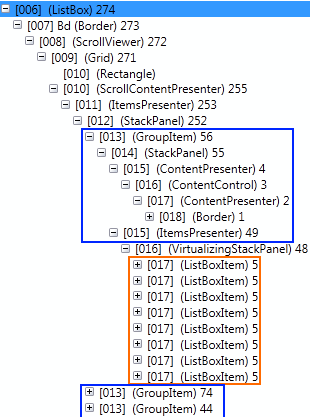
As you can see, for each group, we have a GroupItem control. However, we cannot direcly apply a transform to this element because it both contains the header (in a ContentPresenter) and the items in the group (in an ItemsPresenter).
Introducing the OverlayGroupingBehavior
The behavior actually walks in the visual tree to find out the interesting part. In our case, we want to attach a TranslateTransform to the headers of each GroupItem. Then, using simple mathematics, we can figure out the needed Y-translation to move the header at the top position of the ListBox.
Here are some details about the behavior:
- the class inherits Behavior<ListBox>
- we override the OnAttached method, and in this method we register an event handler for the LayoutUpdated of the associated ListBox
- in the LayoutUpdated handler, we update the transforms
using System;
using System.Linq;
using System.Windows;
using System.Windows.Controls;
using System.Windows.Interactivity;
using System.Windows.Media;
using DemoAnimatedGroup.Helpers;

namespace DemoAnimatedGroup.Behaviors
{
    public class OverlayGroupingBehavior : Behavior
    {
        protected override void OnAttached()
        {
            this.AssociatedObject.LayoutUpdated += new EventHandler(this.OnLayoutUpdated);
        }

        private void OnLayoutUpdated(object sender, EventArgs e)
        {
            ListBoxItem topListBoxItem1;
            GroupItem topGroupItem1, topGroupItem2;
            ContentPresenter topPresenter1, topPresenter2 = null;
            double topOffset1, topOffset2 = -1;

            // find the first ListBoxItem which is at the top of the control
            topListBoxItem1 = this.GetItemAtMinimumYOffset();
            if (topListBoxItem1 == null)
                return;

            // get all group items order by their distance to the top
            var groupItems = TreeHelper.FindVisualChildren(this.AssociatedObject)
                                       .OrderBy(this.GetYOffset)
                                       .ToList();

            // from the GroupItem, find the ContentPresenter on which we can apply the transform
            topGroupItem1 = TreeHelper.FindVisualAncestor(topListBoxItem1);
            topPresenter1 = TreeHelper.FindVisualChildren(topGroupItem1).First(cp => cp.Name == "PART_GroupHeader");
            topOffset1 = this.GetYOffset(topPresenter1);

            // try to find the next GroupItem and its presenter
            var index = groupItems.IndexOf(topGroupItem1);
            if (index + 1 < groupItems.Count)
            {
                topGroupItem2 = groupItems.ElementAt(index + 1);
                topPresenter2 = TreeHelper.FindVisualChild(topGroupItem2);
                topOffset2 = this.GetYOffset(topPresenter2);
            }

            // update transforms
            if (topOffset2 < 0 || topOffset2 > topPresenter1.ActualHeight)
                this.SetGroupItemOffset(topPresenter1, topOffset1);

            if(topPresenter2 != null)
                topPresenter2.RenderTransform = null;
        }

        private T GetItemAtMinimumYOffset() where T : UIElement
        {
            var minOffset = double.MaxValue;
            T topItem = null;
            foreach (var item in TreeHelper.FindVisualChildren(this.AssociatedObject))
            {
                var offset = this.GetYOffset(item);
                if (Math.Abs(offset) <= Math.Abs(minOffset))
                {
                    minOffset = offset;
                    topItem = item;
                }
            }

            return topItem;
        }

        private void SetGroupItemOffset(ContentPresenter groupHeader, double offset)
        {
            if (groupHeader.RenderTransform as TranslateTransform == null)
                groupHeader.RenderTransform = new TranslateTransform();

            ((TranslateTransform)groupHeader.RenderTransform).Y -= offset;
        }

        private double GetYOffset(UIElement uiElement)
        {
            var transform = (MatrixTransform) uiElement.TransformToVisual(this.AssociatedObject);
            return transform.Matrix.OffsetY;
        }
    }
}
Using the behavior
It's more than easy to enable this functionality in any existing app. In the XAML, all you have to do is to attach the behavior to the targeted ListBox:
If you're not already grouping items in your ListBox, here is how to do it:
var cv = CollectionViewSource.GetDefaultView(viewmodel.Cities);
cv.GroupDescriptions.Add(new PropertyGroupDescription("Country"));
Useful resources
- An introduction to the possibilities of the ICollectionView interface by Marlon Grech
- An introduction to the concept of behaviors in WPF here and here by Christian Schormann
Hi,
nice grouping. How can I get it to work work with Items that have a White Background ? Or how can I set the TopGroupingItem in the Front?
Best regards
frank
Hi Frank,
I’m sorry I don’t understand your question. Does the code I shared has problems when you want to use a background ?
Cheers,
Jeremy
Hi Jeremy,
yes when my listbox item have a background, then the item is displayed over the TopGroupingItem. I test it with Panel.ZIndex=”-1″, but this dosn’t work.
you can test it with this change(Background=”white”):
…
…
ErrorImage
regards
frank
Hi,
ups i forgot the
tags, here is the code:frank
Hi Frank,
Sorry for the very late reply. I finally had time to take a look and was able to improve this scenario. I updated the source code in the blog post with the latest version.
Basically, the idea is:
– define a style with a template for the GroupItem so that we can set a specific ZIndex for the group header
– give a name to the group header to that we can grad it in the behavior and apply the appropriate transform to it
Hope it helps,
Cheers,
Jeremy
I am seeking a lightweight groupedlist with sticky headers alternative for the Windows Phone 8.1 WinRT platform. Could you give me some pointers on how to implement this on Windows Phone 8.1 WinRT. I might even be more satisfied with a non-MVVM i.e. non-itemssource-databound solution.