All posts by Jeremy

Using Snoop to take a look at VS2010 !

Update 18th january 2011: as Cory pointed out, the latest version of Snoop is now available on CodePlex.

If like me you’re curious about how big WPF applications are made, you probably tried to use Snoop to inspect the visual tree of Visual Studio 2010 Beta2. And you probably had a problem because Snoop wasn’t able to detect the devenv process of VS2010:

I wasn’t sure about the cause of this problem, but I grab the source of Snoop and took a look at the code that list the available window:

public void Refresh() {
	this.windows.Clear();

	foreach (IntPtr windowHandle in NativeMethods.ToplevelWindows) {
		WindowInfo window = new WindowInfo(windowHandle, this);
		if (window.IsValidProcess && !this.HasProcess(window.OwningProcess))
			this.windows.Add(window);
	}

	if (this.windows.Count > 0)
		this.windowsView.MoveCurrentTo(this.windows[0]);
}

I setup a breakpoint to find out what was wrong and discover that the window.IsValidProcess failed with the VS2010 process. Because I just wanted to check if it was the only reason why Snoop wasn’t able to inspect it, I hack the code to remove this test:

public void Refresh() {
	this.windows.Clear();

	foreach (IntPtr windowHandle in NativeMethods.ToplevelWindows) {
		WindowInfo window = new WindowInfo(windowHandle, this);
		if (/*window.IsValidProcess &&*/ !this.HasProcess(window.OwningProcess))
			this.windows.Add(window);
	}

	if (this.windows.Count > 0)
		this.windowsView.MoveCurrentTo(this.windows[0]);
}

And it’s working:
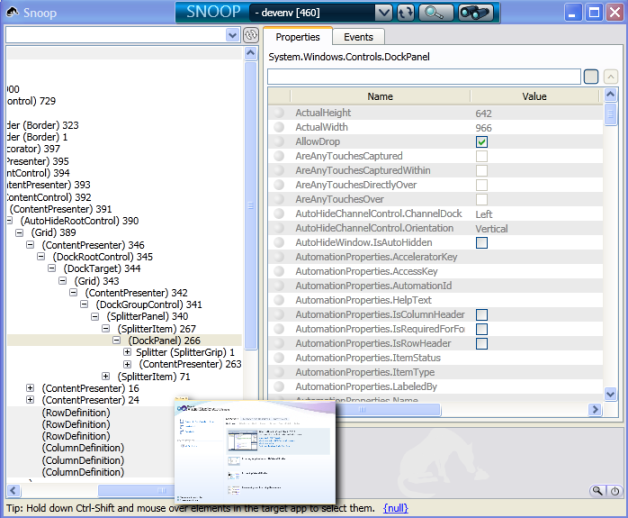
vs2010-snoop

Happy exploration with Snoop 🙂

How to measure rendering time in a WPF application ?

Last week, a colleague of mine asked me an interesting question: “I’m filling a control with content and I’d like to measure the time needed to render my control. How can I do that ?”

The first approach is to measure the elapsed time needed to instantiate and populate the control from C# code. We can use the StopWatch class to have a precise and easy to use measuring tool.

Stopwatch sw = new Stopwatch();
sw.Start();

for (int i = 0; i < 5000; i++)
{
  // here is the operation that fills the control
  this.canvas.Children.Add(new Rectangle());
}

sw.Stop();
MessageBox.Show("Took " + sw.ElapsedMilliseconds + " ms");

However this approach will not give good results because we're not taking into account the time needed to render elements in the visual tree. This is because elements are not rendered when you call the Add methods (for example in a Canvas) but when the visual tree is fully loaded.

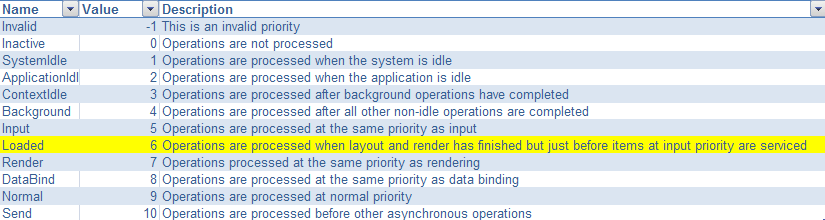
A much better approach is to use the Dispatcher and request it to process an action at a priority right bellow the Render priority which is the Loaded priority:

dispatcherpriority

Using this trick, we ensure that all rendering actions have been completed. We can use the following code to do that:

Stopwatch sw = new Stopwatch();
sw.Start();

for (int i = 0; i < 5000; i++)
{
  // here is the operation that fills the control
  this.canvas.Children.Add(new Rectangle());
}

this.Dispatcher.BeginInvoke(
  DispatcherPriority.Loaded,
  new Action(() =>
  {
    sw.Stop();
    MessageBox.Show("Took " + sw.ElapsedMilliseconds + " ms");
  }));

Hope this helps !