Category Archives: WPF

A WPF behavior to improve grouping in your ListBox

Post updated Jan. 2nd 2014 to fix a bug when items have a background.

A couple of weeks ago I started prototyping with a friend a behavior in order to improve the grouping in the ListBox control. Today, I’m finally taking time to write a post about this adventure 🙂

My overall goal was to have the group headers always visible and smoothly moving while the content of the control was scrolled. Here is a video showing the demo application running:

[flashvideo file=http://www.japf.fr/wp-content/uploads/2010/11/OverlayGroupingBehavior.mp4 /]

Download the code (VS2010 required)

Of course I wanted to have the cleanest implementation possible, and as I think you already know, this where the WPF behavior comes to the rescue ! Let’s see how this is possible.

Note:

  • You must be aware that enabling group in your ListBox will disable UI virtualization. This might not be a problem if the databound collections is small (<100/200) but if the collection is very large, you might get into performance problem. However this limitation might be fixed in the next release of WPF (see my post about it here).
  • This solution is not 100% compatible with keyboard selection and should be improved to work properly.

Anatomy of a ListBox when grouping is enabled

In order to create this behavior, I had to carefully look the Visual Tree of a ListBox when grouping is enabled. I used Snoop to do so, and I was able to get the following picture:
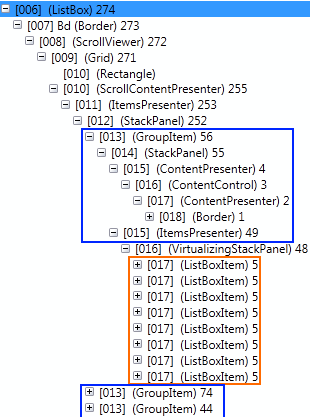
As you can see, for each group, we have a GroupItem control. However, we cannot direcly apply a transform to this element because it both contains the header (in a ContentPresenter) and the items in the group (in an ItemsPresenter).

Introducing the OverlayGroupingBehavior

The behavior actually walks in the visual tree to find out the interesting part. In our case, we want to attach a TranslateTransform to the headers of each GroupItem. Then, using simple mathematics, we can figure out the needed Y-translation to move the header at the top position of the ListBox.

Here are some details about the behavior:

  • the class inherits Behavior<ListBox>
  • we override the OnAttached method, and in this method we register an event handler for the LayoutUpdated of the associated ListBox
  • in the LayoutUpdated handler, we update the transforms
using System;
using System.Linq;
using System.Windows;
using System.Windows.Controls;
using System.Windows.Interactivity;
using System.Windows.Media;
using DemoAnimatedGroup.Helpers;

namespace DemoAnimatedGroup.Behaviors
{
    public class OverlayGroupingBehavior : Behavior
    {
        protected override void OnAttached()
        {
            this.AssociatedObject.LayoutUpdated += new EventHandler(this.OnLayoutUpdated);
        }

        private void OnLayoutUpdated(object sender, EventArgs e)
        {
            ListBoxItem topListBoxItem1;
            GroupItem topGroupItem1, topGroupItem2;
            ContentPresenter topPresenter1, topPresenter2 = null;
            double topOffset1, topOffset2 = -1;

            // find the first ListBoxItem which is at the top of the control
            topListBoxItem1 = this.GetItemAtMinimumYOffset();
            if (topListBoxItem1 == null)
                return;

            // get all group items order by their distance to the top
            var groupItems = TreeHelper.FindVisualChildren(this.AssociatedObject)
                                       .OrderBy(this.GetYOffset)
                                       .ToList();

            // from the GroupItem, find the ContentPresenter on which we can apply the transform
            topGroupItem1 = TreeHelper.FindVisualAncestor(topListBoxItem1);
            topPresenter1 = TreeHelper.FindVisualChildren(topGroupItem1).First(cp => cp.Name == "PART_GroupHeader");
            topOffset1 = this.GetYOffset(topPresenter1);
            
            // try to find the next GroupItem and its presenter
            var index = groupItems.IndexOf(topGroupItem1);
            if (index + 1 < groupItems.Count)
            {
                topGroupItem2 = groupItems.ElementAt(index + 1);
                topPresenter2 = TreeHelper.FindVisualChild(topGroupItem2);
                topOffset2 = this.GetYOffset(topPresenter2);            
            }
                       
            // update transforms
            if (topOffset2 < 0 || topOffset2 > topPresenter1.ActualHeight)
                this.SetGroupItemOffset(topPresenter1, topOffset1); 

            if(topPresenter2 != null)
                topPresenter2.RenderTransform = null;
        }

        private T GetItemAtMinimumYOffset() where T : UIElement
        {
            var minOffset = double.MaxValue;
            T topItem = null;
            foreach (var item in TreeHelper.FindVisualChildren(this.AssociatedObject))
            {
                var offset = this.GetYOffset(item);
                if (Math.Abs(offset) <= Math.Abs(minOffset))
                {
                    minOffset = offset;
                    topItem = item;
                }
            }

            return topItem;
        }

        private void SetGroupItemOffset(ContentPresenter groupHeader, double offset)
        {
            if (groupHeader.RenderTransform as TranslateTransform == null)
                groupHeader.RenderTransform = new TranslateTransform();

            ((TranslateTransform)groupHeader.RenderTransform).Y -= offset;
        }

        private double GetYOffset(UIElement uiElement)
        {
            var transform = (MatrixTransform) uiElement.TransformToVisual(this.AssociatedObject);
            return transform.Matrix.OffsetY;
        }
    }
}

Using the behavior

It's more than easy to enable this functionality in any existing app. In the XAML, all you have to do is to attach the behavior to the targeted ListBox:


If you're not already grouping items in your ListBox, here is how to do it:

var cv = CollectionViewSource.GetDefaultView(viewmodel.Cities);
cv.GroupDescriptions.Add(new PropertyGroupDescription("Country"));

Useful resources

Download the code (VS2010 required)

[PDC10] WPF vNext

Day 1 of PDC 2010 is now over and I had the chance to watch the “WPF vNext” session by Rob Relyea. You can follow this link if you want to watch the video on-demand.

History

Rob starts with an history of Microsoft products from Windows 95 and IE 1.0…

The Blend team was created to build tools that would meet developers and designers needs. They worked closely with the Avalon team (codename for WPF) to make sure the platform was adequate and toolable.

Then the Cider team started their work in order to have a good integration in Visual Studio.

At this point, .Net 3.0 hasn’t shipped yet (it was in 2006), but Microsoft already has the vision of having XAML-based technology in the browser (with what would become Silverlight) and on the phone.

Silverlight & WPF

Silverlight

  • focuses on premium media experiences and business applications
  • suitable for most other types of application

WPF

  • complex ISV (Independent Software Vendors) applications
  • key scenarios includes DX and Hwnd interop

Convergence

  • bringing key features of WPF into Silverlight
  • WPF will support Silverlight hosting in the next version

ISV needs

  • great Windows applications
  • modern UI
  • seamless integration
  • rich content

Microsoft adoption of WPF

  • Visual Studio 2010
  • Expression Studio
  • Web Matrix
  • Powershell ISE
  • more to announce from Microsoft, but not during this PDC…

WPF vNext

  • integration of the Ribbon in WPF
  • improved collections handling in background thread (simplify the problem related to the UI thread)
  • improved UI virtualizing and grouping (right now virtualization is disabled as soon as you group data in an ItemsControl)
  • seamless integration: new SilverlightHost control (so we’ll be able to have DeepZoom in WPF !)
  • hwnd-based will no longer have airspace problem (for example, a Winforms control is always rendered on top of all other WPF controls).

As a conclusion, it’s good to see Microsoft finally giving some information about the future of WPF. The most important part I guess is to understand that Microsoft is still doing improvements on WPF and positioning WPF as the key technology for building apps with modern UI on Windows. We might have more and more applications switching to Silverlight but I’m sure they are still a lot of need for a technology like WPF which can use the whole power of the Windows OS (wheter it’s interop with native code, DirectX or other technologies).

For more information, you can also check-out a blog post from Pete Brown entitled “The Present and Future of WPF“.

WPF internals part 3 : how Z-Index works ?

Almost 1 year ago, I started a series of blog posts entitled “WPF Internals”. I though I’d have more time to write entries on this subject but I wrote only 2 subjects:

Today, I’m ready to share with you part 3: how the Z-Index functionality works ? As for the other article of this series of blog post, the information I’m sharing here is based on my personal understanding of how stuff works. It might be wrong on some points !

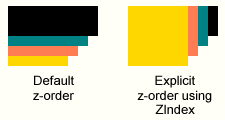
The Z-Index is a property which can be set in order to control the order of appearance of your control:

In WPF it’s the Panel type which defines an attached property called Zindex:

public static readonly DependencyProperty ZIndexProperty = DependencyProperty.RegisterAttached(
	"ZIndex", 
	typeof(int), 
	typeof(Panel), 
	new FrameworkPropertyMetadata(0, new PropertyChangedCallback(Panel.OnZIndexPropertyChanged)));

which register a PropertyChangedCallback to be notified whenever its value changes. This method finally calls another method:

internal void InvalidateZState()
{
    if (!this.IsZStateDirty && (this._uiElementCollection != null))
    {
        base.InvalidateZOrder();
    }
    this.IsZStateDirty = true;
}

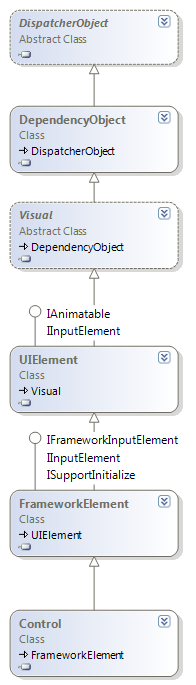
As you can see, the value of the IsZStateDirty property is set to true. We’ll soon see when this value is used. The InvalidateZOrder() is actually found in the Visual class. Here is a brief reminder of the core WPF types:

So, in the Visual type we have the InvalidateZOrder() method:

[FriendAccessAllowed]
internal void InvalidateZOrder()
{
    if (this.VisualChildrenCount != 0)
    {
        this.SetFlags(true, VisualFlags.NodeRequiresNewRealization);
        /* … */
    }
} 

Which, as you can see, update the value of an enumeration (VisualFlags). Then the chain of method call stops here. The next interesting steps is when the GetVisualChild method (from the FrameworkElement type) gets called in the Panel type:

if (this.IsZStateDirty)
{
    this.RecomputeZState();
}

The RecomputeZState is a private method of the Panel class. The goal of this method is to update an array of int which is used as a lookup-table in order to convert the visual elements from their logical positions to their visual positions. At the end of this method, which is by the way highly-optimized with stuff like this

int z = _elements[i] != null
? (int)z = _elements[i].GetValue(ZIndexProperty)
: zIndexDefaultValue;

stableKeyValues.Add(((Int64)z << 32) + i);
lutRequired |= z < prevZ;
prevZ = z;

isDiverse |= (z != consonant);

the IZStateDirty value is set to false, and the zLut (z-order look up table, an int[]) is up-to-date. The the GetVisualChild method simply use the lookup table to convert logical position to visual position

int num = (this._zLut != null) ? this._zLut[index] : index;
return this._uiElementCollection[num];

Summary:

  • The Z-Index functionality of WPF is implemented using an attached property
  • This attached property is defined in the Panel type
  • When the value of the attached property changes, a flag is set at the Visual level and at the Panel level
  • When the GetVisualChild methods gets called on the Panel, the dirty status of the Z-Index is check
  • If necessary, a lookup-table is computed to convert logical position (in the Children collection) from visual position
  • Changing the ZIndex property of a child object does not change its position within the collection. The ordering within the collection remains the same